How to Connect Slack with ClickUp (With or Without an AI Agent)
Connect Slack and ClickUp so task events trigger Slack messages automatically, or run the whole loop as a FlowRunner AI agent that pauses for human judgment on the calls that carry weight.
How do you connect Slack to ClickUp?
You connect Slack to ClickUp by setting On Task Created (or On Task Updated) in ClickUp as the trigger and Send Message to Channel in Slack as the action, so new or changed tasks post updates to your team automatically. FlowRunner is a visual AI-agent orchestration platform where automations run autonomously and pause for human judgment on the steps that carry real consequence. The same connection can run as an AI agent that reads each task, scores it against your routing rules, routes the clear cases without touching a human, and sends a Slack message with decision buttons only when it hits something genuinely ambiguous.
The problem operations teams are solving
Most teams run their work out of ClickUp and their communication out of Slack. The two systems do not talk to each other natively in any useful way. When a new task lands in the triage list, someone has to open ClickUp, read it, decide who owns it and how urgent it is, set the fields, and then go into Slack to tell the right person. That manual loop runs every time a task comes in. For a team handling dozens of requests a day, it is hours a week of work that produces no value.
The sharper problem is what falls through the cracks. Tasks sit unassigned in the queue until a lead happens to look. Ownership is inconsistent because different people apply different standards when triaging. Blocked tasks roll forward silently. Nobody knows the state of the queue without pulling a report by hand. The team ends up managing the process instead of doing the work.
How it works: the connection
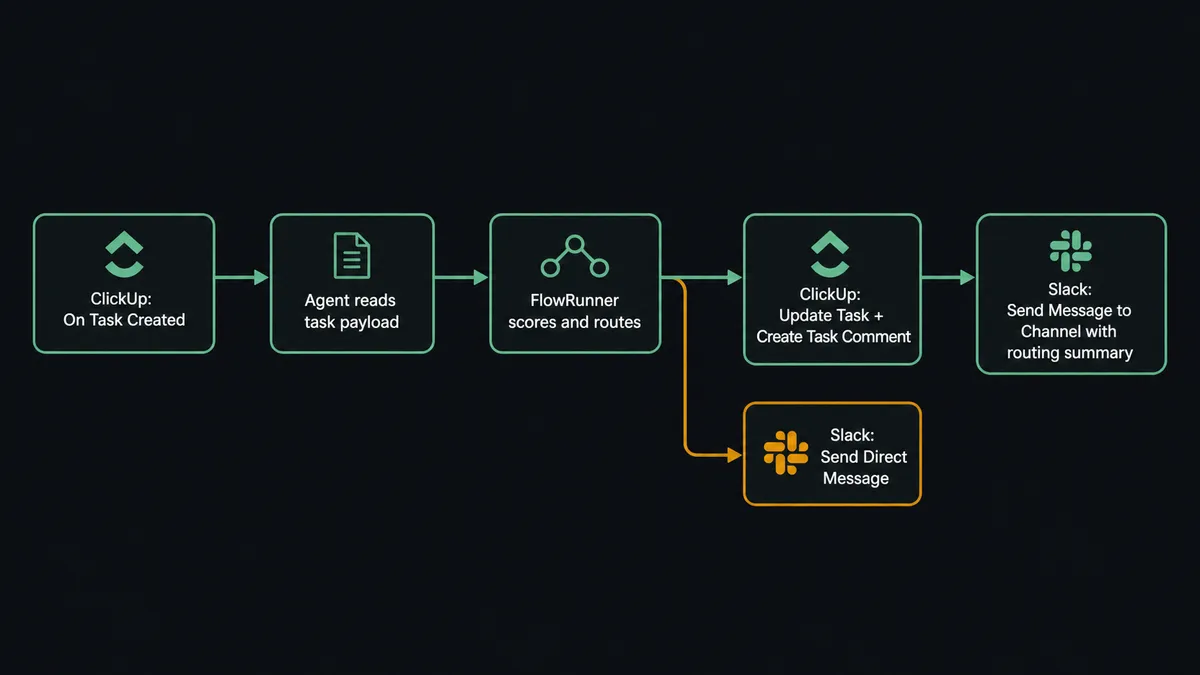
The basic connection runs in one direction: ClickUp triggers an event, FlowRunner routes it to Slack.
On Task Created fires the instant a task is created in a monitored list, delivered by a native ClickUp webhook with no polling lag. The agent reads the task payload: title, description, the priority field, current assignees, and any custom field values that carry routing meaning. It then runs Send Message to Channel to post a structured update to the channel where your ops team works, or Send Direct Message to route a notification directly to the relevant person.
On Task Updated works the same way for progress events. A task moves to “in progress” and the trigger fires. The agent posts a status update to the channel, logs a Create Task Comment directly on the task, and optionally starts a Create Time Entry so the time log stays current without anyone touching it manually.
The reverse direction works too. A message posted to a monitored Slack channel via On Channel Message can kick off Create Task in ClickUp. Your team drops a request or a vendor message in a Slack channel and the agent turns it into a tracked task with the right list, priority, and assignee already set.
Can an AI agent run it? (And why a human stays in the loop)
A trigger-action connection handles the routine case. An AI agent handles the full operation, including the exceptions a rule-based tool cannot reach.
When On Task Created fires, the agent does not just forward a notification. It reads the task title and description, evaluates the priority field against your routing rules, checks whether the request matches a known project type, and decides: auto-route or escalate. Clear cases get Update Task called immediately with priority and assignee set, plus a Create Task Comment that logs the decision and the reasoning. The team does not touch those tasks. They are already routed by the time anyone opens ClickUp.
The agent invokes a human only when the task scores between its confidence thresholds. Not based on a hardcoded amount or a fixed field value. Based on what the agent finds when it reads the task. A request that lands in the triage list without enough context to assign safely, a task from a new client type the agent has not seen routed before, a high-priority label on something that reads like low-priority work. Those are the moments the agent stops.
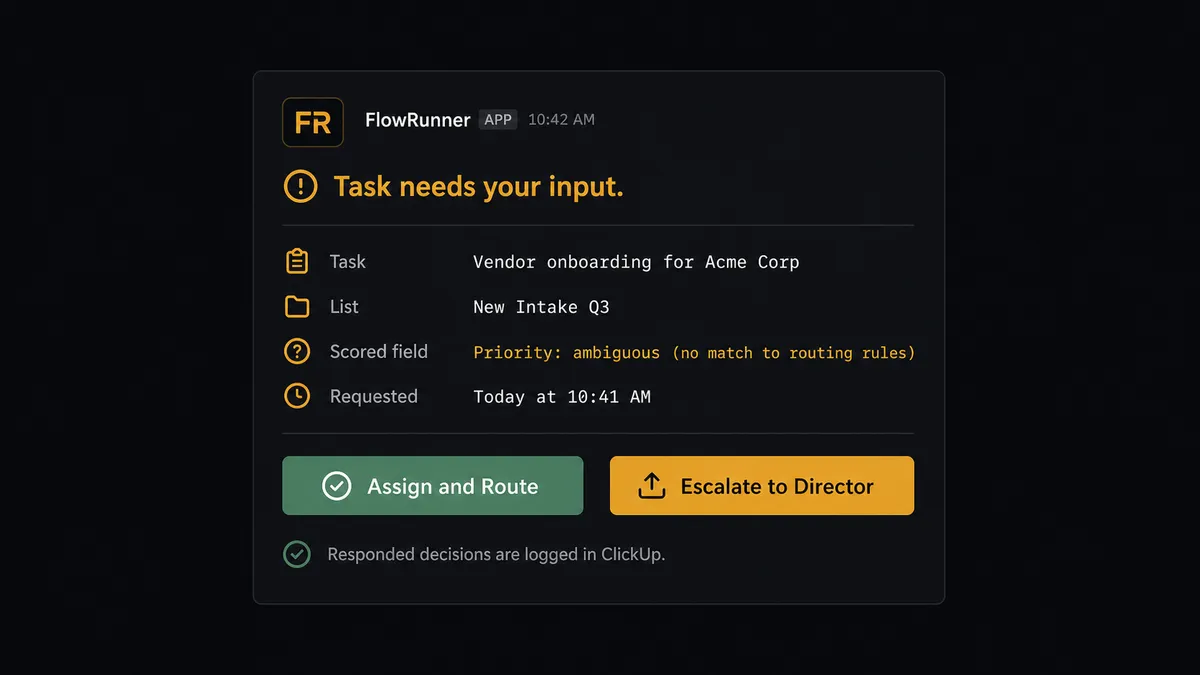
When it stops, it sends a Slack direct message to the team lead: “A new task ‘Vendor onboarding for Acme Corp’ landed in the intake list. It scored ambiguous on priority and ownership. Set the priority and assign an owner?” The message includes the task name, the list it arrived in, and the specific field that triggered the uncertainty. The lead sees Approve or Set Priority buttons inline. One tap. The agent resumes.
The On Block Action trigger in Slack collects that decision and routes it back into the workflow. The agent runs Update Task with the confirmed values, posts Create Task Comment to log who decided and when, and adds the task to the appropriate saved view via Add Task Tag. The decision sits in the ClickUp audit trail and in the FlowRunner execution log. The team lead handled an exception in under two minutes without opening ClickUp.
Prospects call this a digital andon cord: FlowRunner stops the line when the agent hits uncertainty, gets a human decision, and restarts. This is not a sync tool. The agent knows when to stop and ask.
FlowRunner vs Zapier
Zapier is the right answer for teams that want a simple, reliable trigger-action connection between Slack and ClickUp with minimal setup. It handles the basic sync case well, has a large template library, and requires no technical skill to use.
Where FlowRunner is different:
| Capability | Zapier | FlowRunner |
|---|---|---|
| Basic Slack-to-ClickUp trigger/action | Yes | Yes |
| AI agent that reads and reasons about each task | No | Yes |
| Human-in-loop as a callable agent tool | No | Native |
| Interactive Slack buttons route back into the workflow | No | Yes (On Block Action) |
| Audit trail: decision, decider, timestamp | No | Yes, every step |
| Unlimited users on every tier | No (seat-based pricing) | Yes |
| BYOK for AI provider | No | Yes |
| Self-hosted deployment | No | Yes (Community Edition) |
Zapier executes a fixed sequence every time. FlowRunner agents read the data, reason about it, and choose which actions to call and in what order. When the agent is not sure, it stops and asks. Zapier cannot do that.
Before and after
| Metric | Before | After |
|---|---|---|
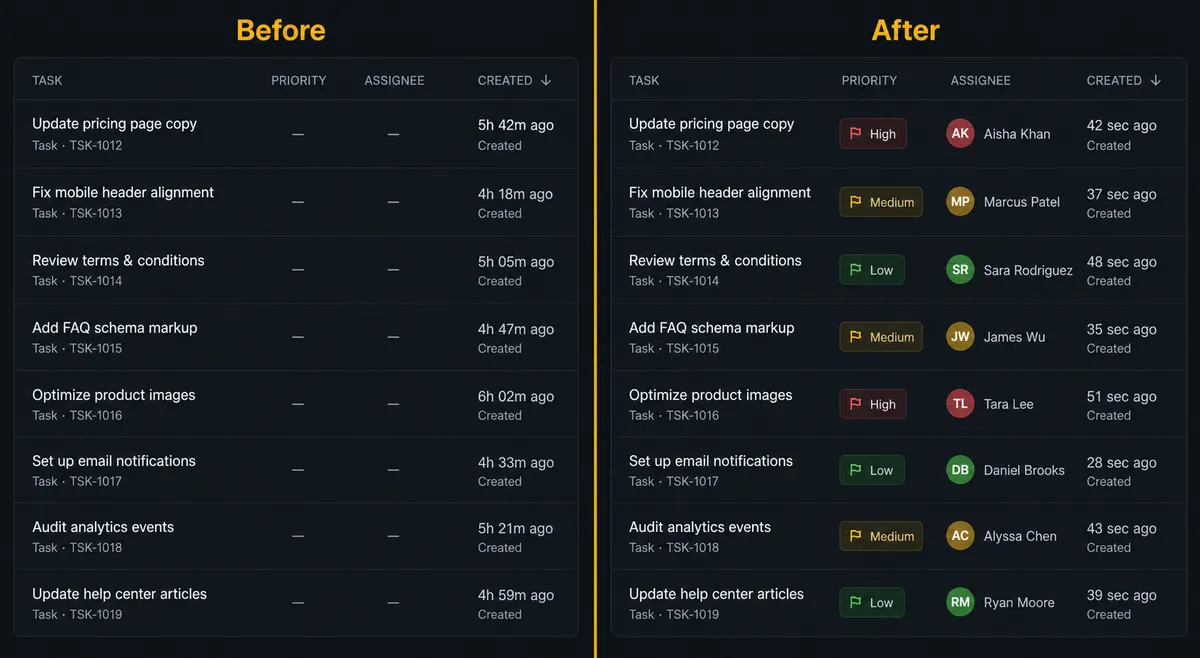
| Task triage time | A lead reads every new task manually to set priority and pick an owner | Tasks that match routing rules are prioritized and assigned the moment they arrive |
| Assignment consistency | Different leads apply different standards; routing is uneven | Every task is scored the same way, with the same logic, every time |
| Time to assignment for clear cases | Hours (until a lead gets to the queue) | Seconds (webhook fires, agent acts, task is routed) |
| Exceptions handled | Email threads or Slack messages to track down the right person | Slack direct message with decision buttons; lead responds in under 2 minutes |
| Progress trail | Status and time updates logged by hand or not at all | Agent comments and time entries written automatically as work moves |
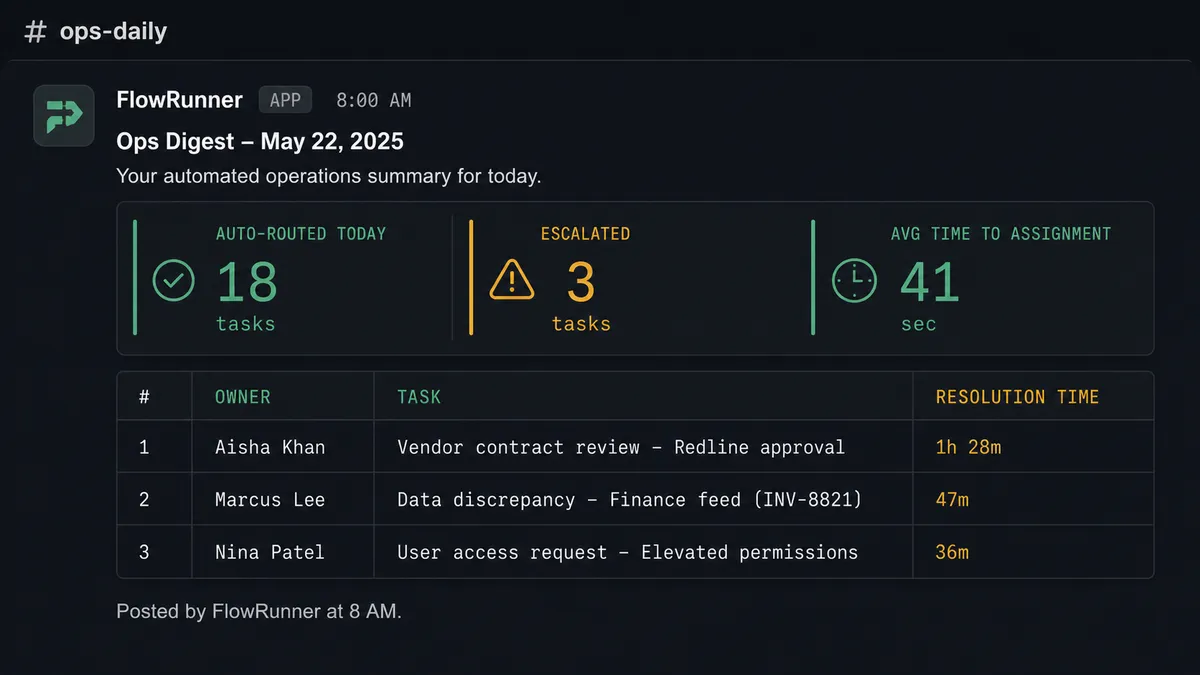
| Visibility | Leaders pull reports manually to understand queue state | Agent posts a nightly Slack digest: tasks auto-routed, tasks escalated, average time to assignment |
What you can build
New task triage with Slack escalation. On Task Created fires when a form or email creates a task in the intake list. The agent scores it, sets priority and assignee for clear cases via Update Task, and sends a Send Direct Message to the lead for anything ambiguous. The lead responds with interactive buttons and the agent routes from there.
Status-change digest to a Slack channel. On Task Updated fires when tasks move to “in progress” or “blocked.” The agent reads the updated task with Get Task, posts a Create Task Comment logging the status change, and sends a formatted Send Message to Channel update to #ops-daily so the team sees progress without checking ClickUp.
Blocked task escalation before the due date. On a schedule, the agent runs Get Tasks on a list, filters for tasks past their due date with a “blocked” status, and sends a Send Direct Message to the task owner in Slack: “Task ‘[Name]’ is blocked and past due. Needs a decision: reschedule, re-scope, or escalate?” The owner responds and the agent runs Update Task with the new due date or status.
Slack-to-ClickUp task creation. On Channel Message fires when a message lands in a monitored channel like #client-requests. The agent reads the message, extracts the request details, runs Create Task in the right ClickUp list with priority and assignee already set, and replies in the Slack thread with a link to the task.
Nightly operations digest. On a schedule, the agent reads multiple ClickUp lists with Get Tasks, aggregates the count of completed, in-progress, and blocked tasks, and posts a structured Block Kit report to #operations via Send Message to Channel. Leadership gets queue visibility without pulling a report manually.
Getting started
FlowRunner has a free plan with 100 executions a month, every integration included, and no credit card required, and new accounts get 14 days of Professional on top. Corporate email required to sign up.
Both connectors are live and verified against their APIs. Start with the Slack integration at /integrations/slack and the ClickUp integration at /integrations/clickup.
Start your trial at flowrunner.ai or book a 30-minute walkthrough at calendly.com/flowrunner/intro. The walkthrough covers triage automation in the first 10 minutes.
Frequently asked questions
Is it free to connect Slack and ClickUp on FlowRunner?
FlowRunner has a free plan with 100 executions a month, every integration included, and no credit card required, and new accounts get 14 days of Professional on top. Corporate email required.
Can I self-host the Slack and ClickUp integration?
Yes. FlowRunner offers a self-hosted Community Edition at no cost. The cloud-hosted Professional tier ($299/mo) adds full audit trails and RBAC if you need compliance coverage.
Does the agent need my own OpenAI or AI provider key?
FlowRunner uses a BYOK (Bring Your Own Keys) model. You connect your preferred AI provider key. The platform supports multiple providers so you are not locked to one vendor.
What happens when the agent is not sure what to do with a task?
The agent pauses and routes the ambiguous task to a team lead in Slack with full context: the task name, the list it landed in, and the specific field that scored uncertain. The lead sets priority and owner directly from the Slack message. The agent resumes from there.
Can I get a Slack notification for every ClickUp task update without an agent?
Yes. A basic trigger-action connection using On Task Updated in ClickUp and Send Message to Channel in Slack will post a Slack update whenever a task changes, with no AI reasoning involved.
Does FlowRunner limit users or workflows on its paid plans?
No. All FlowRunner tiers include unlimited users and unlimited workflows. You pay for execution volume, not seat count.