How to Connect WooCommerce with QuickBooks Online (With or Without an AI Agent)
Connect WooCommerce and QuickBooks Online so every order, payment, and refund flows into your books automatically, with a human in the loop on the transactions that carry real consequence.
How do you connect WooCommerce to QuickBooks Online?
When a customer places an order in WooCommerce, FlowRunner fires the On Order Created trigger, creates or matches the QuickBooks customer record with Create Customer, and creates an invoice in QuickBooks Online with the order line items using Create Invoice. FlowRunner is a visual AI-agent orchestration platform where automations run autonomously and pause for human judgment on the steps that carry real consequence. The same connection can run as an AI agent that reads every order, decides whether it is clean, and invokes a human reviewer before posting anything disputed or above a defined threshold.
The problem it solves
Every WooCommerce order requires at least two entries: one in your store’s admin and one in your accounting system. For a small store that is manageable. For a store processing dozens or hundreds of orders a day, it is a full-time data entry job. An AP clerk or bookkeeper copies order totals, customer names, and line items from one system into another. Records drift. Refunds get missed. A chargeback shows up in Stripe but nobody creates the corresponding transaction in QuickBooks until the month-end reconciliation surfaces the gap. By then the discrepancy has aged into a real problem.
The deeper issue is that the manual process puts the wrong person in the loop on every transaction. Your bookkeeper spends the day on routine entries and has no bandwidth to catch the exceptions that actually need judgment: a refund that does not match the original order, a customer whose billing details changed, an order total that looks wrong. Those are the items that fall through the cracks. Routine work should run without anyone touching it. Exceptions should surface to a person with enough context to make a good call.
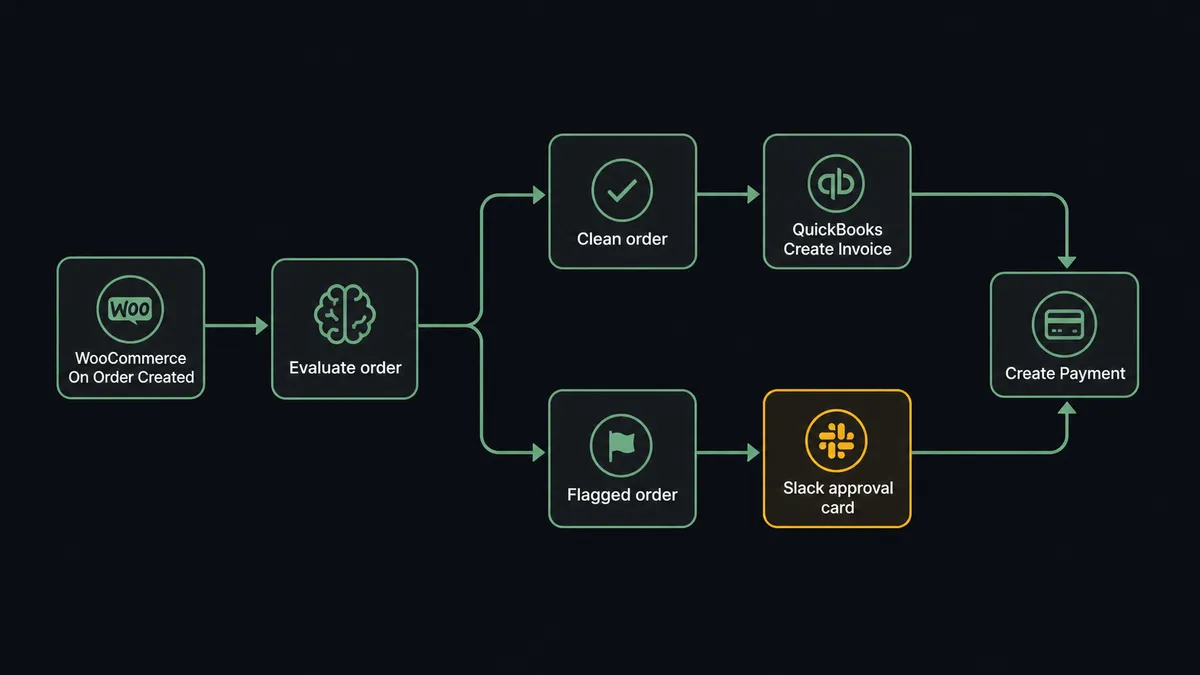
How it works: the connection
The WooCommerce On Order Created trigger fires the moment a customer completes checkout. FlowRunner reads the order payload: line items, quantities, prices, billing details, and the order total. From there, the workflow runs three steps in QuickBooks Online.
First, the agent calls Get Customer to check whether the buyer already has a QuickBooks record. If no match exists, it calls Create Customer with the name and billing address from the WooCommerce order. This means your QuickBooks customer list stays in sync with your actual buyers without anyone managing it.
Second, the agent calls Create Invoice in QuickBooks Online, mapping the WooCommerce line items directly into invoice line items. The invoice is tied to the customer record and dated to match the order. At this point the invoice is open and the AR balance reflects the new sale.
Third, when a payment method is captured at checkout, the agent calls Create Payment in QuickBooks to close the invoice immediately. For orders using a deferred payment (net terms, for example), the invoice stays open and a scheduled flow handles aging and follow-up.
After the QuickBooks entries are created, the agent calls Create Order Note in WooCommerce to record the QuickBooks invoice number against the order. That note means anyone who pulls up the WooCommerce order can see exactly which QuickBooks record it maps to, without opening a second system.
Can an AI agent run it? (and why a human stays in the loop)
A static automation runs the same steps in the same sequence every time. An AI agent reads the order data, evaluates it, and decides which tools to call and in what order. Those tools are the WooCommerce and QuickBooks actions: Get Customer, Create Customer, Create Invoice, Create Payment, Create Order Note, and the human-in-loop flow you build and attach to the agent.
The agent’s instructions tell it how to reason: validate that the line items add up to the order total, check whether the customer exists in QuickBooks, look at the order against any fraud signals present in the payload, and decide whether to proceed or escalate. For a repeat customer placing a normal order, the agent moves through Create Customer (skipped if the record exists), Create Invoice, and Create Payment without pausing. The whole thing takes seconds.
The escalation path is where this differs from a sync tool.
A refund request comes in through WooCommerce. The agent reads the refund amount and compares it to the original order. The amounts match and the reason code is valid. The agent calls Create Order Refund in WooCommerce and Void Payment in QuickBooks and logs both. Clean path. Nobody is bothered.
A different refund arrives. The refund amount is higher than the original order total. The customer is relatively new. The agent does not call Void Payment. Instead, it invokes the human-in-loop flow as a tool. The accounting manager receives a Slack message: “Refund request on Order #8821 is $340 against an original charge of $220. Customer has 3 orders, all within the past 30 days. Options: approve refund, reject refund, or escalate to disputes.” The workflow pauses. The manager reviews and clicks. The agent resumes with the decision as input and records it in the audit trail. That is not a hardcoded rule. The agent noticed the mismatch and made the call.
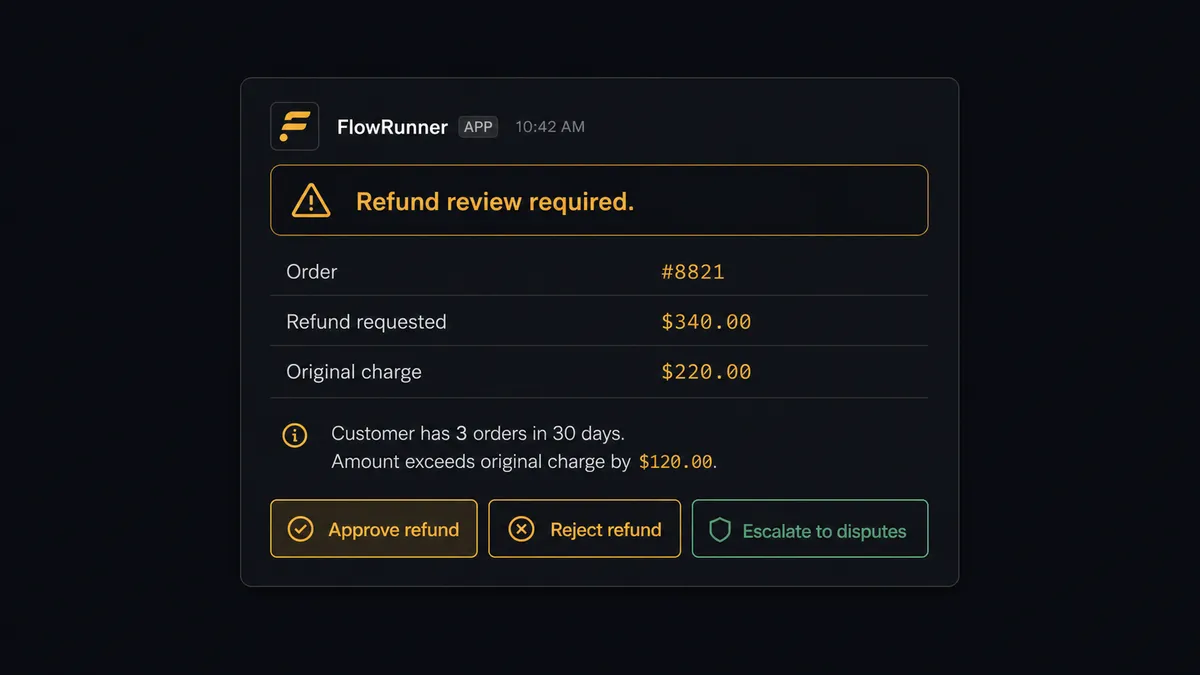
Prospects describe this as a “digital andon cord.” This is not a sync tool. The agent knows when to stop and ask.
FlowRunner vs Zapier (or the tool you’re probably comparing)
If your team is non-technical, you likely looked at Zapier first. It earns that attention: Zapier is easy to set up, has broad integration coverage, and works well for straightforward linear automations. For a basic WooCommerce to QuickBooks Online sync, a Zapier Zap can get you most of the way there.
The differences show up when the work gets more complex.
| Capability | Zapier | FlowRunner |
|---|---|---|
| Basic WooCommerce trigger to QuickBooks action | Yes | Yes |
| AI agent reads order and reasons about it | No | Yes, native agent node |
| Human-in-loop on flagged transactions | Not natively; requires third-party tools | Built in; agent invokes it as a callable tool |
| Agent escalates based on context, not just threshold | No | Yes; agent evaluates conditions and decides |
| Unlimited users on every tier | No; seat-based pricing on higher tiers | Yes; unlimited users on all tiers |
| Bring your own AI provider key | No | Yes, BYOK on all paid tiers |
| Self-hosted option | No | Yes, Community and Enterprise self-hosted |
| Audit trail with approval timestamps | No | Yes, captured on every human decision |
For a store that processes mostly clean, predictable orders, Zapier is a reasonable choice. If you have returns, disputes, high-value orders that need sign-off, or a bookkeeper who is currently the human review layer, the difference matters.
Before and after
| Category | Before | After |
|---|---|---|
| Invoice creation | Bookkeeper copies each WooCommerce order into QuickBooks by hand | Invoice created in QuickBooks within seconds of order placement |
| Customer records | New buyers re-entered into QuickBooks from the order admin | QuickBooks customer matched or created automatically at checkout |
| Refund handling | AP clerk reviews refund email, finds original order, posts manually | Agent validates refund against original order; only mismatches surface to a person |
| Exception visibility | Disputed or over-limit transactions discovered at month-end reconciliation | Flagged transactions pause the workflow and route to the accounting manager in real time |
| Order notes | No link between WooCommerce order and QuickBooks invoice number | QuickBooks invoice number recorded as an order note, visible to anyone on the team |
| Bookkeeper time | Most of the day spent on routine data entry | Routine entries handled automatically; bookkeeper works only the exceptions |
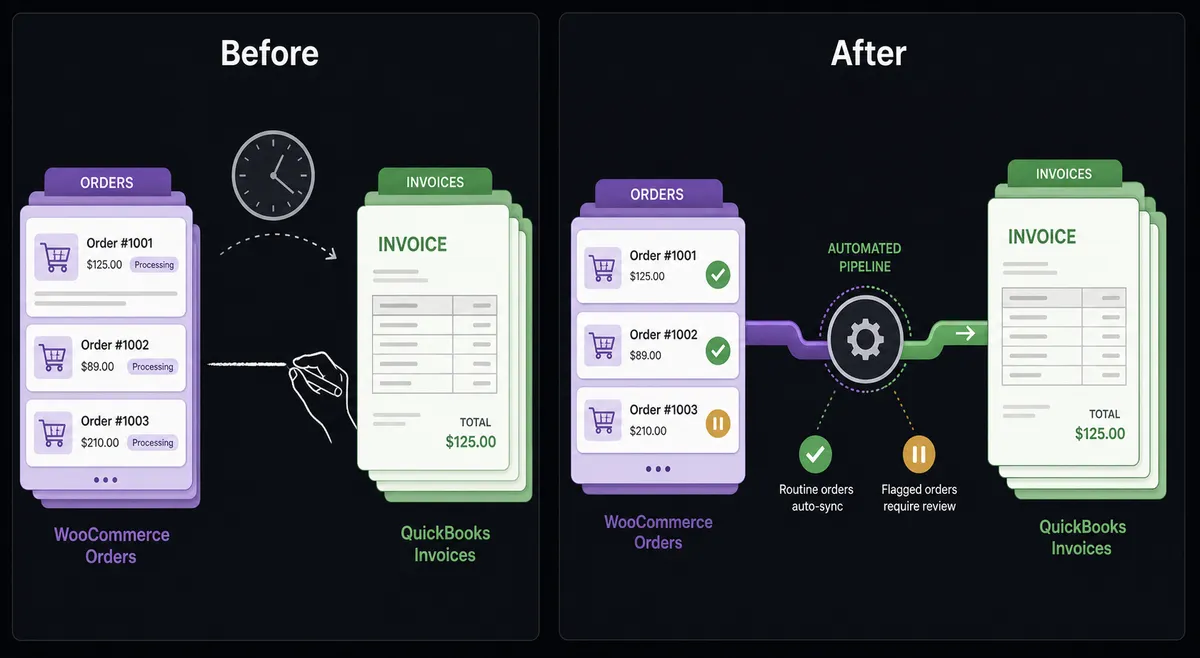
What you can build
Order-to-invoice automation with payment capture. Every WooCommerce order fires On Order Created. The agent calls Get Customer, Create Invoice, and Create Payment in QuickBooks. The buyer’s AR is current before they finish reading their confirmation email.
Refund reconciliation with human review on mismatches. On Order Updated fires when a refund is initiated. The agent reads the refund amount from Create Order Refund, compares it to the original order total using Get Order, and either calls Void Payment in QuickBooks automatically or pauses for the accounting manager when the amounts do not match.
New-customer sync across accounting and your CRM. WooCommerce On Customer Created fires when a buyer registers. The agent calls Create Customer in QuickBooks Online so the record exists in both systems before the first invoice is needed. The agent checks for a duplicate with Get Customer before creating to avoid double records.
Weekly AR aging digest. A scheduled flow calls List Invoices in QuickBooks filtered to open status and more than 30 days past due. It formats the aging summary and posts it to the finance Slack channel. The team sees exactly what is outstanding without running a manual report.
Catalog-to-billing-item sync. When On Product Created fires in WooCommerce, the agent calls Create Item in QuickBooks to add the corresponding billing item to the QuickBooks catalog. Invoices always reflect the current product set without a bookkeeper maintaining two catalogs manually.
Getting started
FlowRunner’s Growth tier includes the WooCommerce and QuickBooks Online connectors, an AI agent node, and the human-in-loop tools your accounting team needs to handle exceptions without doing manual data entry.
Start on the free plan: 100 executions a month, every integration included, no credit card required, plus 14 days of Professional for new accounts. Connect both integrations and run the order-to-invoice flow on your next WooCommerce order.
Start your free trial at flowrunner.ai or book a 30-minute walkthrough with the team to see the full agent setup live.
Frequently asked questions
Is it free to connect WooCommerce and QuickBooks Online on FlowRunner?
FlowRunner has a free plan with 100 executions a month, every integration included, and no credit card required, and new accounts get 14 days of Professional on top. After that, Growth is $45 per month with 12,000 executions included.
Can I self-host FlowRunner for this integration?
Yes. FlowRunner offers a free Community Edition for self-hosted, single-instance deployments. Enterprise self-hosted includes multi-instance clustering and the full compliance suite.
Does the agent need my own OpenAI or Anthropic key?
FlowRunner uses a bring-your-own-key model. You supply your own API key for whichever AI provider you choose. Your data stays within your account and never passes through a shared model layer.
What happens when the agent is not sure about a transaction?
The agent pauses the workflow and routes the transaction to a human through the channel you configure: Slack, email, or WhatsApp. It packages full context including the order details, the mismatch it found, and the available options. The workflow resumes the moment the human responds.
Does FlowRunner support QuickBooks Online or only QuickBooks Desktop?
The FlowRunner connector targets QuickBooks Online specifically, using the QuickBooks Online REST API with OAuth2 authentication. QuickBooks Desktop is a separate product and is not currently covered by this connector.
How many users can access the WooCommerce and QuickBooks Online integration?
All FlowRunner tiers include unlimited users and unlimited workflows. You can share access with your whole operations and accounting team at no additional per-seat cost.