How to Connect Zendesk with Jira Issues (With or Without an AI Agent)
Connect Zendesk and Jira Issues so support tickets automatically become tracked engineering issues, optionally run by an AI agent that pauses for a human before assigning a high-priority bug.
How do you connect Zendesk to Jira Issues?
You connect Zendesk to Jira Issues using FlowRunner’s On Ticket Event trigger, which fires the moment a ticket is created or updated, and then calls Create Issue in Jira with the ticket’s subject, description, priority, and any mapped custom fields. FlowRunner is a visual AI-agent orchestration platform where automations run autonomously and pause for human judgment on the steps that carry real consequence. The same connection can run as an AI agent that reads each ticket’s full context, chooses the right Jira project and assignee, and calls a human to confirm the assignment on every P1 bug before anything is written.
The problem support and engineering teams live with
A customer escalates a critical bug in Zendesk. A support agent reads it, copies the description into Jira, guesses at the priority, and assigns it to whoever is listed on the rotation spreadsheet. By the time the Jira issue exists, five minutes have passed, the context has been paraphrased, and the assignee may already be deep in a sprint item. If the ticket comes in overnight, the Jira issue might not exist until the next morning.
The reverse is equally painful. When an engineer closes a Jira issue, the Zendesk ticket often stays open. The support agent has no way to know resolution happened unless someone remembers to update both systems. Exceptions fall through the cracks between two tools that track the same reality from different angles, and the teams managing them spend real time on translation work that should not require a human.
How it works: the connection between Zendesk and Jira Issues
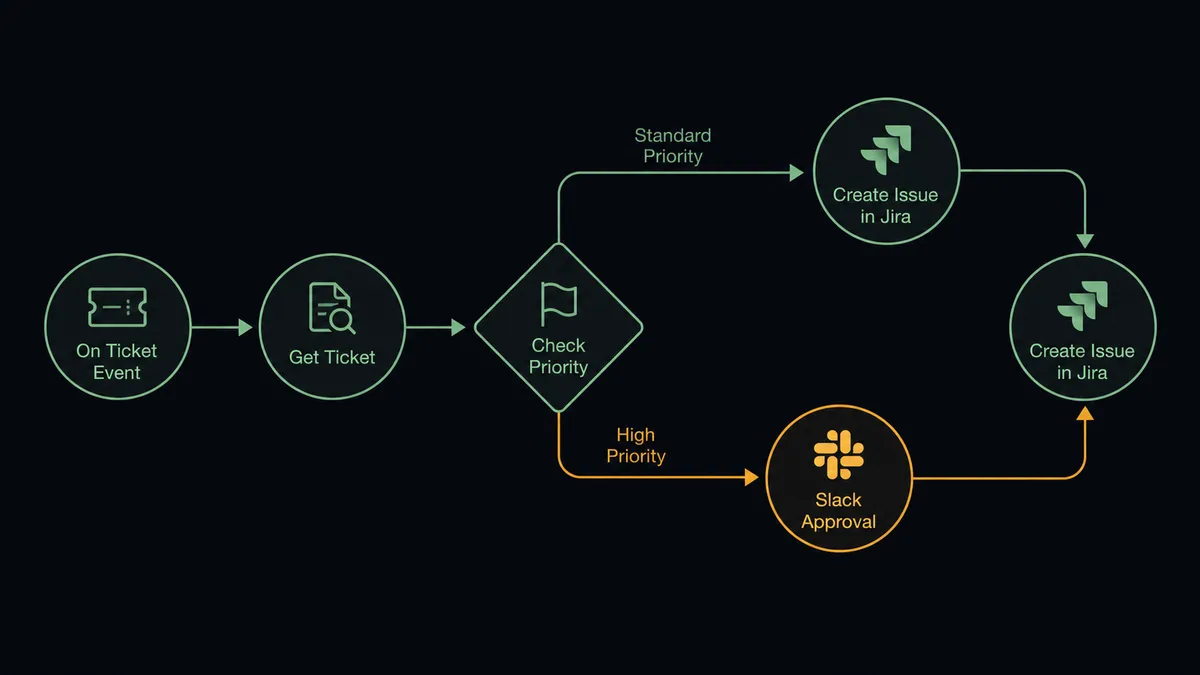
On Ticket Event is the entry point. It fires in real time when a ticket is created or updated in Zendesk, delivered via a webhook that the FlowRunner extension provisions automatically. No polling, no delay.
The flow reads the ticket with Get Ticket and pulls the full conversation with List Ticket Comments so the agent has complete context before touching Jira. Then:
- Create Issue opens a new Jira issue in the target project, mapping the Zendesk subject to the issue summary, the ticket description to the Jira description, and the Zendesk priority (low, normal, high, urgent) to the corresponding Jira priority level.
- Add Attachment sends the original ticket body and any attachments from Zendesk directly to the Jira issue, so the engineer sees the exact customer language, not a paraphrase.
- Assign Issue sets the owner based on an on-call rotation lookup or component-based routing.
- Add Comment To Ticket writes the Jira issue URL back into the Zendesk ticket as an internal note, so the support thread and the engineering tracker stay linked.
When a Zendesk ticket moves to Solved, a parallel flow fires. It calls Transition Issue to move the linked Jira issue to Done, keeping both systems in sync without anyone touching Jira manually.
Can an AI agent run it? (And why a human stays in the loop)
A basic trigger-action connection handles the routine case. An AI agent handles the cases where routine breaks down.
The agent reads every Zendesk ticket as it arrives. It does not just map fields. It reads the subject, description, priority, and comment history, then reasons about what it found. A ticket tagged “billing error” routes differently from one tagged “data loss.” A ticket from a customer whose previous three issues were resolved in under two hours carries different weight than one from a first-time reporter.
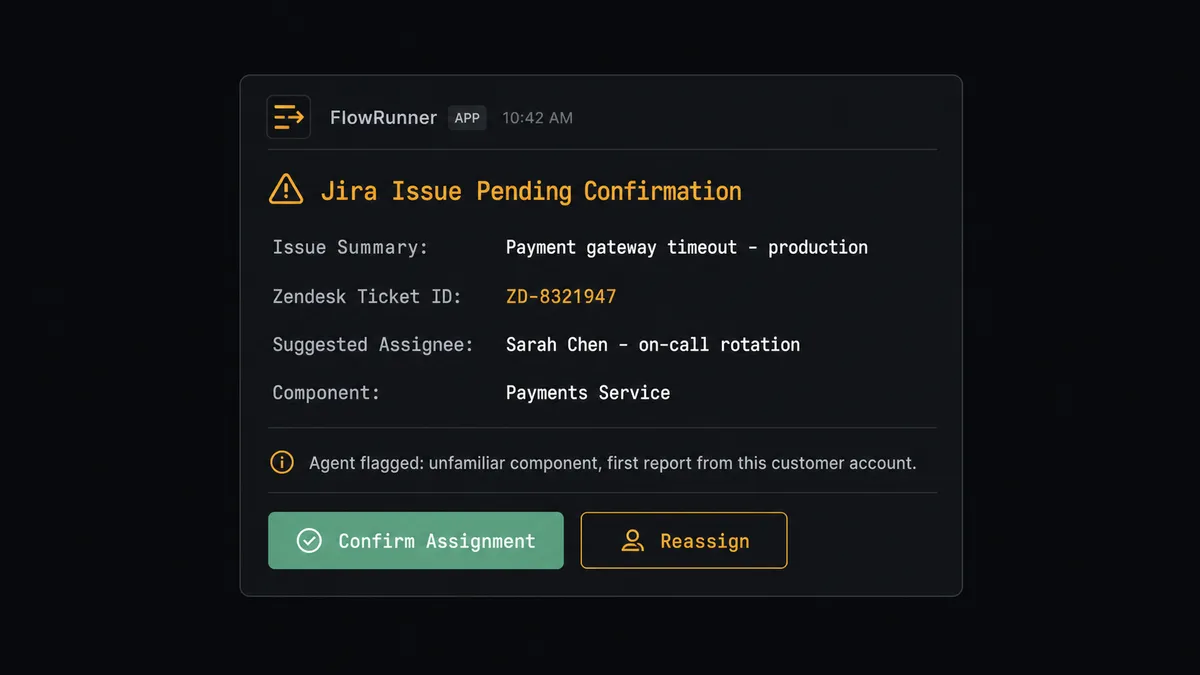
This is not a hardcoded threshold. The agent evaluates the full context and decides which Jira project to open the issue in, which priority level fits, and which team member to suggest as assignee based on component, rotation, and current sprint load. For standard issues, it acts. For a P1 bug involving a sensitive component the agent has not seen before, or when the suggested assignee has not been on rotation for three weeks, it stops.
When it stops, it invokes a human-in-loop flow as a callable tool. A Slack message goes to the engineering lead: “New P1 issue ready to create: [Summary]. Suggested assignee: Sarah Chen (on-call rotation). Issue involves the payments service. Confirm or redirect?” The message includes the full Zendesk ticket subject, the customer’s description, and why the agent flagged it. The lead taps Confirm or selects a different assignee from a dropdown. The agent creates the Jira issue with confirmed ownership and posts the Jira link back into Zendesk.
The decision to escalate is the agent’s call, not a rule you write in advance. This is not a sync tool. The agent knows when to stop and ask.
FlowRunner vs Zapier (the tool you are probably comparing)
Zapier handles the basic Zendesk-to-Jira sync well. It has both integrations, the setup is fast, and for teams that need a simple “new Zendesk ticket creates a Jira issue” automation, it is a reasonable starting point. Zapier’s library is large and the no-code editor is approachable.
The differences surface at the point where the connection needs to reason rather than just copy.
| What matters for this pair | Zapier | FlowRunner |
|---|---|---|
| Basic ticket-to-issue sync | Yes, fast to set up | Yes, same capability |
| AI agent reads full ticket context and routes | No | Yes, agent evaluates ticket data and picks the right project, priority, and assignee |
| Human-in-loop on P1 assignments | Manual Zap with approval step; threshold-based | Agent decides when to escalate based on context; human receives full ticket detail and options |
| Jira JQL for sprint monitoring and batch queries | No | Yes, Search Issues supports full JQL |
| Sync issue resolution back to Zendesk ticket | Possible with additional Zaps | Single flow handles bidirectional state sync |
| Unlimited users on every tier | No, per-seat pricing on most plans | Yes, all tiers include unlimited users |
| Pricing model | Per-task pricing; volume uncertainty at scale | Workflow-based tiers; $45/mo Growth, $299/mo Professional |
Before and after
| Category | Before | After |
|---|---|---|
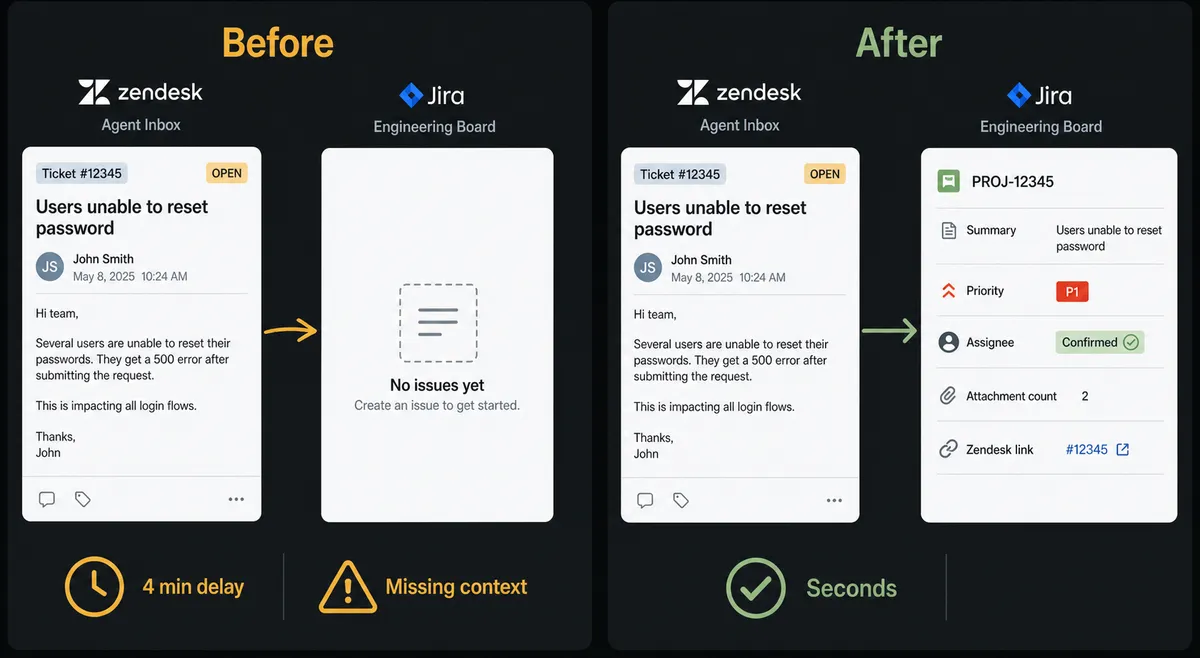
| Jira issue creation | Support agent copies ticket into Jira by hand; takes 3-5 minutes per ticket | On Ticket Event creates the Jira issue within seconds of ticket arrival |
| Context in the issue | Subject line and a paraphrase; attachments missing | Full description, original ticket body, and attachments carried across automatically |
| P1 assignment accuracy | Whoever is guessed to be on rotation; no confirmation loop | Agent suggests assignee from rotation data; team lead confirms before issue is created |
| Resolution sync | Engineer closes Jira; Zendesk ticket stays open until someone notices | Transition Issue fires when Jira issue moves to Done; Zendesk ticket updated in the same flow |
| Sprint health visibility | Engineering manager opens Jira manually to find blocked or unassigned issues | Agent runs JQL query each morning and posts unassigned and blocked issues to the team channel |
| Audit trail | Emails and Slack DMs; no structured record | Every agent decision, human approval, and state change logged in FlowRunner’s audit trail |
What you can build
Auto-escalate and track production incidents. When On Ticket Event fires for a ticket tagged “production down” or “data loss,” the agent calls Create Issue in Jira with bug type, attaches the full ticket body, and invokes the human-in-loop flow to confirm the on-call engineer before any assignment is written. Critical incidents have owned, tracked issues before the first human reads the email.
Bidirectional status sync. When a Zendesk ticket moves to Solved, the agent calls Search Issues with a JQL query to find the linked Jira issue by ticket ID, then calls Transition Issue to set it to Done. When a Jira issue moves to Done, a parallel flow calls Update Ticket in Zendesk to set the ticket to Solved. Both systems stay in sync without anyone touching either one manually.
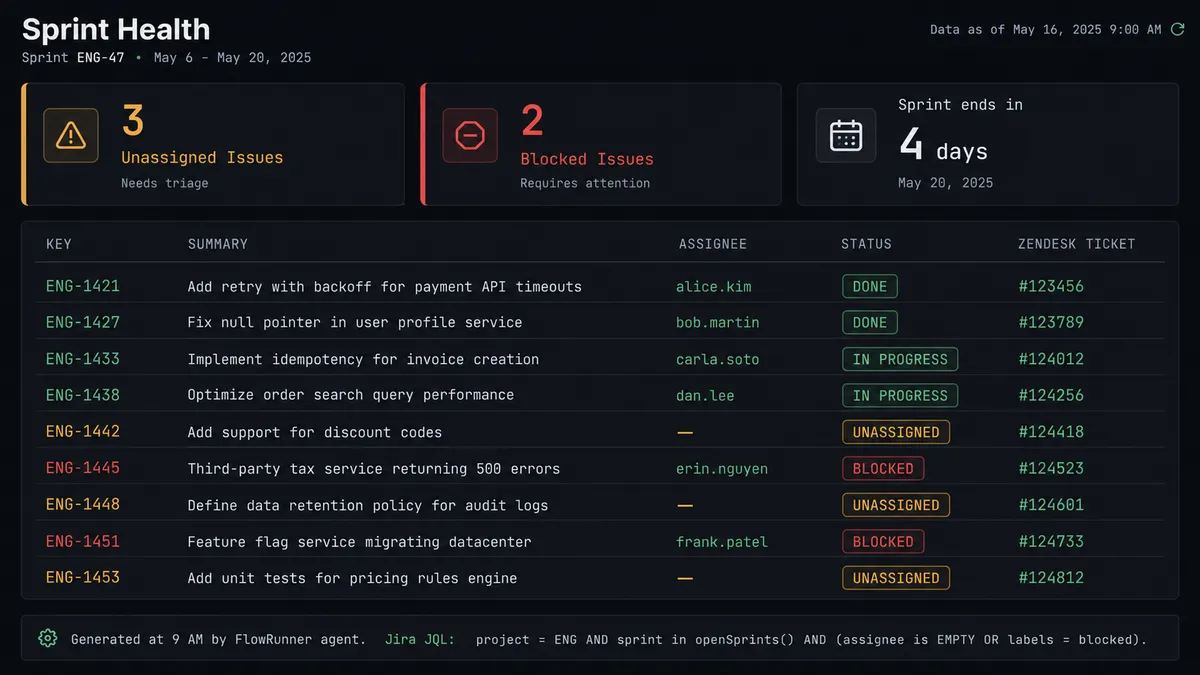
Daily sprint health monitoring. Every morning at 9 AM the agent calls Search Issues with a JQL query for unassigned issues or issues flagged as blocked in the current sprint. It posts the count and issue list to the engineering Slack channel and tags the engineering manager. Teams see sprint health without anyone building a status report.
Customer escalation routing by component. When a Zendesk ticket references a specific product area (payments, auth, reporting), the agent calls Get Project to read available components, matches the ticket keywords, and calls Create Issue with the right component and a pre-populated assignee from that component’s owner list. The right engineer gets the issue without a routing meeting.
Context-enriched bug reports. The agent calls List Ticket Comments to gather the full conversation thread, then calls Add Attachment to bundle the conversation into the Jira issue alongside any files the customer submitted. Engineers see the customer’s exact words and follow-up exchanges, not a summary someone wrote after a shift.
Getting started
FlowRunner has a free plan with 100 executions a month, every integration included, and no credit card required, and new accounts get 14 days of Professional on top. Corporate email gets you in.
Connect your Zendesk account at /integrations/zendesk and your Jira Issues account at /integrations/jira-issues. Both integration pages show the full action and trigger list with field-level documentation.
Start the workflow at flowrunner.ai or book a 30-minute walkthrough at calendly.com/flowrunner/intro if you want to see the AI agent and human-in-loop flow on a live example before you build.
Frequently asked questions
Is it free to connect Zendesk and Jira Issues on FlowRunner?
FlowRunner has a free plan with 100 executions a month, every integration included, and no credit card required, and new accounts get 14 days of Professional on top. No credit card is required to get started. After the trial, Growth costs $45 per month and includes unlimited users and workflows.
Does the FlowRunner agent need my own AI provider key?
Yes. FlowRunner uses a BYOK (Bring Your Own Keys) model, so you connect your own OpenAI, Anthropic, or other supported AI provider key. This keeps your data under your control and your costs transparent.
Can I self-host FlowRunner?
Yes. FlowRunner offers a self-hosted Community Edition at no cost, and an Enterprise self-hosted option with multi-instance clustering and a full compliance suite. The cloud-hosted tiers are available if you prefer managed infrastructure.
What happens when the agent is not sure which engineer to assign?
The agent does not guess. For high-priority issues or sensitive components, it pauses and routes the assignment decision to a team lead via Slack or email, providing the proposed assignee and the reason. The lead confirms or redirects, and the agent then creates or updates the Jira issue with the confirmed assignment.
Can I connect Zendesk and Jira Issues without an AI agent?
Yes. The plain connection runs as a trigger-action automation: On Ticket Event in Zendesk fires, and FlowRunner creates or transitions a Jira issue using the mapped fields. No AI reasoning is required for the basic sync. The agent layer is an upgrade you add when you want context-based routing and human oversight on the critical steps.
How many Zendesk and Jira actions does the agent have available?
The Zendesk integration provides 16 actions (Create Ticket, Update Ticket, Get Ticket, Search Tickets, Add Comment To Ticket, List Ticket Comments, and more) plus one real-time trigger. The Jira Issues integration provides 13 actions including Create Issue, Transition Issue, Assign Issue, Add Comment, Add Attachment, and Search Issues via JQL.