How to Connect Airtable with Google Sheets (With or Without an AI Agent)
Connect Airtable and Google Sheets so new or updated records flow between them automatically, optionally as an AI agent that pauses for human judgment before writing disputed or malformed data.
How do you connect Airtable to Google Sheets?
Set the Airtable trigger to On New or Updated Record, then use the Google Sheets Add Row action to append the record as a row, with fields mapped across by column name. FlowRunner is a visual AI-agent orchestration platform where automations run autonomously and pause for human judgment on the steps that carry real consequence. The same connection can run as an AI agent that reads each record, validates it before writing, and invokes a human when something does not add up.
The problem teams are actually trying to solve
Operations teams end up maintaining both Airtable and Google Sheets at the same time because each system serves a different audience. Airtable is where the team tracks work: vendor lists, approval queues, project records, exception logs. Google Sheets is where the reporting lives: the weekly summary the finance team opens, the status tracker leadership uses, the export that goes to the client. The two surfaces diverge the moment someone updates one and forgets the other.
The manual process is predictable and exhausting. An ops lead exports from Airtable, pastes into Sheets, adjusts the column order, and adds the status column by hand. A row sits unprocessed because the person who notices it first does not have time to act. An exception falls through the cracks because it landed in the wrong system and no one connected it to the resolution that was already sitting in the other one. The data is accurate somewhere. It is just not accurate everywhere, and finding out which surface to trust takes time the team does not have.
How it works: the connection
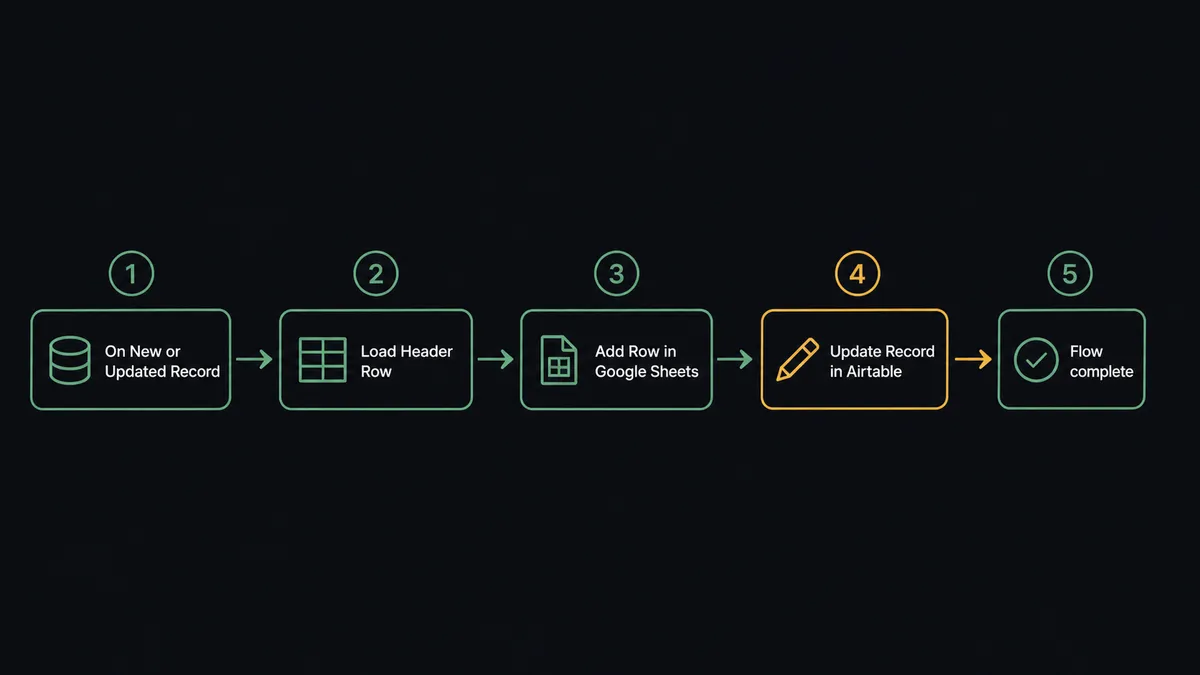
The core connection is a two-step flow. On the Airtable side, On New or Updated Record fires whenever a record is created or any field changes in the watched table. The agent reads the record and maps the fields to the matching columns in Google Sheets. Add Row appends the record as a new row, with the Airtable record ID written into a dedicated column so the flow can Find Row later if it needs to update that row instead of creating a second one.
Going the other direction, On New Row in Google Sheets fires when a form submission or import lands a new row. The agent reads the row using Get Rows, loads the header for clean column mapping via Load Header Row, and uses Create or Update Record in Airtable to write the row into the relevant table. The Create or Update Record action checks for an existing record matching a key field before creating a new one, so the same form submission does not produce a duplicate Airtable entry.
Status writes back in both directions. After the agent processes an Airtable record and writes it to Sheets, it calls Update Record to set a Synced status on the originating Airtable record. After it processes a Google Sheets row and writes it to Airtable, it calls Update Cell to write a timestamp and a status into the row. The two surfaces stay in sync without anyone copying and pasting.
Can an AI agent run it? (and why a human stays in the loop)
A plain sync tool copies whatever it finds. An AI agent reads what it finds and decides what to do with it. That is the difference that matters when the data is messy or the amounts are high.
The agent receives both Airtable and Google Sheets actions as tools: Find Record, Create or Update Record, Add Row, Update Row, Find Row, Create Comment. It does not execute them in a fixed order. It reads the incoming data, checks it against its instructions, and picks the right sequence for the situation in front of it.
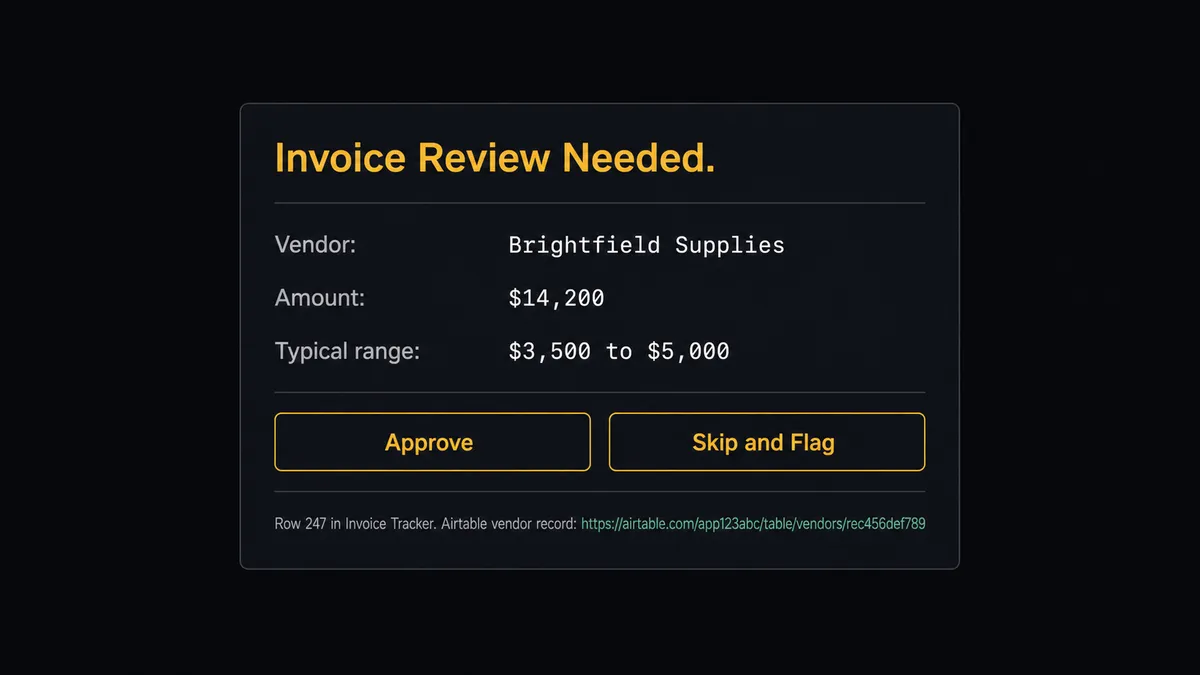
Here is the decision moment. A new row lands in the tracking sheet. The agent reads it and sees an invoice amount that is three times the vendor’s typical range. It has processed forty invoices from this vendor over the past six months. This one does not fit. The agent does not push it to Airtable. It invokes the human-in-loop tool, a sub-flow that sends a Slack message to the AP manager: “Invoice from [Vendor] in row 247 is $14,200. Typical range for this vendor is $3,500 to $5,000. Approve to post, or skip and I will flag the row for review.” The Slack message includes the row number, the vendor name, the amount, and links to both the Google Sheet row and the relevant Airtable vendor record. The manager approves, skips, or flags. The agent resumes with the decision recorded.
This is not a hardcoded threshold. The agent evaluates context. A $14,200 invoice from a vendor with a documented large-project history might process without escalation. The same amount from a vendor the agent has never seen triggers the human-in-loop flow. The agent makes the call. That is what prospects call a digital andon cord: the agent stops the line when it hits real uncertainty, not when an arbitrary number is crossed.
FlowRunner vs Zapier (the tool you’re probably already using)
Zapier is the right comparison for non-technical teams. It has a large connector library, a clean interface, and years of reliability for simple two-step zaps. If all you need is a straight copy of a new Airtable record into a Google Sheet row, Zapier works and you probably already have an account.
The differences show up when the data gets complicated or the team grows.
| Zapier | FlowRunner | |
|---|---|---|
| Human-in-loop | Conditional branches only; no native pause-and-wait for human input | Native human-in-loop as a callable tool; agent decides when to invoke it, flow pauses, resumes on response |
| AI agent reasoning | No native AI agent node; requires Zap Paths and manual logic | AI Agent node reads data, reasons across history, picks tools; escalates based on context, not hardcoded rules |
| Pricing model | Per-task pricing; every field mapping counts toward your limit | Workflow-based executions; one flow run counts once regardless of how many actions the agent takes |
| Users | Per-seat pricing on most plans | Unlimited users on every tier, including Growth |
| BYOK AI | Not supported; uses Zapier’s AI layer | Bring your own keys from any supported AI provider |
| Self-hosted option | No | Community Edition (free) and Enterprise self-hosted |
Zapier’s per-task pricing is the friction point for teams that are doing real volume. A flow that reads a row, validates it, writes to Airtable, updates the original row, and adds a comment is five or six tasks in Zapier’s counter. In FlowRunner, it is one execution.
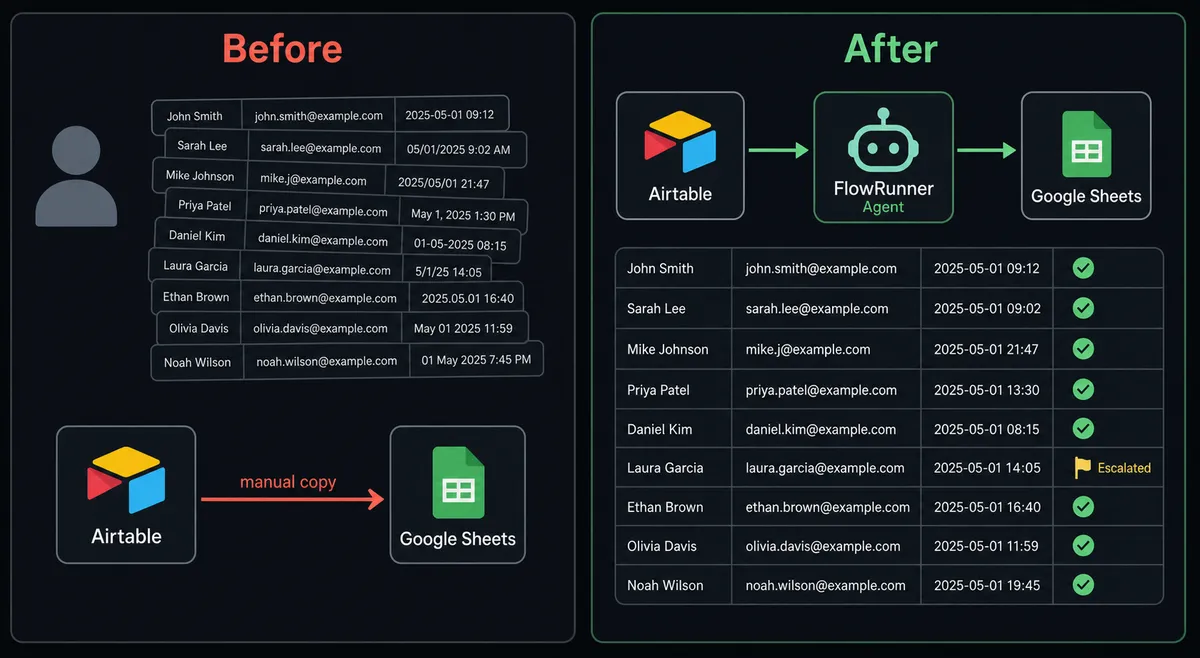
Before and after
| Before | After | |
|---|---|---|
| Data currency | Airtable and Sheets diverge within hours of the last manual export | Records sync within seconds of a trigger event; both surfaces stay current |
| Exception handling | Exceptions found in one system are not connected to resolutions in the other | Agent flags exceptions in real time and routes them to the owner with full context from both systems |
| Row processing | New rows sit until someone notices and acts | On New Row fires immediately; valid rows process automatically, invalid rows go to the owner for correction |
| Status visibility | No single place to see what has been processed | Every processed record has a timestamp and status written back to the source; no guessing |
| Report generation | Someone opens Sheets, downloads a file, and emails it | Export Sheet runs on schedule and delivers the file to the right person without anyone opening the spreadsheet |
What you can build
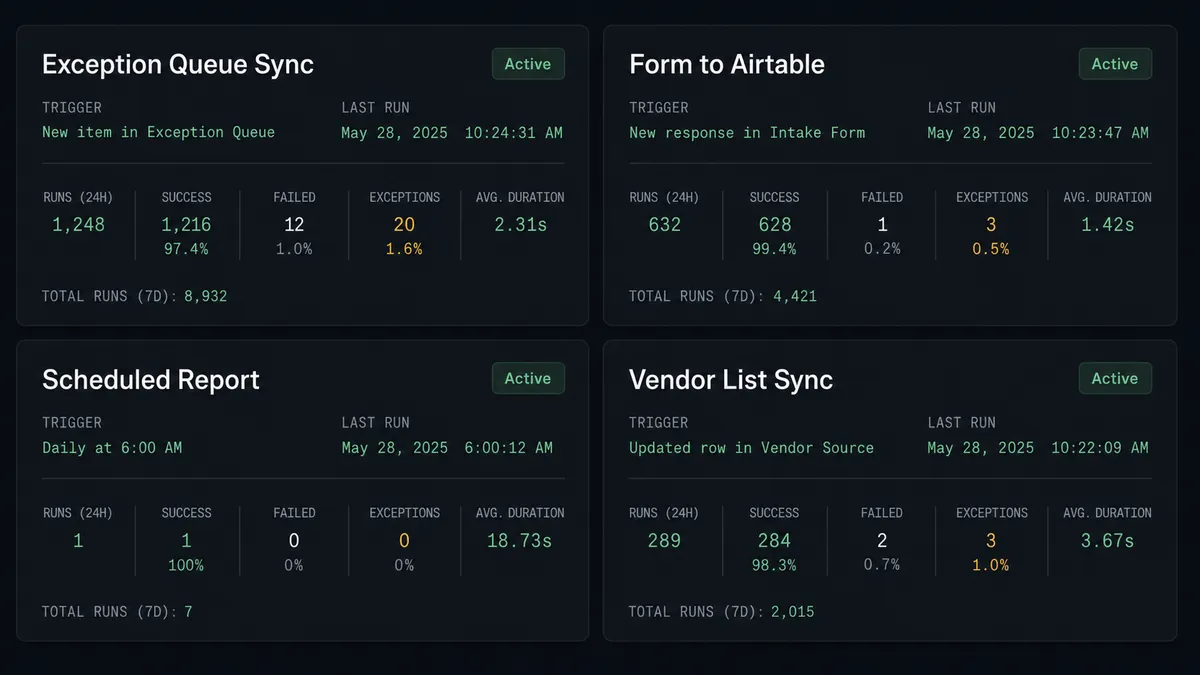
Exception queue with structured resolution. Airtable On New or Updated Record fires when an exception is flagged. The agent reads the record, finds the matching Google Sheets row via Find Row, logs the exception details into the sheet with Update Row, and adds a comment to the Airtable record via Create Comment with the row reference. The AP manager sees the exception in both places with full context.
Form submission to Airtable with sheet as the log. On New Row fires when a form appends a submission. The agent validates the required fields with Load Header Row and Get Rows, creates a record in Airtable via Create or Update Record to avoid duplicates, then writes a Processed status and the new Airtable record ID back to the sheet via Update Cell. The sheet is the shared log. Airtable holds the structured data.
Scheduled reporting from live Airtable data. On a schedule, the agent calls Find Many Records in Airtable to pull the current week’s records, writes them to a Google Sheet via Add Rows, then calls Export Sheet to produce a PDF or Excel file and routes it to the finance team. The report is always current; no one touches the spreadsheet.
Content calendar sync. A content record in Airtable is marked Ready for Publishing. On New or Updated Record fires. The agent reads the record and appends a row to the editorial tracker in Google Sheets via Add Row with the publish date, status, and channel. When the row is updated in Sheets with the final URL, On New or Updated Row fires and the agent calls Update Record in Airtable to close the loop.
Bidirectional vendor list sync. A new vendor is added to Google Sheets via an import. The agent calls Create or Update Record in Airtable to register the vendor, then writes the Airtable record ID back to the sheet row via Update Cell. If the Airtable record is updated later, On New or Updated Record fires and the agent calls Update Row in Sheets to keep both surfaces current. Duplicate detection runs on both sides.
Getting started
FlowRunner has a free plan with 100 executions a month, every integration included, and no credit card required, and new accounts get 14 days of Professional on top. Both integration pages have the full action and trigger reference: Airtable and Google Sheets.
Start the trial at flowrunner.ai. If you want to talk through your specific Airtable and Google Sheets workflow before building, book a 30-minute intro at calendly.com/flowrunner/intro.
Frequently asked questions
Is it free to connect Airtable and Google Sheets on FlowRunner?
FlowRunner has a free plan with 100 executions a month, every integration included, and no credit card required, and new accounts get 14 days of Professional on top. The Growth tier is $45 per month after the trial and includes unlimited users and workflows.
Can I self-host FlowRunner for this connection?
Yes. FlowRunner offers a self-hosted Community Edition at no cost for teams that need to keep data on their own infrastructure. The Enterprise self-hosted tier adds multi-instance clustering and compliance features.
Does the AI agent need my own OpenAI key?
FlowRunner uses a BYOK model. You connect your own API key from any supported AI provider. You are not locked into a specific model or billed through FlowRunner for inference.
What happens when the agent is not sure what to do with a row?
The agent holds the row, marks it in the sheet, and routes it to the data owner through Slack, email, or WhatsApp with the full context of what is wrong. The owner corrects or skips the row. The agent reprocesses only what was approved. Nothing malformed reaches a connected system.
Can FlowRunner sync in both directions between Airtable and Google Sheets?
Yes. FlowRunner supports bidirectional flows. A trigger in Airtable can write to Google Sheets, and a trigger in Google Sheets can write back to Airtable. You can run both flows simultaneously with Create or Update Record on the Airtable side to avoid creating duplicates.
How many users can access the FlowRunner workspace?
Every tier, including Growth, includes unlimited users. There is no per-seat pricing.