How to Connect Help Scout with Slack (With or Without an AI Agent)
Connect Help Scout and Slack so every new support conversation triggers a Slack notification, optionally running as an AI agent that triages, drafts replies, and pauses for a human before anything reaches the customer.
How do you connect Help Scout to Slack?
You connect Help Scout to Slack by triggering a FlowRunner workflow whenever a support conversation needs attention, then using Send Message to Channel or Send Direct Message to notify the right person in Slack. FlowRunner is a visual AI-agent orchestration platform where automations run autonomously and pause for human judgment on the steps that carry real consequence. The same connection can run as an AI agent that opens cases with Create Conversation, drafts replies with Add Note, and invokes a human-in-loop Slack approval before any message reaches the customer.
The problem it solves
Support requests do not arrive on a schedule. They land in inboxes, forms, chat widgets, and email aliases while your team is handling other work. Someone has to notice, open Help Scout, create the conversation, assign it to the right person, and draft a response, often for the same categories of request your team has answered a hundred times. That manual handoff is where tickets fall through the cracks. The assigned agent does not see the new case until they check the queue. The customer waits.
The second problem is quality control. An automated reply that skips the human review step can reach a customer with the wrong tone, the wrong information, or worse, a refund commitment nobody approved. The ops lead wants automation on the intake side and a human on the send side, and most tools make that distinction hard to enforce. Either everything is manual or everything is automated. The middle path, where the agent handles triage and drafting and a human approves the outbound message, requires a workflow that knows when to stop and ask.
How it works: the connection
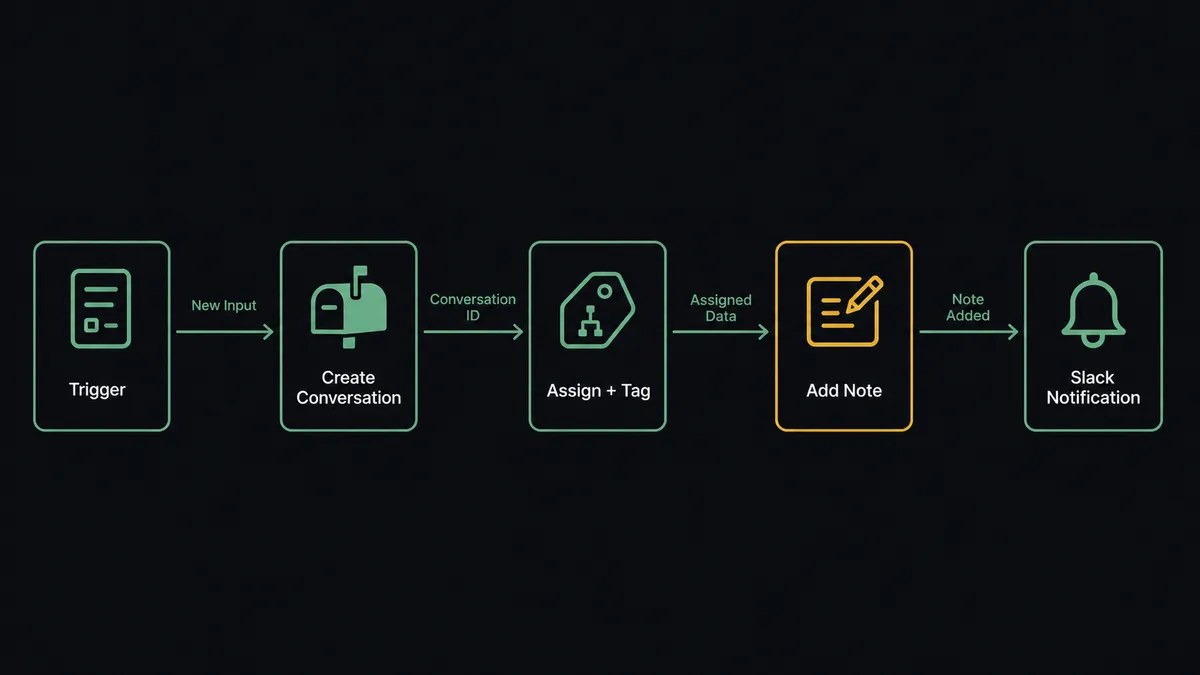
The flow starts where your inbound requests arrive. Because Help Scout does not expose event webhooks in this integration, FlowRunner uses an adjacent trigger: a form submission fires the flow directly, a scheduled List Conversations sweep catches anything new since the last run, or On Channel Message fires when a team member pastes a support request into a designated Slack channel.
From there the agent calls Create Conversation to open a case in the correct mailbox. The customer is identified by email and created in Help Scout if they do not already exist. The agent applies the right tags with Add Tags, for example “billing,” “onboarding,” or “refund,” and routes the case with Assign Conversation to the team member who owns that category. Then it calls Get Conversation and List Threads to read any prior context, and drafts a response as an internal note using Add Note. The note is visible only to the team. Nothing has reached the customer yet.
Finally the agent calls Send Message to Channel in Slack to notify the support channel: the new case is open, it is assigned, and the draft is ready for review.
Can an AI agent run it? (and why a human stays in the loop)
A plain connection sends the Slack notification and stops there. An AI agent does something more useful: it reads the case, reasons about it, and decides whether to send the draft or escalate to a human. That distinction matters most when the request involves a refund, a complaint, or something that does not fit a known pattern.
Here is what that looks like in practice. The agent opens the case and reads the thread. It sees a customer requesting a refund for an order placed three days ago, their third refund request in 90 days. That context, volume of prior requests against account history, is not a hardcoded rule. The agent evaluates it against its instructions and determines that this specific combination warrants a human decision before the reply goes out.
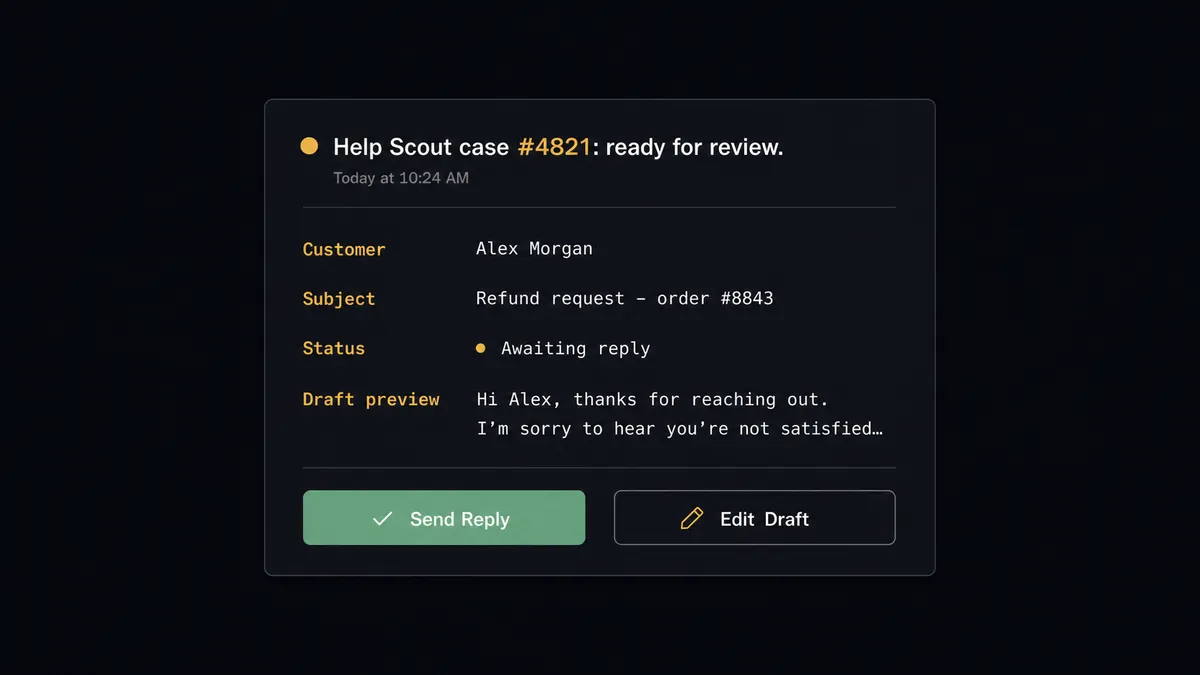
The agent invokes the human-in-loop flow as a callable tool. The assigned support agent receives a Slack direct message: the customer’s name, the draft reply, the prior refund history, and two buttons: “Send Reply” and “Edit Draft.” The agent has already done the reasoning. The human makes the call. If the agent approves, the workflow calls Add Reply, which emails the customer. If they choose Edit Draft, the workflow returns the edited version for a second review. The Add Reply action fires only after that approval.
This is not a sync tool. The agent knows when to stop and ask. That is the digital andon cord: the line stops when the AI hits something it should not decide alone.
FlowRunner vs Zapier
Zapier is the most common starting point for Help Scout and Slack connections. It has a large library of pre-built Zaps, a clean interface, and works well for straightforward trigger-action pairs. If you need a simple notification flow, Zapier gets you there quickly.
The differences show up when you need the middle layer.
| Feature | Zapier | FlowRunner |
|---|---|---|
| Human-in-loop approval | Not available natively | Native, agent invokes it as a callable tool |
| AI agent decision-making | Bolt-on via third-party AI steps | Native orchestration, agent reasons and picks tools |
| BYOK for AI models | Not available | Yes, connect your own provider at no markup |
| Unlimited users on every tier | No (seat limits on paid plans) | Yes, all tiers |
| Audit trail with approver identity | Not available | Captured automatically on every human decision |
| Self-hosted option | Not available | Available on Community and Enterprise tiers |
Before and after
| Category | Before | After |
|---|---|---|
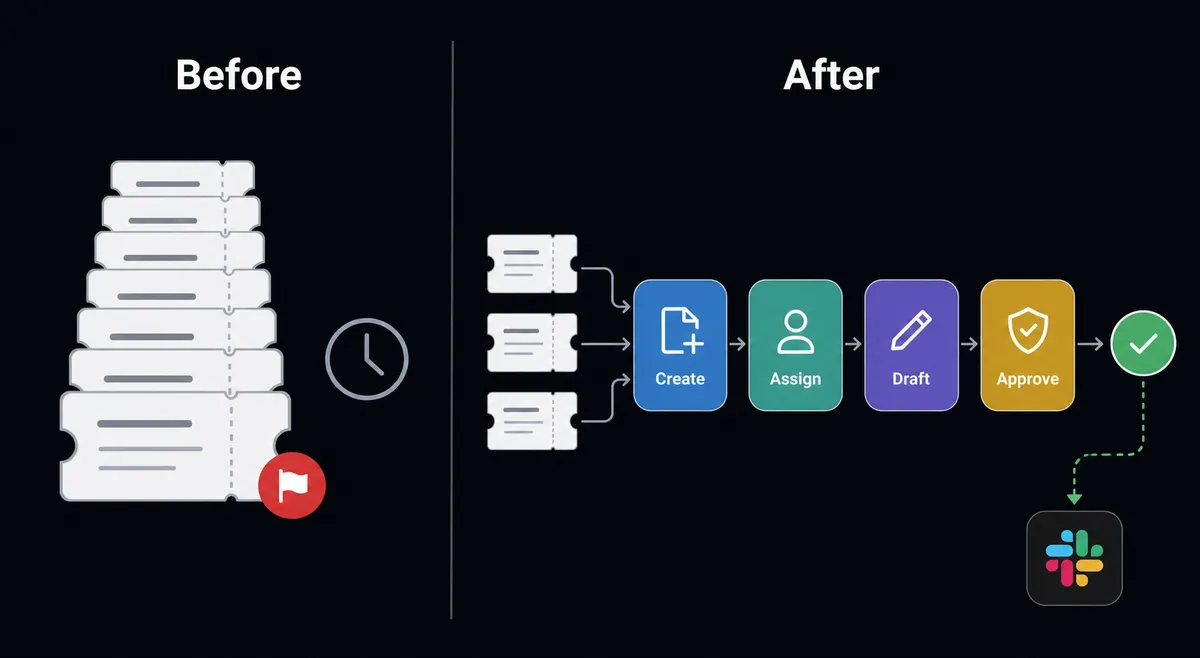
| Case creation | Support agent manually opens Help Scout from inbound email or form | Create Conversation fires on arrival; case is in the right mailbox before anyone opens their inbox |
| Triage time | Assignment and tagging wait for an agent to work the queue | Agent assigns and tags each case as it arrives with Assign Conversation and Add Tags |
| Reply drafting | Agent writes each reply from scratch | Agent drafts with Add Note; human reviews and approves before send |
| Slack visibility | Support channel learns about new cases when the agent posts manually | Send Message to Channel fires automatically; the team sees every new case with full context |
| Customer-facing risk | Automated replies go out without review | Add Reply only fires after human approval on flagged cases |
| Audit trail | No record of who approved what or when | Every human decision captured with approver identity and timestamp |
What you can build
Inbound triage agent. When a form submission arrives, the agent calls Create Conversation in the right Help Scout mailbox, applies category tags with Add Tags, and routes the case with Assign Conversation. It posts the new case to the #support channel via Send Message to Channel. The assigned agent sees it within seconds.
Draft-and-approve pipeline. The agent reads every new case with Get Conversation, drafts a response using Add Note, and sends the draft to the assigned support agent via Send Direct Message in Slack with Approve and Edit buttons. Add Reply fires only after approval. Nothing reaches the customer without a human sign-off.
Escalation routing. The agent monitors open cases with List Conversations and flags anything unresolved past a set age. It sends Send Direct Message to the support lead with the case details and an Escalate button. On click, the agent updates the case with Update Conversation and notifies the escalation channel.
New customer sync and welcome flow. When a new customer is created in another system, the agent calls Create Customer in Help Scout so the support record exists before the first ticket. It sends a Send Message to Channel notification to the onboarding channel in Slack so the team is aware.
Support digest. A scheduled flow calls List Conversations with filters for open status and modification date, compiles the results, and posts a formatted summary to #support-ops using Send Message to Channel every morning. Leadership gets queue visibility without pulling reports manually.
Getting started
FlowRunner has a free plan with 100 executions a month, every integration included, and no credit card required, and new accounts get 14 days of Professional on top.
Start a free trial at flowrunner.ai or book a 30-minute intro call at calendly.com/flowrunner/intro if you want to walk through the workflow with the team first.
Frequently asked questions
Is it free to connect Help Scout and Slack on FlowRunner?
FlowRunner has a free plan with 100 executions a month, every integration included, and no credit card required, and new accounts get 14 days of Professional on top. After that, Growth is $45 per month. All tiers include unlimited users and unlimited workflows.
Does the agent need my own OpenAI or AI provider key?
Yes. FlowRunner uses a Bring Your Own Key model, so you connect your preferred AI provider and control your own spend. The platform supports all major providers and does not mark up model costs.
Can I self-host this integration?
Yes. FlowRunner offers a Community Edition for self-hosted single-instance deployments and an Enterprise self-hosted option with multi-instance clustering and the full compliance suite.
What happens when the agent is not sure what to do?
The agent invokes a human-in-loop flow as a callable tool. It pauses, packages the full context of what it found and why it is uncertain, and sends a Slack message with decision buttons. The workflow resumes after the human responds.
Can the agent handle inbound support requests on its own?
For intake, triage, tagging, and drafting it can. The reply that reaches the customer requires a human. The agent uses Add Note to draft the response internally, routes it to a support agent via Slack for approval, and only calls Add Reply after the approval comes back.
How many Help Scout mailboxes can one workflow cover?
A single FlowRunner workflow can call List Mailboxes to discover every mailbox the connected credentials can access, and route conversations to any of them. There is no per-mailbox limit.