How to Connect Intercom with Slack (With or Without an AI Agent)
Connect Intercom and Slack so new conversations, tickets, and contacts route to the right Slack channel automatically, with a human in the loop on messages that need judgment.
How do you connect Intercom to Slack?
You connect Intercom to Slack by setting the New Conversation trigger in Intercom to fire a workflow that calls Send Message to Channel or Send Direct Message in Slack, passing the conversation content and customer context across. FlowRunner is a visual AI-agent orchestration platform where automations run autonomously and pause for human judgment on the steps that carry real consequence. The same connection that routes a notification can run as a full AI agent, one that reads the conversation, reasons about the customer’s history, and decides which messages need a person before any reply goes out.
The problem with the way most teams handle this today
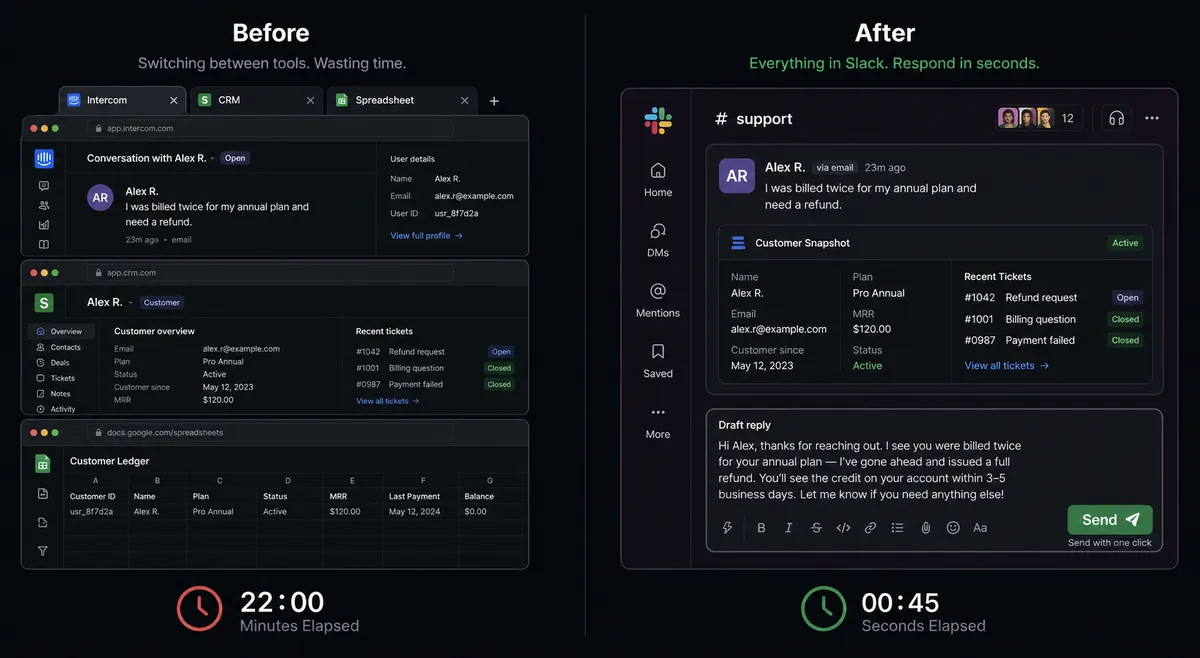
Support teams running Intercom and Slack together face a specific friction: the two systems do not share context. A customer sends a message in Intercom. Somewhere in Slack, a support lead gets a ping. The rep opens Intercom, hunts for the customer’s account in another system, and then decides how to respond. The context hunting happens every time. For a team handling dozens of conversations a day, this adds up to hours of work that looks like support but is actually data retrieval.
The other problem is automation with no judgment. Teams that do try to automate this connection end up sending canned replies to customers who are already frustrated. A workflow that fires Reply to Conversation on every new ticket does not know the customer has been waiting three days for a refund. It sends the same “Thanks for reaching out” line regardless. The consequence is not just a bad customer experience. It is a customer who escalates, writes a review, or churns. The gap is not automation. It is automation that knows when to stop.
How it works: the connection
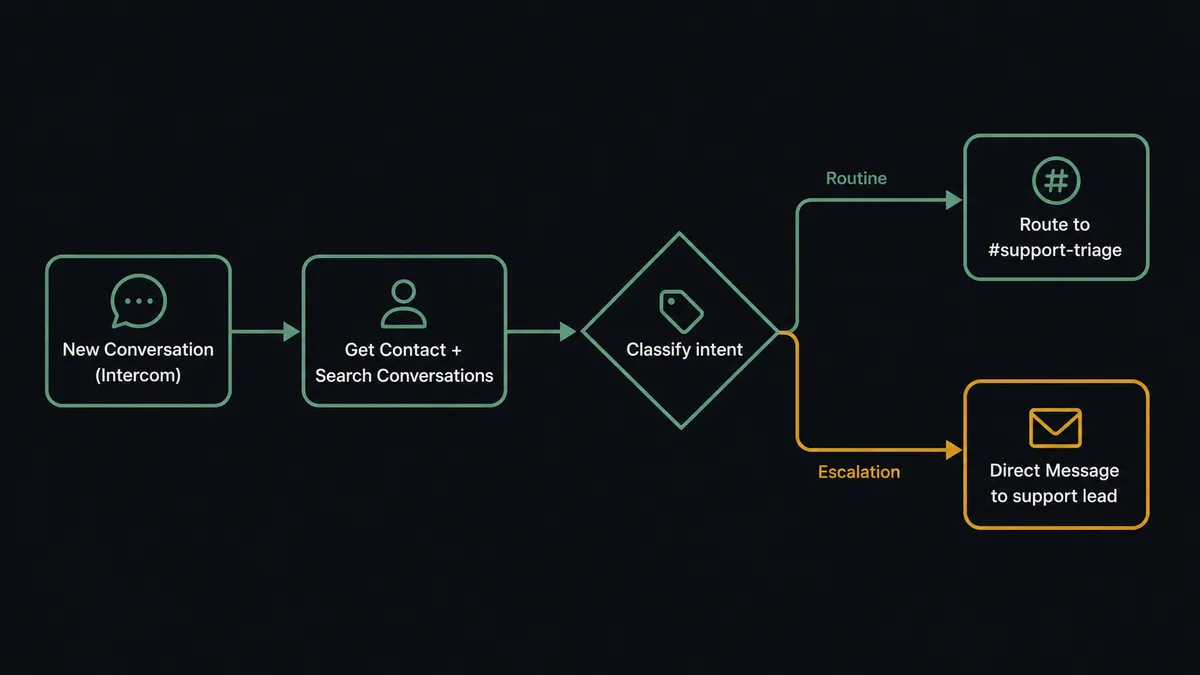
The basic connection maps Intercom’s New Conversation trigger to Slack’s Send Message to Channel action. When a customer opens a chat, a FlowRunner workflow fires. The workflow calls Get Contact to retrieve the person’s profile and Search Conversations to pull their recent history. It then formats a message with the conversation text, the customer’s name, and a link back to Intercom, and posts it to the designated Slack channel.
That is the minimum viable connection. The support team gets a Slack notification with context the moment a conversation opens, without switching tabs. For teams with moderate volume, this alone saves 5 to 10 minutes per conversation that currently goes to context-hunting.
The connection also works in reverse. When a support lead resolves a conversation in Slack, the workflow calls Close Conversation or Assign Conversation in Intercom to keep the record accurate. Tags applied in the workflow (via Tag Conversation) show up in Intercom’s reporting, so triage work done in Slack is captured where it matters.
Can an AI agent run it? (and why a human stays in the loop)
The plain connection routes and notifies. The AI agent reads, reasons, and decides.
When an agent node sits in the middle of the workflow, it receives the conversation text, the customer’s history, and the context pulled by Get Contact and Search Conversations. The agent evaluates what it is looking at. A first-time customer asking about shipping times gets a different classification than a customer whose last three conversations were about a billing dispute that was never resolved. The agent is not matching keywords. It is reasoning about the situation.
For routine conversations with a clear answer, the agent drafts a suggested reply and posts it to #support-triage with a one-click Send option. The rep reviews and sends. Response time drops from minutes to seconds.
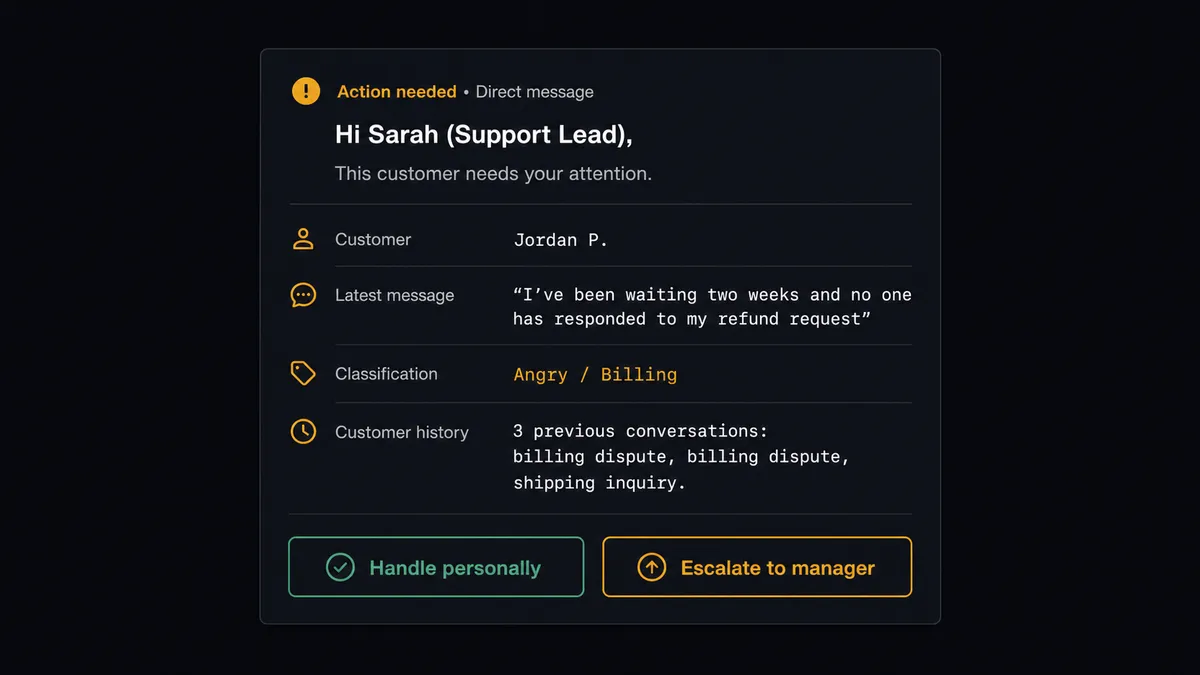
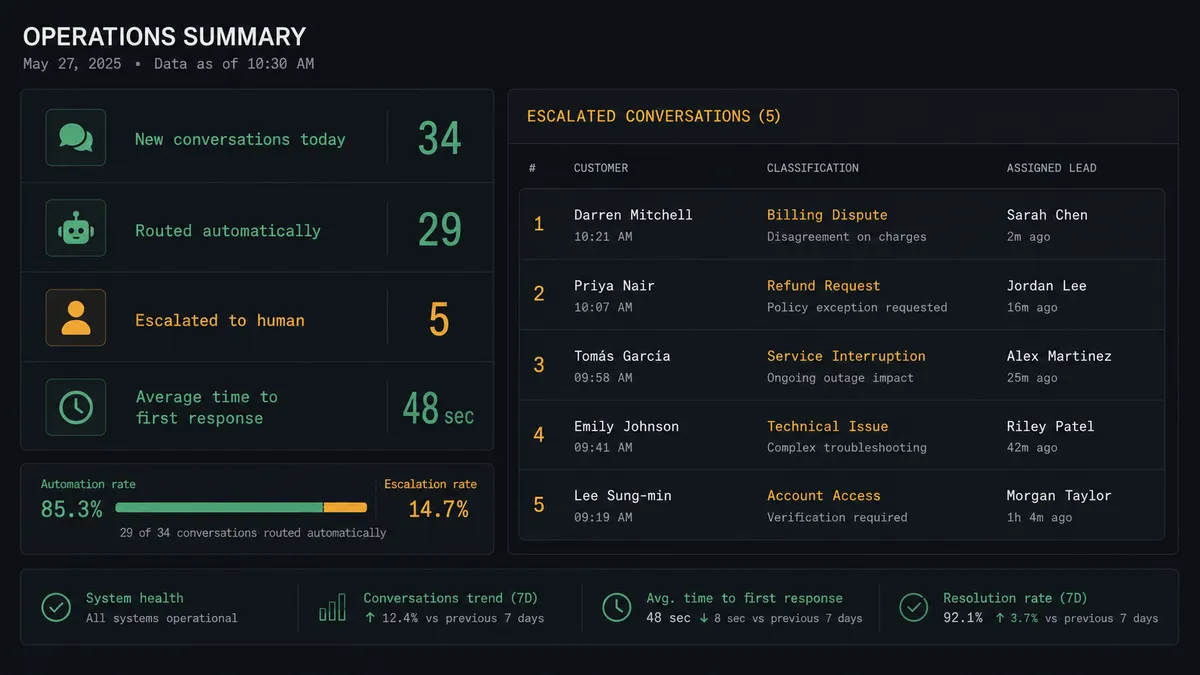
For the conversations that should not be automated, the agent does not guess. It invokes a separate human-in-loop flow as a callable tool. That flow sends a Direct Message to the support lead with the full conversation text, the customer’s history, the agent’s classification, and two options: Handle personally or Escalate to manager. The agent sends nothing to the customer until the lead responds. When the lead clicks Handle, the agent routes the conversation via Assign Conversation and marks it with the appropriate tag. The lead’s identity, the decision, and the timestamp are captured in the audit trail.
This is what the “digital andon cord” framing means in practice. The agent stops the line when it hits something it should not decide alone. The support team handles the hard conversations. The agent handles the volume.
FlowRunner vs Zapier for this connection
Zapier is the natural starting point for teams connecting Intercom and Slack without a developer. It works. The trigger fires, the action runs, and teams that just need a notification channel get what they need quickly. Zapier’s library of pre-built integrations and its simple two-step UI are genuine strengths, especially for non-technical operators setting up their first automation.
The differences matter when the workflow grows.
| What changes | Zapier | FlowRunner |
|---|---|---|
| Human-in-loop decisions | Not available natively; requires external tools or Zapier Tables | Native: agent invokes a human-in-loop flow as a callable tool, decision captured in audit trail |
| AI agent reasoning | Zapier AI is a step, not a decision-maker; it does not choose which tools to call | Agent reads data, reasons, and picks tools from both integrations based on context |
| Users and workflows | Per-seat pricing adds cost as the team grows | Unlimited users and unlimited workflows on every tier |
| Pricing model | Per-task execution; high-volume workflows get expensive | Workflow-based tiers with transparent execution limits |
| Self-host option | Not available | Available on Community Edition (free) and Enterprise |
| BYOK for AI | Not available | Yes; connect your own AI provider key |
Zapier is a solid choice for simple notification routing. FlowRunner is the choice when the workflow needs judgment, compliance, or scale beyond one or two people.
Before and after
| Category | Before | After |
|---|---|---|
| Context per conversation | Rep opens Intercom, then CRM, then support history separately to reconstruct the customer’s situation | Agent pulls Get Contact and Search Conversations on arrival; rep sees full context in Slack before touching the conversation |
| Response time on routine messages | 15 to 30 minutes from conversation open to first reply | Draft ready in Slack within seconds; rep reviews and sends in one click |
| Handling of angry or ambiguous messages | No consistent process; at risk of canned reply going to a frustrated customer | Agent classifies and routes to support lead before any reply is sent; human owns the response |
| Triage visibility | Manager asks the team for a status update; answers come via separate Slack threads | Conversations tagged and assigned in Intercom automatically; triage state visible in both systems |
| Audit trail | No record of who decided what or when | Every routing decision, human response, and assignment captured with identity and timestamp |
What you can build
New conversation triage with classification routing. New Conversation fires in Intercom. The agent reads the message, calls Get Contact for history, classifies intent (billing, shipping, returns, technical), and routes to the correct Slack channel with a suggested reply. Each support specialist sees only their queue.
Ticket SLA monitoring. New Ticket fires. The agent uses Assign Conversation to set the right team and Tag Conversation for the SLA tier. If the ticket is not resolved within the SLA window, the agent posts a Send Direct Message to the assigned admin and posts a summary to #support-ops. Escalation happens automatically, not when someone remembers to check.
Customer signup enrichment and welcome routing. New Contact fires in Intercom. The agent enriches the profile, applies a segment tag via Tag Contact, submits a signup event via Submit Event, and posts a Send Message to Channel in #sales-pipeline so the account team knows immediately. The sales rep gets context before the first call without anyone copying records by hand.
Conversation reply sync to ops channel. Conversation Replied fires when a customer adds a message. The agent evaluates whether the reply changed the sentiment or priority. If a previously routine conversation now reads as escalating, the agent posts a Send Message to Channel in #support-escalations and calls Assign Conversation to re-route. No conversation falls through the cracks because the initial classification was wrong.
Post-conversation satisfaction flow. Conversation Closed fires in Intercom. The agent sends a Create Message to the customer with a satisfaction link. If the customer does not respond in 48 hours, the agent posts a Send Message to Channel reminder to #support-followup. Closed-loop satisfaction tracking without a separate survey tool or manual follow-up process.
Getting started
FlowRunner’s Growth plan includes the Intercom and Slack connectors, AI agent nodes, human-in-loop orchestration, and unlimited users. Start on the free plan: 100 executions a month, every integration included, no credit card required, plus 14 days of Professional for new accounts.
Connect Intercom at /integrations/intercom and Slack at /integrations/slack. Both connectors include the triggers and actions described in this article.
To start a trial, go to flowrunner.ai. To talk through your specific support workflow before signing up, book a 30-minute intro at calendly.com/flowrunner/intro.
Frequently asked questions
Is it free to connect Intercom and Slack on FlowRunner?
FlowRunner has a free plan with 100 executions a month, every integration included, and no credit card required, and new accounts get 14 days of Professional on top. After that, Growth is $45 per month and includes unlimited users and workflows.
Can I self-host FlowRunner?
Yes. FlowRunner offers a Community Edition that is free to self-host on a single instance, and an Enterprise self-hosted option with multi-instance clustering and a full compliance suite.
Does the AI agent need my own OpenAI key?
FlowRunner uses a bring-your-own-key model. You connect the AI provider you already use and trust. The platform orchestrates your agent against your key, so your data stays under your control.
What happens when the agent is not sure what to do?
The agent invokes a human-in-loop flow as a callable tool. It pauses the workflow, sends a Slack message with full context and decision options, and waits. When the human responds, the workflow resumes and the decision is captured in the audit trail.
Will this work with my existing Intercom setup?
Yes. FlowRunner connects to your Intercom workspace via an access token and your Slack workspace via OAuth. You choose which triggers to activate and which channels to route to. Nothing in your existing configuration changes.
Can the agent reply to Intercom conversations automatically?
The agent prepares draft replies and routes them for review. For routine questions it surfaces a ready-to-send reply in Slack. For angry or ambiguous messages it routes the full context to a support lead without sending anything automatically.