How to Connect LinkedIn with Google Sheets (With or Without an AI Agent)
Connect LinkedIn and Google Sheets so new spreadsheet rows trigger LinkedIn posts or post data flows back to Sheets, optionally as an AI agent that pauses for human approval before anything publishes.
How do you connect LinkedIn to Google Sheets?
You connect LinkedIn to Google Sheets by using the On New or Updated Row trigger in Google Sheets to fire a workflow that calls Create Post in LinkedIn, mapping your content fields across in between. FlowRunner is a visual AI-agent orchestration platform where automations run autonomously and pause for human judgment on the steps that carry real consequence. With FlowRunner, the same connection runs as an AI agent that assembles the post, reasons about whether it is ready to publish, and holds for a human to approve before anything goes live.
The problem this solves
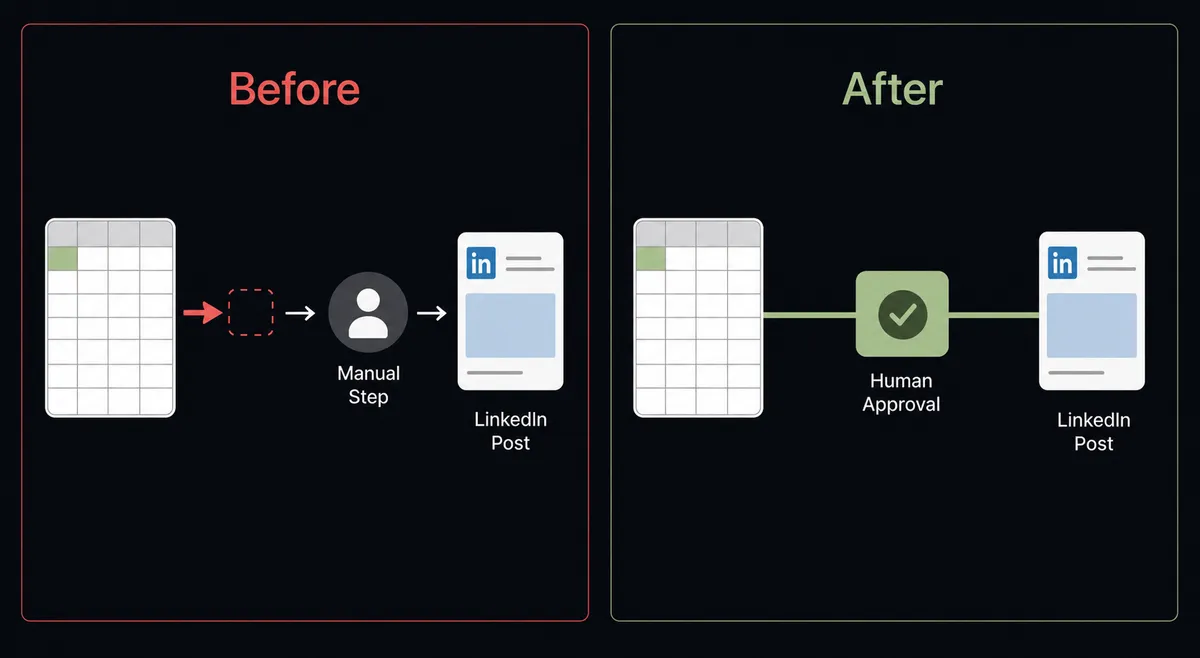
Right now, the gap between “content is ready” and “content is on LinkedIn” is a person. Someone marks a case study as done in a spreadsheet, then someone else notices it, writes a LinkedIn post from scratch, logs into the company page, and publishes. That chain depends on whoever has the right login available and enough time to do it well. When they are busy, distribution slips. When they are rushing, the copy is off. The post goes out a week late or sounds nothing like the brand.
The deeper problem is that the spreadsheet and LinkedIn are completely disconnected. Nothing in the spreadsheet knows that a post went live. Nothing on LinkedIn knows what the spreadsheet says is ready. Every step in between is manual, fragile, and invisible to anyone who was not involved. When something falls through the cracks, nobody has a record of what happened or why.
How it works: the connection
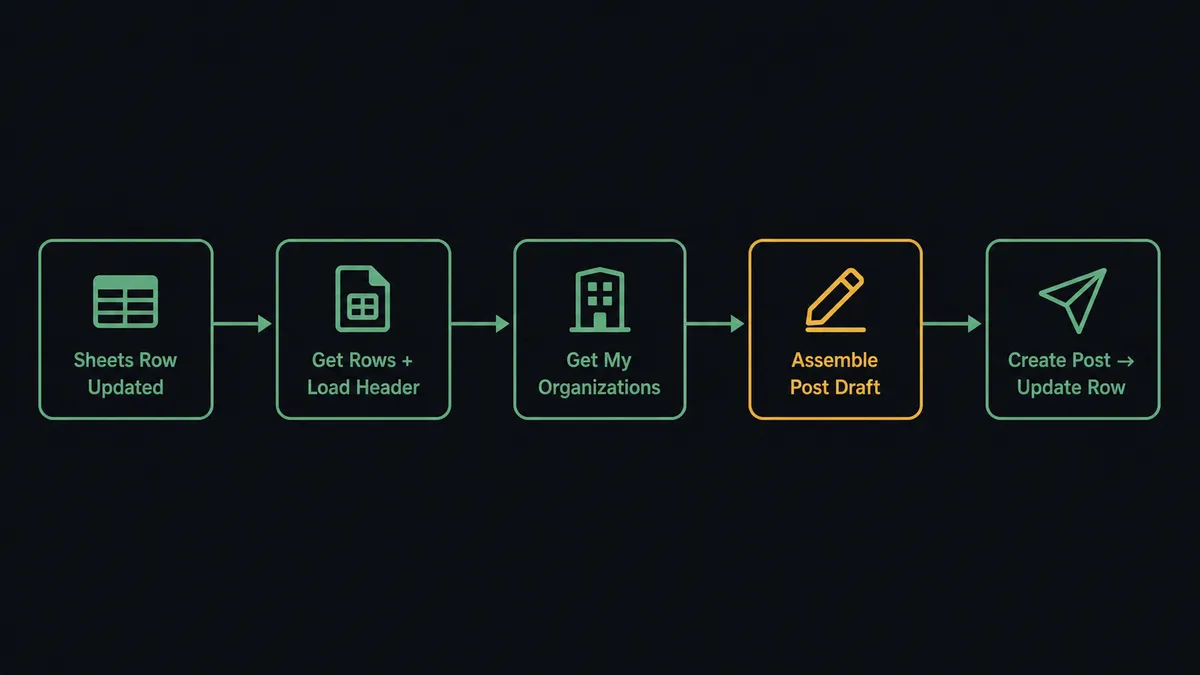
The Google Sheets On New or Updated Row trigger watches a specific column in your content tracking sheet. When a row changes to “Ready” or any status you designate, the trigger fires and the workflow starts.
The agent reads the triggered row using Get Rows, pulling the headline, summary, and article link mapped to their column names via Load Header Row. It calls Get My Organizations to retrieve the URN of the company page it should post as. Then it assembles the LinkedIn article-link card using those fields and passes everything to Create Post.
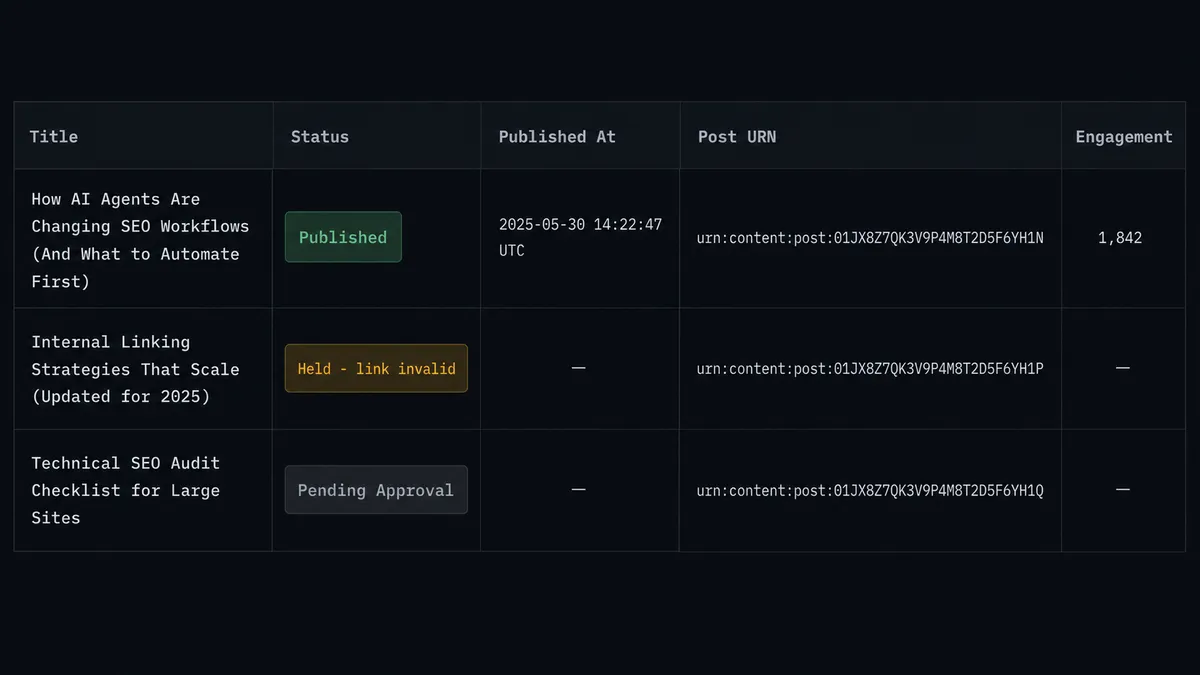
After the post publishes, the agent writes back to the row with Update Row, stamping the published status and a timestamp into the tracking sheet. The spreadsheet that started the flow now reflects the outcome without anyone touching it.
Can an AI agent run it? (And why a human stays in the loop)
A direct trigger-to-action connection publishes whatever is in the row. An AI agent reads the row, reasons about it, and decides whether to publish, ask for changes, or stop and get a human. That distinction matters for anything that carries your company’s name in public.
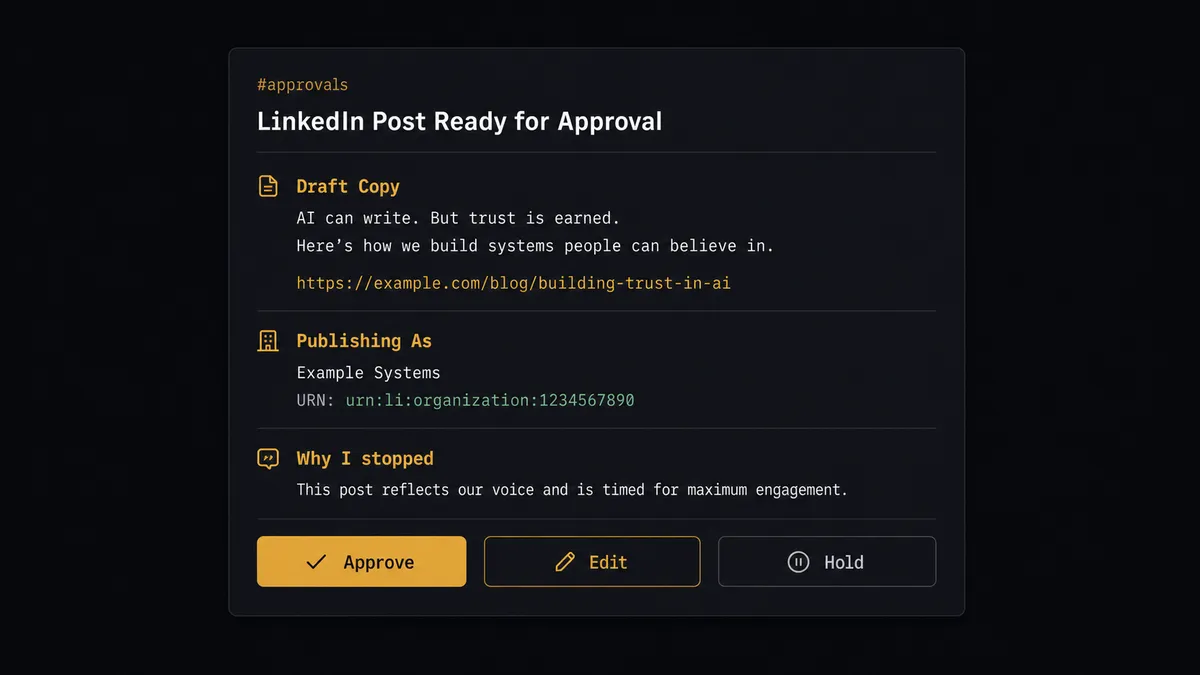
The agent has Create Post, Create Image Post, Get My Organizations, and Get Post as tools. It also has a human-in-loop subflow as a callable tool. That subflow sends a Slack message to the marketing owner with the assembled draft, a preview of the link card, and three buttons: Approve, Edit, or Hold.
The agent does not invoke the human-in-loop tool on a hardcoded threshold. It reads the draft it assembled and makes a judgment call. A standard case study announcement from a known author with a clean link resolves quickly. A post that involves a sensitive topic, an unfamiliar organization URN, or copy that the agent flags as inconsistent with past approved posts triggers the escalation, not a rule about dollar amounts or word counts.
When the agent pauses, the marketing owner receives full context: the exact copy, the link preview, which company page it would post as, and why the agent is stopping to ask. The owner approves, edits, or holds. If they approve, the agent calls Create Post with the signed-off copy. If they hold, the row in Google Sheets is updated with a “Held” status and no post goes out. The decision, the decider’s name, and the timestamp are all recorded in the audit trail.
This is what prospects describe as a “digital andon cord.” The agent stops the line when the decision is consequential. Assembling the draft is work a machine does well. Deciding that a specific sentence should appear under the company logo, permanently, on the public internet, is the part that needs a person.
FlowRunner vs Zapier
Zapier is the right comparison for non-technical teams connecting LinkedIn to Google Sheets. It is widely adopted, has a clean UI, and has supported both integrations for years. If you need a simple trigger-to-action connection and the post can publish without a review step, Zapier handles that well.
The differences show up when the workflow needs judgment, not just a connection.
| Feature | Zapier | FlowRunner |
|---|---|---|
| LinkedIn to Sheets connection | Yes, with multi-step Zaps | Yes, trigger-action or AI agent |
| Human approval before LinkedIn post publishes | Via email or Zapier Tables (add-on, extra cost) | Native human-in-loop tool invoked by the agent on its own judgment |
| Agent decides when to escalate vs. auto-publish | No, requires hardcoded filters | Yes, the agent reasons per post based on content and context |
| Write publish status back to the same Sheets row | Yes, with an additional Zap step | Yes, Update Row in the same flow |
| Unlimited users on every plan | No, Zap usage is per account | Yes, all FlowRunner tiers include unlimited users |
| Self-hosted option | No | Yes, Community Edition free, Enterprise custom |
| BYOK for AI provider | No | Yes |
Before and after
| Category | Before | After |
|---|---|---|
| Time from content ready to post drafted | Days, waiting for the right person to notice | Seconds after the row status changes |
| LinkedIn post authorship | Whoever had the login and time to write it | Consistent brand voice assembled by the agent from source data |
| Review process | None, or ad hoc review before publishing manually | Structured Slack approval step with full draft context before anything publishes |
| Status visibility in Google Sheets | Updated manually, sometimes days later | Written back automatically with status and timestamp on publish |
| Missed distributions | Common, especially during busy periods | Eliminated; the trigger fires when the content is marked ready |
What you can build
Content pipeline to LinkedIn company page. A case study or announcement is marked ready in a Google Sheets tracker. The agent reads the headline, summary, and link, builds the LinkedIn article-link card with Create Post, resolves the company page URN with Get My Organizations, and routes the draft to a marketing owner for approval before it goes live.
Image post with creative from file storage. A product milestone graphic is logged in a Sheets row with a file URL. The agent calls Create Image Post, which handles the multi-step LinkedIn image upload in a single call, and holds the resulting draft for a human to approve before it reaches the feed.
Scheduled content batch from a campaign sheet. Each Monday, an agent reads the week’s planned posts from a campaign tracking sheet using Get Rows, assembles each draft, and queues them for the marketing owner to review in sequence. Approved posts publish; held posts stay flagged in the sheet.
Engagement tracking back to Sheets. After posts go live, the agent calls Get Post to retrieve engagement data and uses Update Row to write the data back to the tracking sheet. The sheet that originated the post becomes the running record of how it performed.
Exception handling for bad rows. A content row fails validation because a required field is blank or the article link does not resolve. The agent holds the row, marks it with Format Row so it is visually flagged in the sheet, and routes the details to the content owner via Slack with the exact field that needs correction before reprocessing.
Getting started
FlowRunner has a free plan with 100 executions a month, every integration included, and no credit card required, and new accounts get 14 days of Professional on top. Any real email address works; disposable domains are not accepted.
Both integration pages have the full action and trigger reference: LinkedIn and Google Sheets.
Start at flowrunner.ai or book a 30-minute walkthrough at calendly.com/flowrunner/intro to see the human-in-loop approval step running live with both integrations connected.
Frequently asked questions
Is it free to connect LinkedIn and Google Sheets on FlowRunner?
FlowRunner has a free plan with 100 executions a month, every integration included, and no credit card required, and new accounts get 14 days of Professional on top. No credit card is required to start. Beyond the free plan, Growth is $45 per month.
Can I self-host FlowRunner if I don't want cloud-hosted automation?
Yes. FlowRunner offers a free Community Edition for self-hosted single-instance deployments. An Enterprise self-hosted tier is available for organizations that need multi-instance clustering and the full compliance suite.
Does the AI agent need my own OpenAI or AI provider key?
FlowRunner uses a bring-your-own-keys model. You connect your own API key from whichever AI provider you use. FlowRunner orchestrates the agent; you control which model runs it and what it costs.
What happens when the agent isn't sure whether to publish a LinkedIn post?
The agent pauses the workflow, packages the full draft and its reasoning, and routes to a human via Slack, email, or another channel. Nothing publishes until a person approves. The agent only resumes after the human responds.
Does every LinkedIn post require human approval, or can some publish automatically?
That depends on the instructions you give the agent. You can configure it to auto-publish low-risk content, like standardized job postings pulled from a template, and require approval only for company announcements, case studies, or anything that involves the brand voice.
Can the Google Sheets trigger detect row updates, not just new rows?
Yes. The On New or Updated Row trigger fires whenever a row is added or an existing row is changed. This means you can build flows that react when a content status changes from Draft to Ready, not just when a new row appears.