How to Connect Zendesk with Linear (With or Without an AI Agent)
Connect Zendesk and Linear so new support tickets automatically become tracked engineering issues, with a FlowRunner AI agent that deduplicates, routes, and pauses for a human before creating anything that could clutter the backlog.
How do you connect Zendesk to Linear?
You connect Zendesk to Linear by triggering a flow on the Zendesk On Ticket Event, using Get Ticket to read the incoming support request, running Search Issues in Linear to check for a duplicate, and then calling Create Issue to open tracked engineering work. FlowRunner is a visual AI-agent orchestration platform where automations run autonomously and pause for human judgment on the steps that carry real consequence. The same connection can run as an AI agent that reads the ticket, evaluates the context, and invokes a human decision before creating anything that could clutter the backlog.
What goes wrong when support and engineering work in separate systems
The gap between Zendesk and Linear is where work disappears. A support agent closes a ticket marked “engineering issue” and writes the issue ID in the internal notes. Three days later someone asks about the bug. The internal note is in Zendesk; the fix is in Linear; neither team knows the other’s status without switching tabs and searching manually. Exceptions fall through the cracks, usually the ones that matter most.
The other side of the problem is duplication. When support tickets turn into Linear issues by hand, the same bug report gets filed twice. Engineers close one, never see the other. The customer follows up. The support agent looks up the ticket, finds the internal note, notices the wrong Linear issue was closed, and starts the whole loop again. This is not a people problem. It is a process gap that spreadsheets and manual handoffs cannot close at any meaningful scale.
How it works: the connection
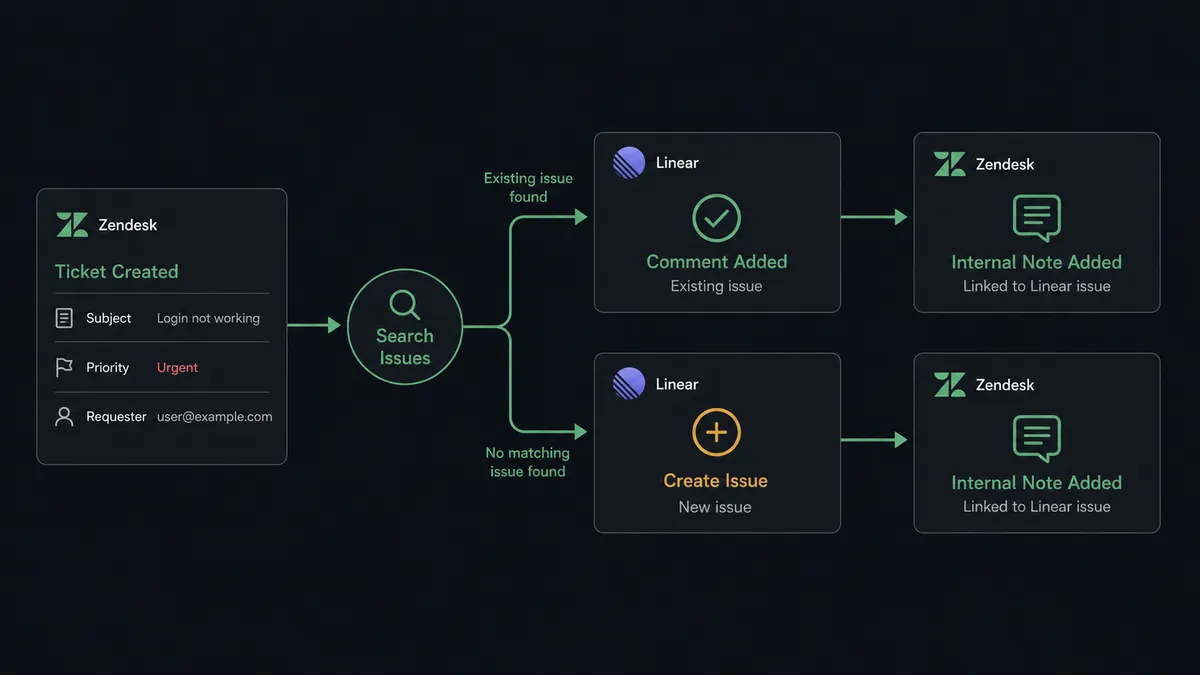
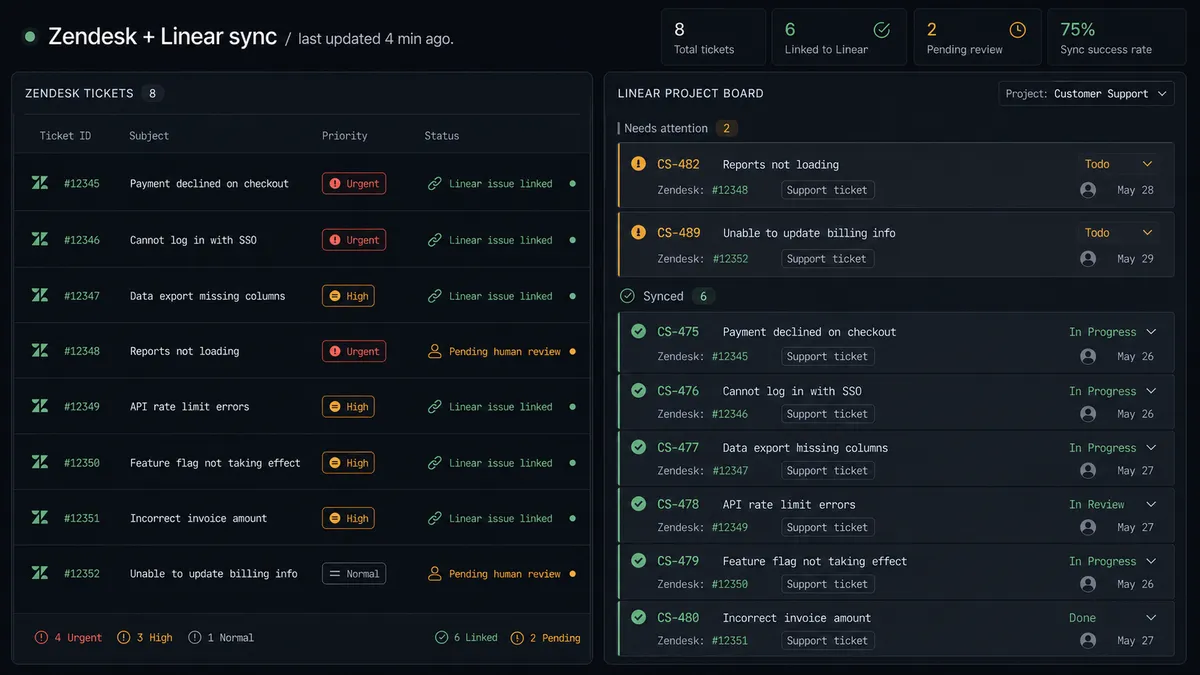
The flow starts the moment a ticket lands. Zendesk’s On Ticket Event fires on ticket creation and updates in real time, delivered through a webhook that FlowRunner provisions automatically. No polling. No delay.
The flow then calls Get Ticket to pull the full record: subject, priority, requester, group, tags, and custom fields. If the ticket has a conversation thread, List Ticket Comments gives the agent the full context before it acts.
Before opening anything in Linear, the flow runs Search Issues against the ticket subject and affected component. If a clear match comes back, the agent calls Create Comment to post the new occurrence on the existing issue. The backlog stays clean. If no match exists, the agent calls Create Issue with the ticket subject, description, requester details, and priority mapped to Linear’s numeric scale. It sets the target team, assigns an owner if routing rules apply, and writes the Zendesk ticket ID into the issue description so the link back is permanent.
Once the Linear issue is created or updated, the flow calls Update Ticket in Zendesk to add an internal note with the Linear issue URL and sets the ticket status. Support knows where the engineering work lives. Engineering knows where the customer report came from.
Can an AI agent run it? And why a human stays in the loop
Yes. A plain trigger-action connection moves data. An AI agent reads the data and decides what to do with it.
The agent has Get Ticket, List Ticket Comments, Search Issues, Create Issue, Update Issue, and Create Comment as tools. It reads the ticket, reasons about the subject and the search results, and picks the right sequence. It does not always call the same actions in the same order. A high-priority ticket from a paying customer gets different treatment than a low-priority report with a clear existing match.
The consequential step is the create gate. A wrong decision here goes in one of two directions: you either open a duplicate that buries the real issue, or you comment on the wrong issue and the new signal gets lost. Neither outcome is recoverable quickly. So the agent does not guess on ambiguous matches.
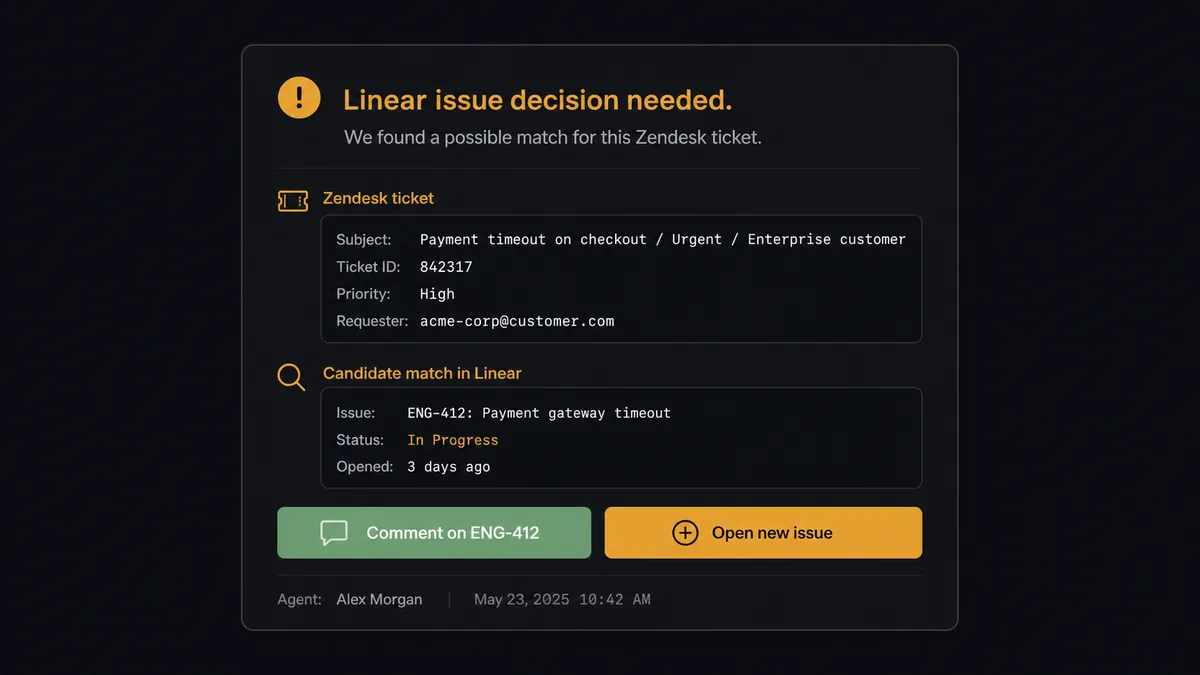
When Search Issues returns a result that is close but not certain, the agent stops. It invokes the human-in-loop flow as a callable tool. That flow sends a message to your triage channel with the ticket subject, requester, priority, the candidate Linear issue (title, ID, and current status), and two options: “Open new issue” or “Comment on ENG-412.” A triage lead clicks one. The agent resumes with the decision as input and calls the corresponding action. The decision, the responder’s identity, and the timestamp appear in the audit trail.
This is not a hardcoded threshold. The agent might auto-match a clear repeat of a known issue and skip the human entirely. It might stop on a ticket it has never seen from a customer tier it has learned to treat carefully. The decision to involve a person is itself an AI decision made at runtime.
FlowRunner vs the tool you’re probably comparing
If your team already uses Zapier to move data between Zendesk and Linear, it works for the simple case: a ticket comes in, an issue gets created. Zapier is straightforward to set up and has a large library of pre-built templates. It is a reasonable starting point.
The limits appear at the edges. Zapier’s multi-step Zaps follow a fixed sequence. There is no step that reads the Linear backlog, checks for a duplicate, and then decides which branch to take based on what it finds. You handle that logic outside Zapier, usually in a spreadsheet or a manual queue review. Human-in-loop decisions happen outside the automation entirely, with no audit trail connecting them to the workflow.
| Feature | Zapier | FlowRunner |
|---|---|---|
| Fixed trigger-action sequence | Yes | Yes, and also AI-agent decision trees |
| Dedup check before creating an issue | Manual, outside Zapier | Native: Search Issues runs before Create Issue |
| Human-in-loop with audit trail | Not native | Native: agent invokes approval as a callable tool |
| Unlimited users on every paid plan | No (user limits apply) | Yes, all tiers |
| BYOK for AI provider | No | Yes |
| Self-hosted option | No | Yes (Community and Enterprise tiers) |
Before and after
| Category | Before | After |
|---|---|---|
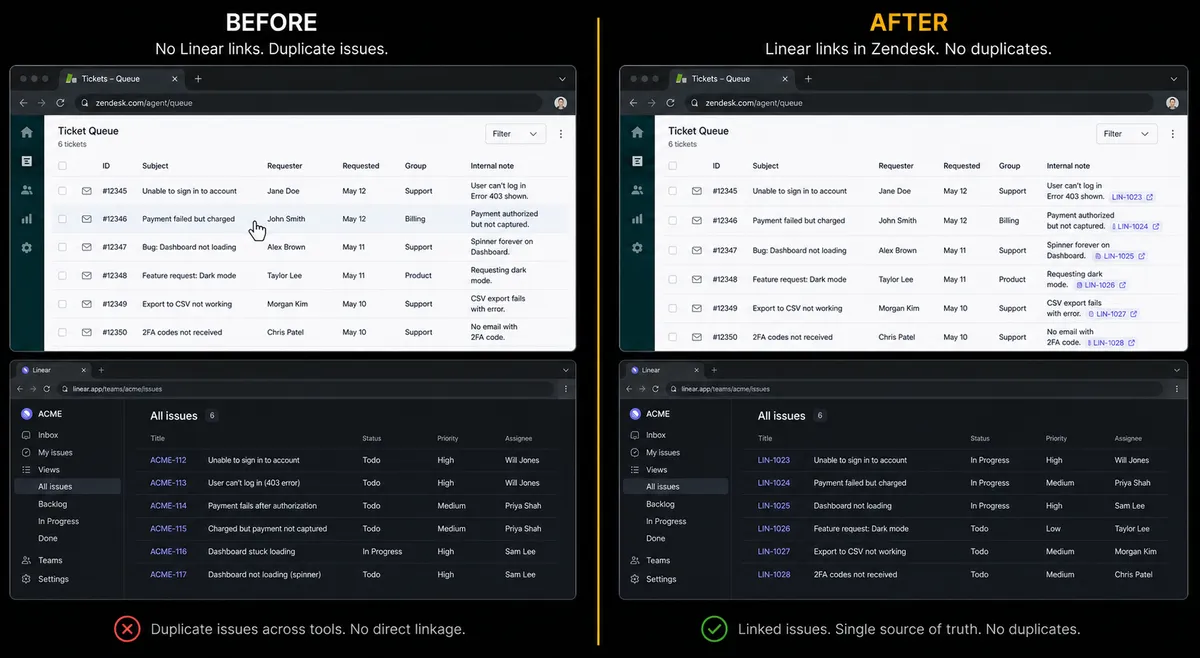
| Duplicate Linear issues | Every Zendesk ticket opens a fresh issue; backlog fills with repeats | Agent searches before creating; duplicates go as comments on the matched issue |
| Ambiguous tickets | Support agent guesses which issue to reference, or skips the link | Agent posts to triage channel; a person decides in Slack before anything is created |
| Engineering context | Engineers reopen Zendesk to find the original report | Zendesk ticket ID is in every Linear issue description from the moment it’s created |
| Status visibility | Support asks engineering “is this fixed?” manually | On Linear Event fires when the issue moves to Done; ticket gets an internal note automatically |
| Bulk triage | A support lead reassigns a batch of tickets without a second set of eyes | Agent routes a proposed bulk move to a lead for approval before applying it |
What you can build
Bug report to Linear with dedup gate. When a customer submits a bug via Zendesk, the agent reads the ticket, searches Linear for a matching open issue, and either comments on the existing issue or creates a new one. Support always has a Linear issue ID attached to the ticket before the conversation continues.
Urgent ticket escalation to engineering. When On Ticket Event fires for an urgent-priority ticket, the agent posts the ticket details to the engineering triage channel using the human-in-loop flow, waits for a response, and creates a high-priority Linear issue on the right team once confirmed. The issue lands in the backlog within minutes of the ticket arriving.
Bulk ticket-to-backlog import. During a sprint planning session, a support lead tags a set of Zendesk tickets with “engineering-q3.” A scheduled flow reads those tickets with Search Tickets, searches Linear for matches, and proposes the full batch as new issues for a lead to review and approve before any issues are created.
Status sync from Linear back to Zendesk. On Linear Event fires when an issue moves to a Done state. The flow calls Get Ticket in Zendesk using the ticket ID stored in the issue description, then calls Add Comment To Ticket with a public reply telling the customer their issue is resolved. Engineering closes the Linear issue; the customer hears about it automatically.
New feature request pipeline. When a Zendesk ticket is tagged “feature-request,” the agent searches Linear projects for an existing roadmap item, posts the customer request as a comment if it finds one, or creates a new issue in the product backlog with the requester’s details if it does not. Product managers see customer demand directly in Linear without reading Zendesk.
Getting started
FlowRunner has a free plan with 100 executions a month, every integration included, and no credit card required, and new accounts get 14 days of Professional on top. No credit card required at signup. Any real email address works; disposable domains are not accepted.
Start by visiting the integration pages for each system: Zendesk and Linear. Both connectors are available on every paid tier, including Growth.
Connect your accounts at flowrunner.ai, build the flow using the steps above, and turn it on. If you want a guided walkthrough before you build, book a 30-minute intro at calendly.com/flowrunner/intro. The call covers your specific Zendesk-to-Linear use case and leaves you with a working flow plan.
Frequently asked questions
Is it free to connect Zendesk and Linear on FlowRunner?
FlowRunner has a free plan with 100 executions a month, every integration included, and no credit card required, and new accounts get 14 days of Professional on top. Any real email address works; disposable domains are not accepted.
Can the agent run this without my own AI API key?
FlowRunner uses a BYOK (Bring Your Own Key) model for AI providers. You connect your own OpenAI, Anthropic, or other provider key. You are never locked into one model, and your data does not pass through FlowRunner's AI infrastructure.
What happens when the agent is not sure whether a Zendesk ticket already has a matching Linear issue?
The agent runs Search Issues first. If the match is unclear, it stops and posts the ticket details and a proposed issue to your triage channel, asking a person to decide. The agent only calls Create Issue after a human confirms. The decision, the decider's name, and the timestamp all appear in the audit trail.
Can I self-host FlowRunner?
Yes. FlowRunner offers a free Community Edition for single-instance self-hosting and an Enterprise tier for multi-instance deployments with full compliance features. Cloud-hosted plans start free, with paid plans from $5 a month and Growth at $45 a month.
Does this replace my Zendesk or Linear plan?
No. FlowRunner connects your existing Zendesk and Linear accounts. You keep the plans you have. FlowRunner sits on top as the orchestration layer that moves data between them and decides what to do at each step.
What is the difference between this and a Zapier or n8n integration?
Zapier and n8n move data on a fixed sequence. FlowRunner runs an AI agent that reads the ticket, searches for an existing Linear issue, and decides what to do based on context. A human stays in the loop on the cases where guessing wrong would cost the team real time.