How to Connect Salesforce Pro with Slack Using FlowRunner
Stop losing leads to slow qualification and untracked conversions. Connect Salesforce Pro with Slack through FlowRunner to score leads automatically, convert with manager approval, and keep your revenue team aligned.
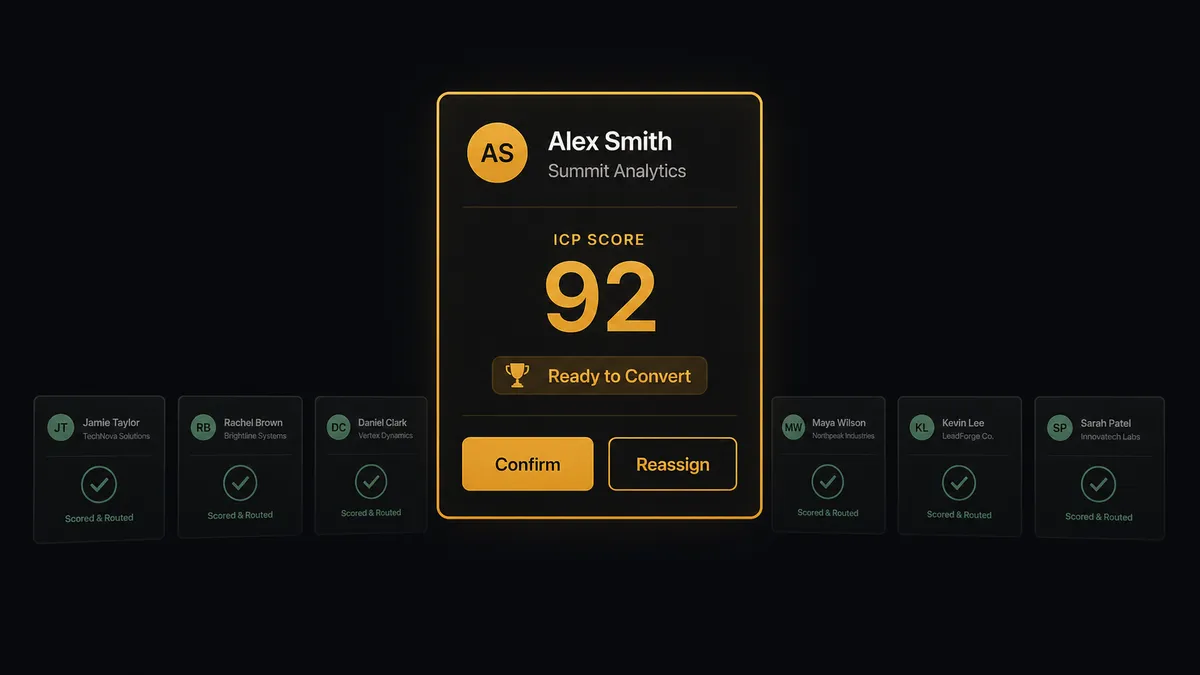
The Problem: Leads Come In, Then Get Stuck
Every sales organization has the same bottleneck. Leads arrive from forms, events, partner referrals, and inbound campaigns. Each one lands in Salesforce as a raw record. Then an SDR has to open it, research the company, check it against your ICP criteria, decide whether it is worth pursuing, and either convert it or let it sit. That process takes time per lead when done properly. Most SDRs are handling dozens of new leads per week.
The math does not work. When volume spikes after a campaign launch or conference, leads sit unqualified for days. Response time is the single strongest predictor of conversion, and every hour of delay cuts contact rates dramatically. Your best leads go cold while your SDRs are still working through yesterday’s batch.
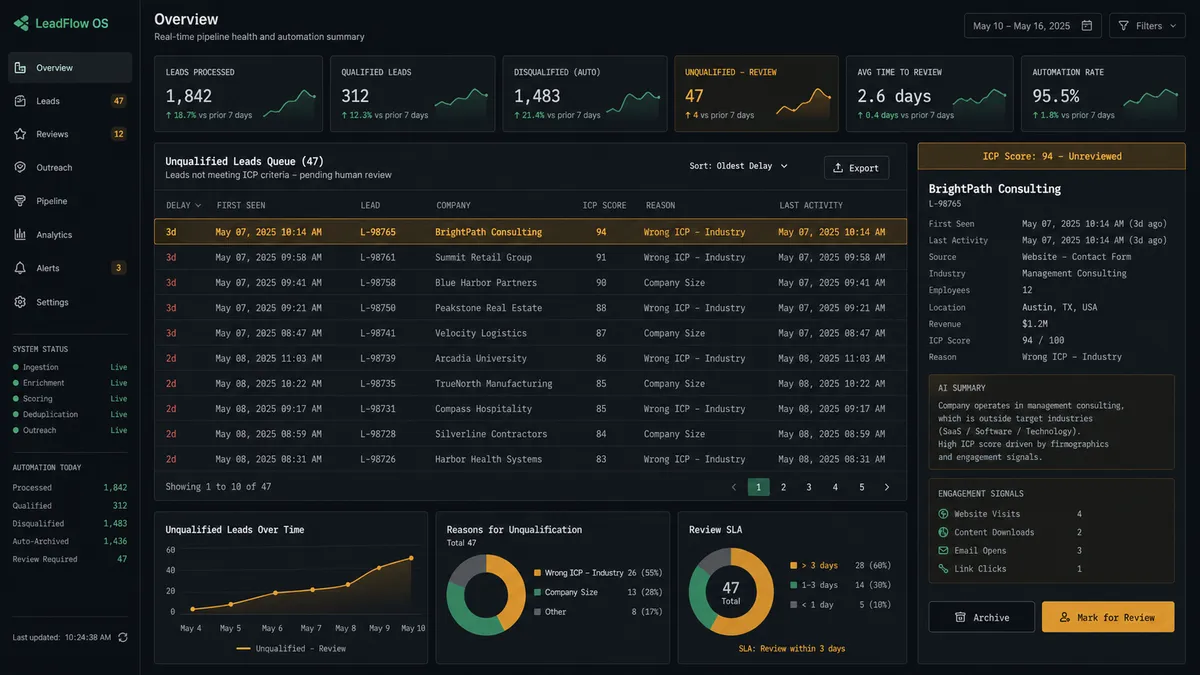
Then there is lead conversion itself. In Salesforce, converting a lead to a contact is irreversible. Once converted, the lead record is gone. If an SDR converts a lead that should have been reassigned, or converts with the wrong account mapping, cleaning it up means manual record surgery. Most teams have no structured approval process for conversions. They happen at the SDR’s discretion, and mistakes surface weeks later when pipeline reports do not match reality.
Campaign attribution is the third gap. Marketing needs to know which campaigns generated pipeline. But attribution data lives in Salesforce reports that someone has to run manually, export to a spreadsheet, and share in a meeting that happens once a month. By the time the data reaches the team that needs it, it is three weeks old.
The Solution: Leads Scored, Conversions Approved, Attribution Delivered
When Salesforce Pro and Slack are connected through FlowRunner, the pipeline from raw lead to qualified contact to attributed revenue runs as a single workflow. Salesforce Pro handles the CRM operations. Slack handles the human decisions. FlowRunner coordinates both and manages every step between them.
New leads are created in Salesforce automatically. The workflow enriches each one with firmographic data, scores it against your ICP criteria, and routes the result based on the score. Low-fit leads get tagged and parked. High-fit leads pause for a sales manager’s approval before the irreversible conversion happens. The manager sees the lead details, the ICP score, and the enrichment data in Slack. They click Confirm or Reassign. The workflow resumes. No email chains. No “can you check this lead?” conversations.
Campaign attribution runs on a schedule. A weekly SOQL query pulls closed opportunities with their campaign associations, calculates attribution by source, and posts a formatted summary to #revenue-ops. The data arrives Monday morning. No spreadsheets. No manual report generation. Your revenue team starts the week with numbers that are current as of last night.
Why Human-in-Loop Matters Here
Lead conversion in Salesforce is a one-way operation. Once you call Convert Lead to Contact, the lead record transforms into a contact, an account (or merges with an existing one), and optionally an opportunity. There is no undo. If the wrong account is selected, if the lead should have gone to a different rep, or if the conversion happens before qualification is complete, the cleanup is entirely manual.
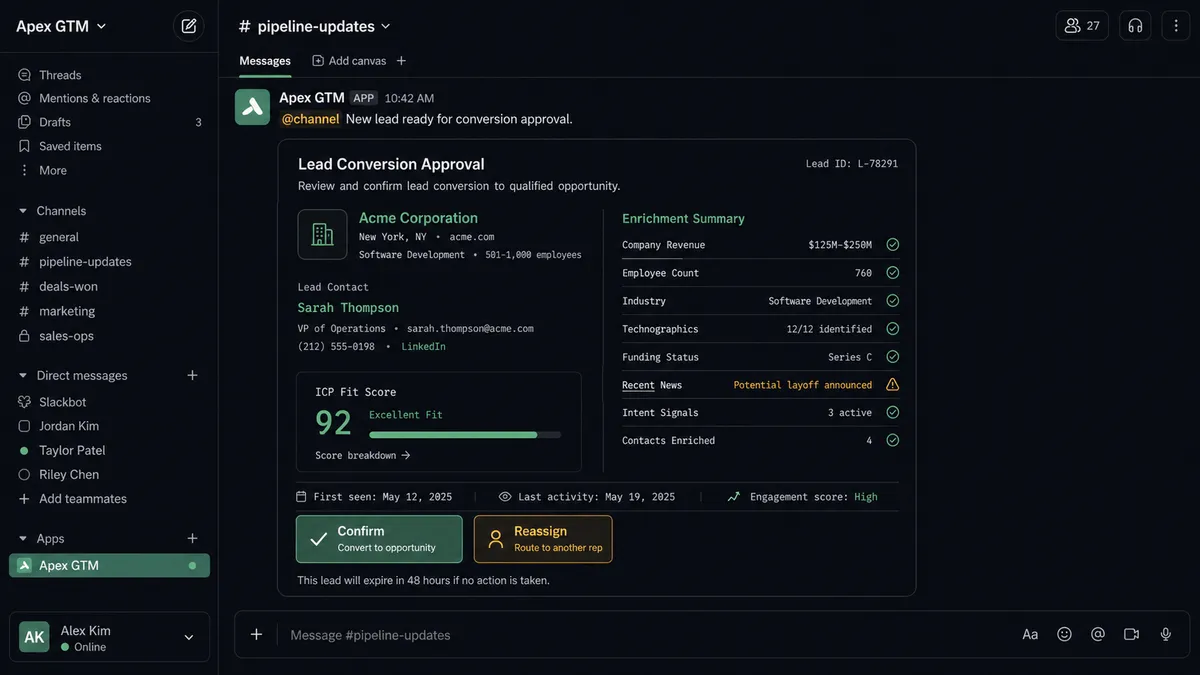
This is exactly the kind of operation where full automation is dangerous and no automation is slow. FlowRunner’s approach is different. The workflow does the research, scoring, and preparation automatically. But when it reaches the irreversible step, it stops. It sends a structured message to the sales manager via Slack with the lead’s details, the ICP score, the enrichment data, and two buttons: Confirm and Reassign. On Block Action fires when the manager clicks. If confirmed, the flow calls Convert Lead to Contact and assigns the new contact to the right rep. If reassigned, the flow calls Update Lead with the new owner. Every decision is logged with the approver’s identity and timestamp. The conversion that used to happen on an SDR’s best guess now has a decision history attached.
How It Works
Workflow 1: Inbound Lead Qualification Pipeline
This is the core workflow. A new lead enters Salesforce from any source: web form, partner referral, event import, or manual entry. The workflow takes over from there.
- Create: The flow calls Create Lead in Salesforce Pro with the inbound data: name, company, email, source
- Enrich: The flow enriches the lead with firmographic data from Apollo: company size, industry, revenue, tech stack
- Score: The flow evaluates the enriched lead against your ICP criteria and assigns a score (0-100)
- Route: Leads scoring below 40 are tagged as low-fit via Update Lead and parked for nurture sequences
- Pause: Leads scoring 70 or above trigger a human-in-loop step. The flow calls Send Direct Message to the sales manager with the lead details, ICP score, and enrichment summary. Two buttons: Confirm and Reassign
- Human: On Block Action fires when the manager clicks. Confirm triggers Convert Lead to Contact. Reassign triggers Update Lead with a new owner
- Assign: After conversion, the flow calls Update Contact to assign the new contact to the appropriate rep
- Notify: The flow calls Send Message to Channel to post to #sales-pipeline with the lead name, company, ICP score, the assigned rep, and the source.
A lead that previously sat in a queue for days is now qualified and routed in minutes. The only human time spent is the seconds it takes the manager to review and click Confirm.
Workflow 2: Deal Stage Document Package
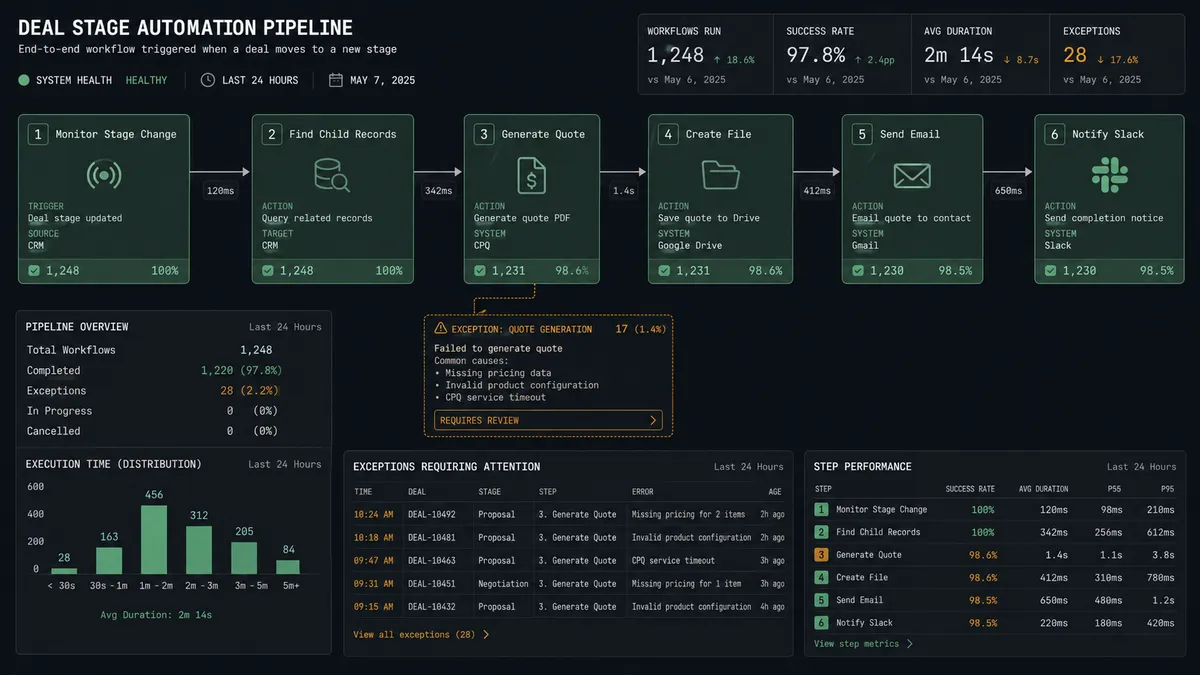
When a deal reaches the Proposal stage, the workflow assembles the document package automatically and posts a summary for the team.
- Trigger: The flow monitors for opportunities reaching the Proposal stage
- Gather: The flow calls Find Child Records to pull all related contacts, notes, and activity history from the opportunity
- Generate: The flow generates a quote based on the opportunity details and product line items
- Attach: The flow calls Create File and Add File to Record to attach the quote PDF to the opportunity
- Notify: The flow calls Send Message to Channel to post to #deal-desk with the opportunity name, deal value, identified stakeholders, and a link to the attached quote.
- Action: The flow calls Send Email through Salesforce to deliver the proposal to the primary contact with the quote attached
The deal desk team no longer assembles proposal packages by hand. The workflow handles the assembly. The team reviews the output.
Workflow 3: Weekly Campaign Attribution Report
Marketing attribution does not need to be a monthly exercise that requires a meeting. The workflow runs it automatically every Monday morning.
- Schedule: The workflow runs every Monday at 6:00 AM
- Query: The flow calls Custom SOQL Query to pull all opportunities closed in the past 7 days with their associated campaign IDs
- Analyze: The flow cross-references campaign membership using Find Records by Query to calculate attribution by campaign source
- Report: The flow calls Send Message to Channel to post a formatted summary to #revenue-ops: pipeline generated by campaign, conversion rates by source, and cost-per-opportunity breakdowns
- Flag: Campaigns with zero attributed pipeline in the past 30 days are flagged and posted separately for review
The revenue ops team gets fresh attribution data every week without running a single report. The data is in the channel where they discuss it.
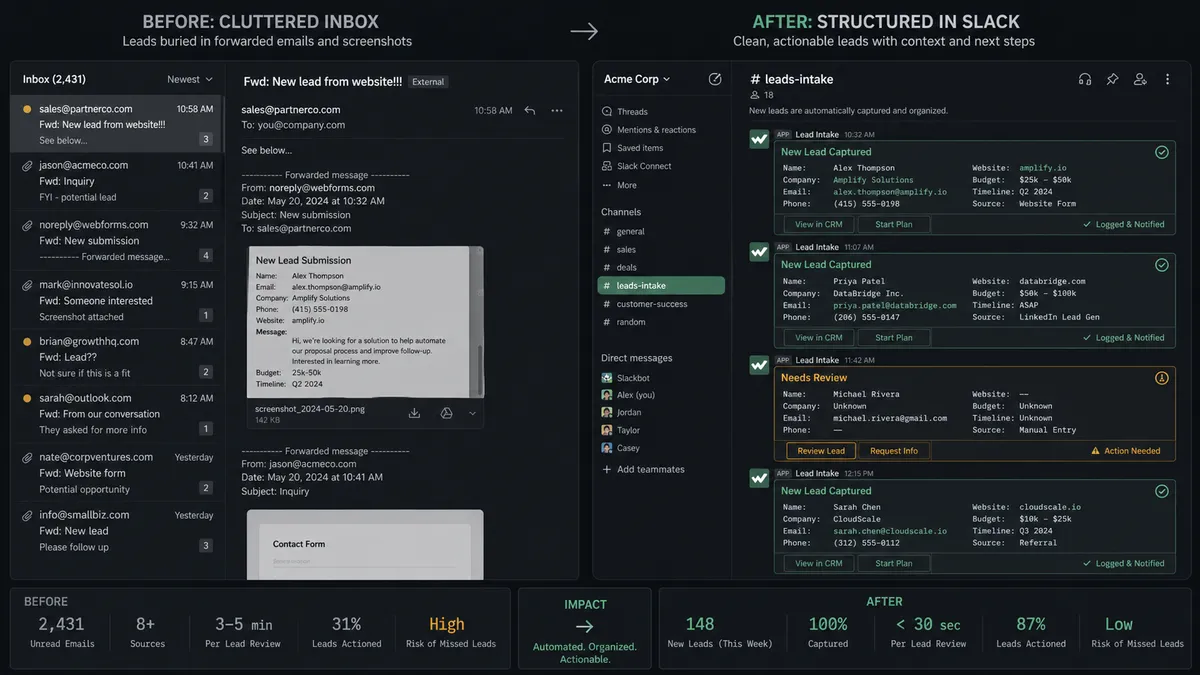
Before and After
| Before | After | |
|---|---|---|
| Lead qualification | SDRs review each lead individually, spending significant time researching and scoring | Leads scored automatically against ICP criteria and routed by score in minutes |
| Lead conversion | SDRs convert at their discretion with no approval process. Mistakes are irreversible | Controlled conversion with manager approval via Slack. Every conversion logged with approver and timestamp |
| Campaign attribution | Monthly spreadsheet exercise requiring manual report exports and a meeting to discuss | Weekly automated attribution report posted to #revenue-ops every Monday morning |
| Exception handling | Exception emails buried in inboxes with no tracking | Exceptions surface in minutes via Slack with interactive buttons and full context |
| Conversion audit trail | No structured record of who approved which conversions or why | Decision history is captured for every conversion: approver identity, timestamp, ICP score, and enrichment data. |
What You Can Build
Combining Salesforce Pro’s 25 CRM actions with Slack’s interactive messaging opens up workflows across the entire revenue operation:
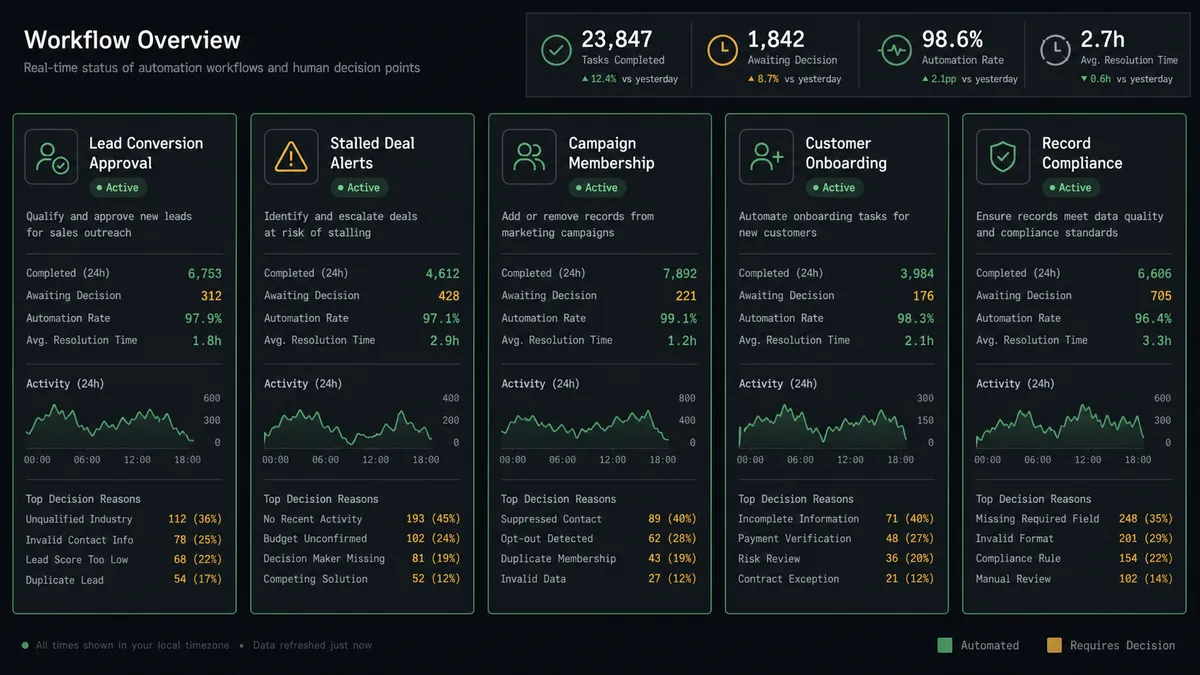
Lead conversion with manager approval. High-scoring leads pause before the irreversible Convert Lead to Contact step. The sales manager reviews via Slack, clicks Confirm or Reassign, and On Block Action routes the decision back to the workflow. Every conversion has a decision history.
Stalled deal alerts. The flow runs a Custom SOQL Query weekly for opportunities with no activity in 14 or more days. Stalled deals surface via Send Direct Message to the deal owner with the opportunity details, last activity date, and days stalled. The owner takes action or the deal gets flagged for pipeline review.
Campaign membership automation. When a lead attends an event or downloads content, the flow calls Add Lead to Campaign with the correct campaign ID and status. Campaign membership stays current without manual data entry.
Customer onboarding kickoff. When an opportunity closes, the flow calls Create Note with onboarding instructions and Find Record to pull the primary contact. A structured handoff message posts to #customer-success via Send Message to Channel with the account details, contract value, and implementation timeline.
Compliance-ready record management. The flow uses API Request to enforce data hygiene rules: required fields, standardized picklist values, and duplicate detection. Exceptions route to Slack for review. Clean data in, clean data out.
Getting Started
Both Salesforce Pro and Slack are available on every FlowRunner tier, starting at Growth ($45/mo, 12,000 executions). Every tier includes unlimited users and unlimited workflows, with full human-in-loop coordination.
Start on the free plan: 100 executions a month, every integration included, no credit card required, plus 14 days of Professional for new accounts. For teams that need decision history on their lead conversion approvals, Professional at $299/mo adds longer log history. Role-based access is available on Professional and above.
Connect Salesforce Pro to give your workflows access to 25 CRM actions, from Create Lead to Custom SOQL Query. Connect Slack to give your team interactive decision points where they already work. Build the workflow that connects them in minutes.
Start building free or book a demo to see it in action.