How to Connect Snowflake with Google Sheets (With or Without an AI Agent)
Use FlowRunner to connect Snowflake and Google Sheets so query results flow directly into spreadsheets on a schedule, with an AI agent that pauses for a human before writing back to a production warehouse.
How do you connect Snowflake to Google Sheets?
You connect Snowflake to Google Sheets by building a FlowRunner workflow: the Execute SQL action runs a parameterized query against your Snowflake warehouse, reads the returned rows as plain column-keyed objects, and passes them to the Add Rows action in Google Sheets. FlowRunner is a visual AI-agent orchestration platform where automations run autonomously and pause for human judgment on the steps that carry real consequence. The same connection can run as an AI agent that reasons about query results, decides what to write, and invokes a human review before committing any change back to a production Snowflake table.
The problem with doing this manually
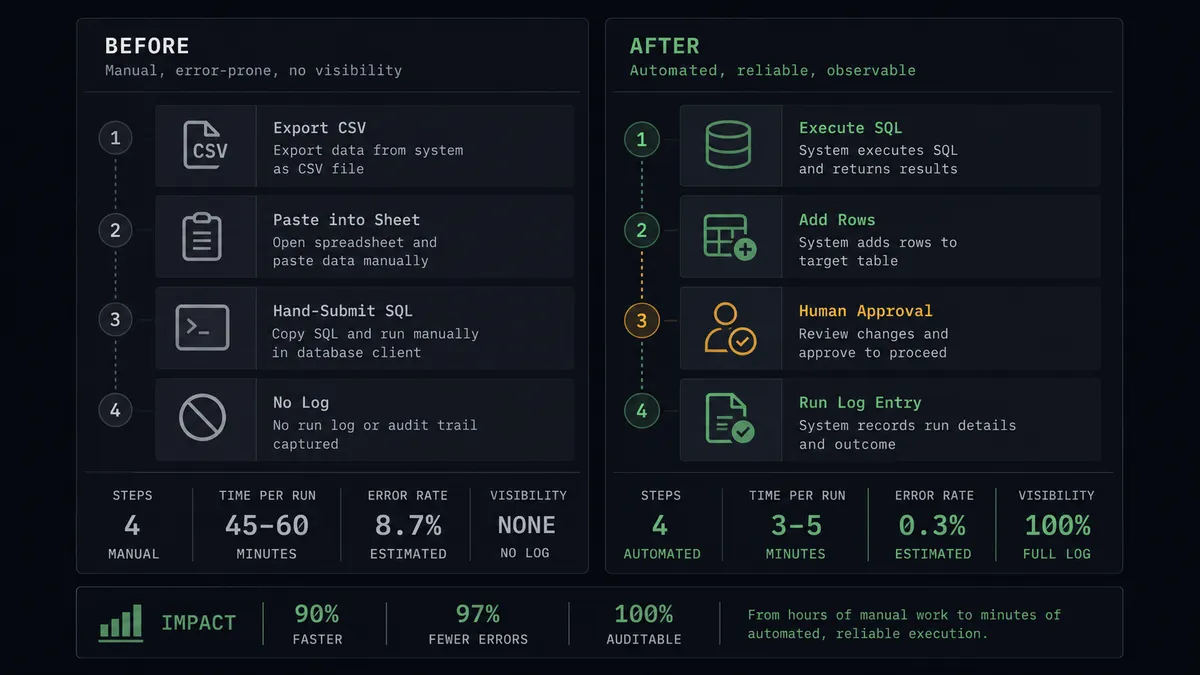
The typical setup is fragile. An analyst runs the query, downloads the results, opens the sheet, pastes the data, and formats the columns. Do this daily and it costs 20 to 30 minutes per run. Miss a day and the sheet is stale. The team has no idea whether the numbers came from this morning’s query or last Thursday’s export.
The reverse direction is worse. Someone updates a cell in the tracking sheet, and now an ops lead has to notice the change, translate it into a SQL statement, verify the source, and submit the warehouse write by hand. Rows fall through the cracks. The warehouse and the spreadsheet drift apart. The people responsible for the data spend their time moving it instead of acting on it.
How the connection works
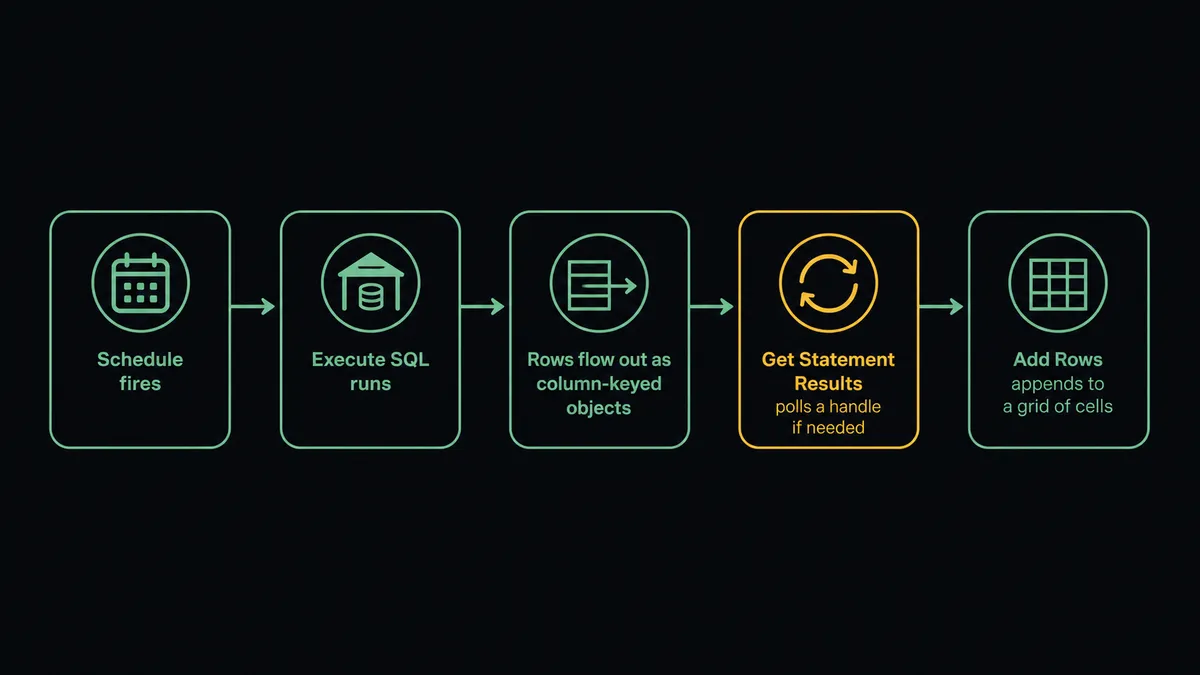
A FlowRunner flow between Snowflake and Google Sheets runs this sequence without manual intervention.
On a schedule, the flow fires. The agent calls Execute SQL with a parameterized SELECT statement, bound parameters in the Parameters array, and the name of the virtual warehouse to use for compute. Snowflake returns the rows as plain objects keyed by column name: no driver, no ODBC layer, no CSV export.
If the query runs long, Execute SQL returns a statement handle instead of rows. The agent automatically polls Get Statement Results by handle until the rows arrive, or calls Cancel Statement if the query exceeds an acceptable window. Large result sets are paged through partitions automatically.
Once the rows are in memory, the agent calls Load Header Row on the destination sheet to confirm the column map, then calls Add Rows to append all of them in a single write. The sheet reflects the current warehouse figures without anyone opening a browser or touching a keyboard.
For the reverse direction, the Google Sheets On New or Updated Row trigger fires when someone edits the tracking sheet. The agent reads the changed row using Get Rows, validates the required fields, and then prepares the corresponding SQL write against the Snowflake table.
Can an AI agent run it? (And why a human stays in the loop)
Reading from Snowflake is safe. Writing to a production warehouse table is where a mistake becomes expensive and hard to undo.
A FlowRunner AI agent has Execute SQL, Get Statement Results, Add Rows, Update Row, and the other integration actions available as tools it picks from based on what it finds. It does not follow a fixed script. It reads the query results, reasons about them, and decides which action to call next.
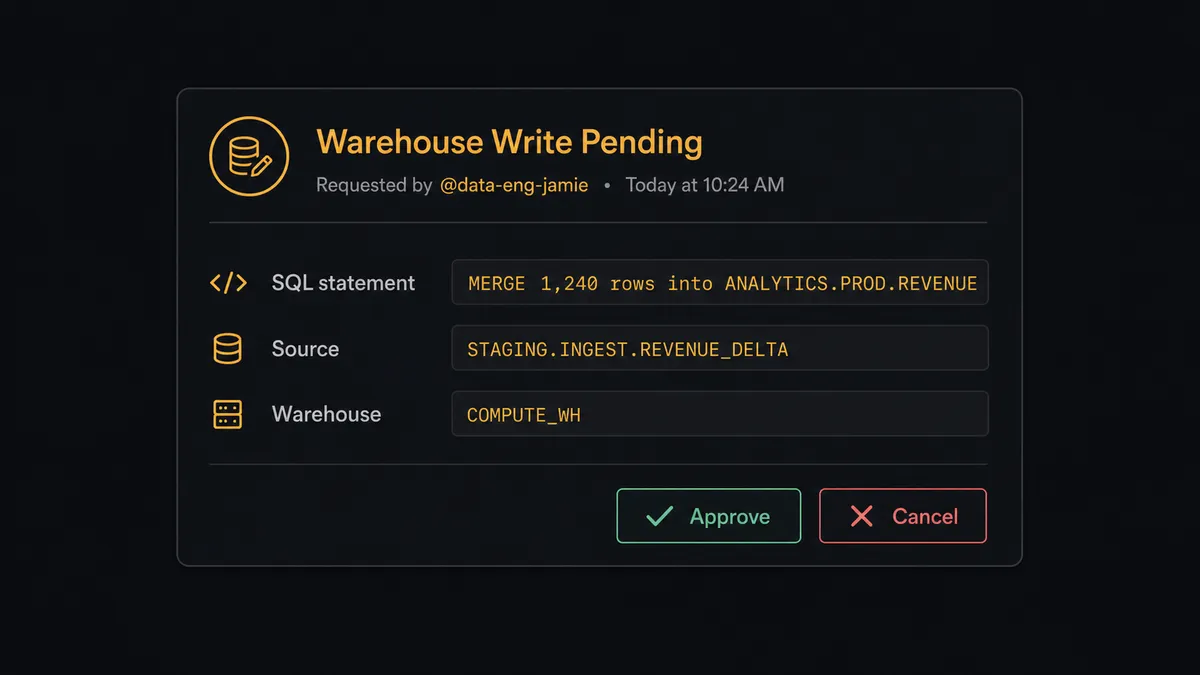
When the agent determines that the next step would be an INSERT, MERGE, or DDL statement against a database flagged as production, it does not act on its own. It invokes a human-in-loop flow as a callable tool. That flow sends an approval card to Slack:
“Ready to MERGE 1,240 rows into ANALYTICS.PROD.REVENUE. Here is the statement and the source. Approve or cancel?”
The agent packages the proposed SQL statement, the row count, the source table, and the warehouse name. The human sees full context, not just a yes/no prompt. They approve or cancel. The agent resumes with the decision as its next input. The approver’s identity and the timestamp are captured in the run log.
This is not a hardcoded threshold. An agent that has run a MERGE into the same reporting table 50 times without a flag might pause the 51st time because the row count is 10x the historical average. The decision to involve a human is an AI decision, made in context, not a rule.
Prospects call this a “digital andon cord,” the pull cord in a Toyota production line that stops everything when something looks wrong. FlowRunner stops the line before the write goes through.
FlowRunner vs Zapier (the tool you are probably comparing)
Zapier is the right starting point for this comparison. Non-technical teams reach for it first, and it does the simple connection well: a Zap can watch a sheet and fire an action, or run on a schedule and append rows. It is fast to set up and the integrations are reliable.
The comparison becomes clear when the workflow needs to reason rather than just relay.
| Capability | Zapier | FlowRunner |
|---|---|---|
| Basic trigger-to-action connection | Yes | Yes |
| Scheduled Snowflake query to sheet | Yes | Yes |
| Native AI agent that reasons about query results | No | Yes |
| Human-in-loop as a callable agent tool | No | Yes (any channel: Slack, email, WhatsApp) |
| Blocks production warehouse writes for approval | No | Yes (agent decides when to invoke) |
| BYOK for AI providers | No | Yes |
| Unlimited users on every plan | No (seat-based) | Yes |
| Self-hosted option | No | Yes |
If the flow is a simple scheduled sync with no write-back and no exceptions, Zapier handles it. If the flow reads from a warehouse, reasons about what it found, writes results to a sheet, and conditionally writes back to a production table only after human approval, that is FlowRunner’s territory.
Before and after
| Category | Before | After |
|---|---|---|
| Warehouse-to-sheet sync | Analyst runs query, downloads CSV, pastes into sheet manually (20-30 min per run) | Scheduled flow runs Execute SQL and appends rows with Add Rows automatically |
| Sheet staleness | Sheet reflects whenever the last export happened | Sheet reflects the current warehouse state every run |
| Long-running queries | Slow statement stalls the whole export; person waits or retries | Agent polls Get Statement Results by handle; large sets page through partitions |
| Write-back safety | SQL written by hand and submitted without a second review | Agent pauses before any INSERT or MERGE, routes proposed statement for approval |
| Audit trail | No record of who ran what query when | Every approval, approver identity, and timestamp captured in the run log |
What you can build
Scheduled warehouse report to a team sheet. The agent runs Execute SQL on a schedule, reads the returned rows, and calls Add Rows to append the day’s figures to a reporting sheet. The team gets current numbers where they already work, without touching a dashboard.
Row validation with a write-back gate. When On New or Updated Row fires, the agent reads the changed row, validates required fields with Get Rows, and prepares a MERGE statement. It flags the row in the sheet with Format Row if validation fails, and routes it to the data owner to correct before reprocessing.
Anomaly detection with a human gate. The agent runs a query that surfaces rows where a metric crossed a control threshold. Before it writes a correction back to the production table, it packages the finding and the proposed SQL and invokes the human-in-loop tool. The correction runs only after approval.
New document per reporting period. At the end of each month, the agent calls Add Document to create a new spreadsheet, runs Execute SQL to pull the period’s figures, and writes them in with Add Rows. Previous periods stay in their own documents and are not overwritten.
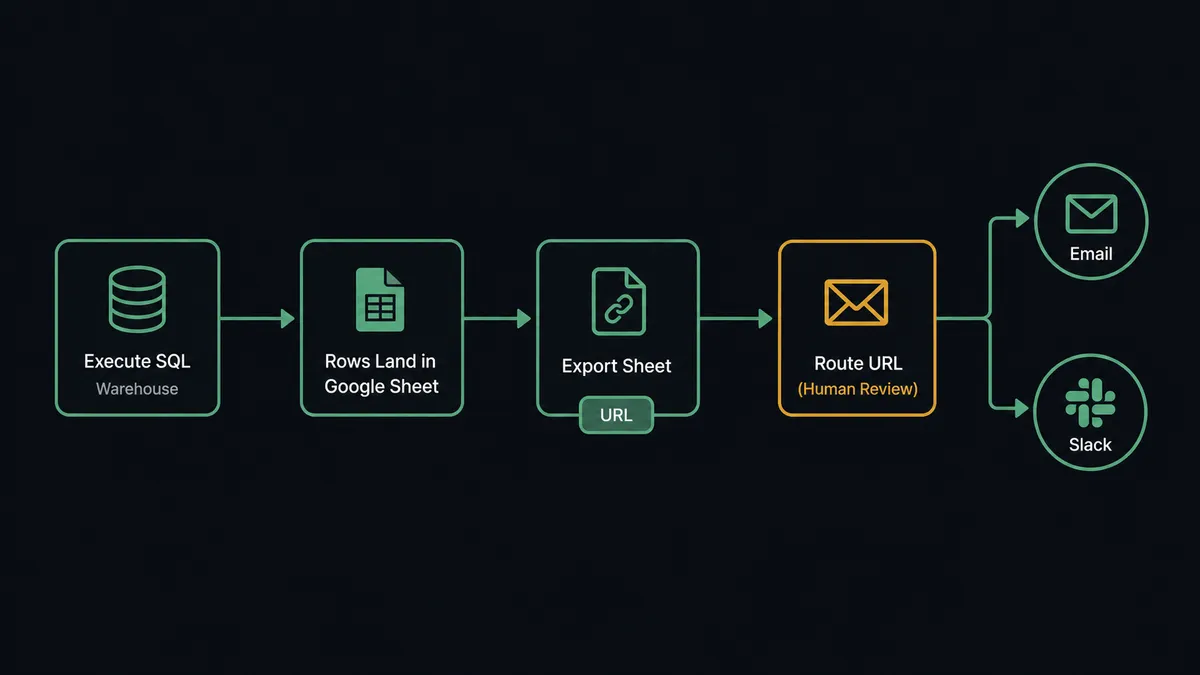
Scheduled export to email or Slack. After writing query results to a sheet, the agent calls Export Sheet to produce an Excel or CSV file and returns the download URL. The URL passes downstream to a notification step that delivers the report to an email inbox or a Slack channel on a schedule.
Getting started
FlowRunner has a free plan with 100 executions a month, every integration included, and no credit card required, and new accounts get 14 days of Professional on top. Corporate email gets you in.
Connect both integrations from the FlowRunner integrations directory: Snowflake and Google Sheets. The Snowflake connector talks to the SQL API v2 with a programmatic access token. Google Sheets connects via OAuth2.
Start at flowrunner.ai to start on the free plan, or book a 30-minute walkthrough at calendly.com/flowrunner/intro to see the Snowflake-to-Sheets flow running live.
Frequently asked questions
Is it free to connect Snowflake and Google Sheets on FlowRunner?
FlowRunner has a free plan with 100 executions a month, every integration included, and no credit card required, and new accounts get 14 days of Professional on top. Beyond the free plan, Growth starts at $45 per month. All tiers include unlimited users and workflows.
Can I self-host FlowRunner to keep Snowflake queries on my own infrastructure?
Yes. FlowRunner offers a self-hosted Community Edition at no cost and an Enterprise self-hosted tier with clustering and full compliance features. Self-hosting means your Snowflake credentials and query results never leave your environment.
Does the agent need my own AI API key?
Yes. FlowRunner uses a BYOK (Bring Your Own Keys) model. You connect your own key from OpenAI, Anthropic, or any supported provider. FlowRunner orchestrates the agent; it never holds your AI keys on your behalf.
What happens when the agent is not sure whether to write to a production table?
The agent pauses execution, assembles context about the proposed write (the SQL statement, the row count, the source), and routes it to a human via Slack, email, or WhatsApp. The write runs only after a person approves. The approver's identity and timestamp are captured in the audit trail.
Can I run a scheduled Snowflake query and export results to Google Sheets automatically?
Yes. A FlowRunner scheduled flow runs Execute SQL against your Snowflake warehouse, reads the returned rows, and calls Add Row or Add Rows on a target Google Sheets document to append the results. The sheet updates without anyone opening a dashboard or exporting a file by hand.
How is FlowRunner different from connecting these two tools in Zapier?
Zapier connects triggers and actions in a linear chain with no native reasoning layer. FlowRunner runs an AI agent that reads the query results, reasons about what it found, and decides which actions to call and in what order, including invoking a human-in-loop step when the situation warrants it.