Catching Fulfillment Errors Before They Reach Customers
A FlowRunner workflow monitors shipment exceptions in real time, cross-references order data with financial records, resolves routine issues, and escalates high-value cases to your ops team with context from every system involved.
The Problem
A shipment exception fires in ShipBob. Maybe it is an address issue. Maybe a carrier delay. Maybe the package is lost entirely. Whatever the cause, someone on your ops team needs to notice it, figure out what happened, decide how to respond, and then communicate the resolution to the right people.
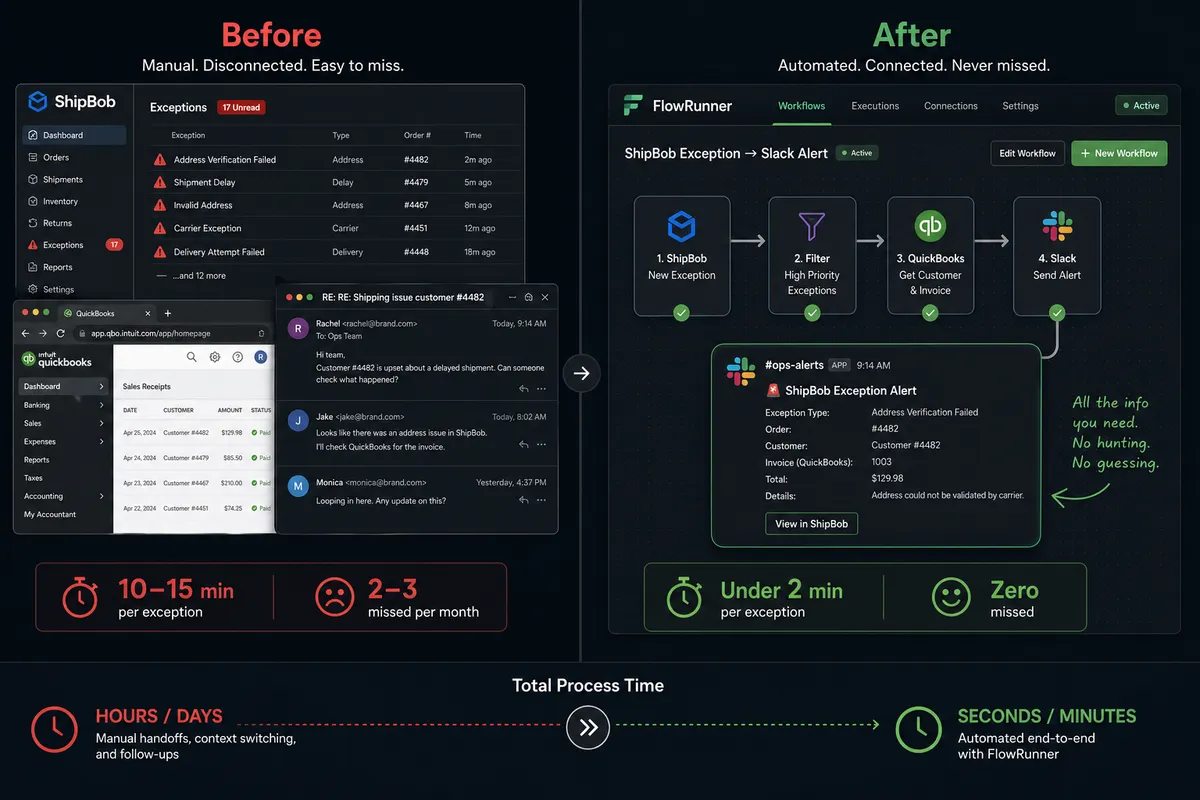
Here is what that looks like today. Your operations coordinator monitors the ShipBob dashboard throughout the day. When they spot an exception, they open the order details, check the customer’s order value, pull up the customer’s record in QuickBooks to see if there is an outstanding invoice tied to the shipment, and then decide: is this routine enough to send the standard response, or does it need a manager’s attention? If it needs escalation, they write up a summary in Slack, tag the ops manager, and wait. Meanwhile, the customer has no idea their order is stuck.
Multiply that across a normal week of exception volume. Each one takes minutes of manual triage, and that is before anyone actually resolves the issue. The real cost is not the time per exception. It is the ones that fall through the cracks: the high-value order that sat in exception status for days because nobody noticed it on the dashboard, the customer who opened a chargeback because the resolution came too late.
The Solution
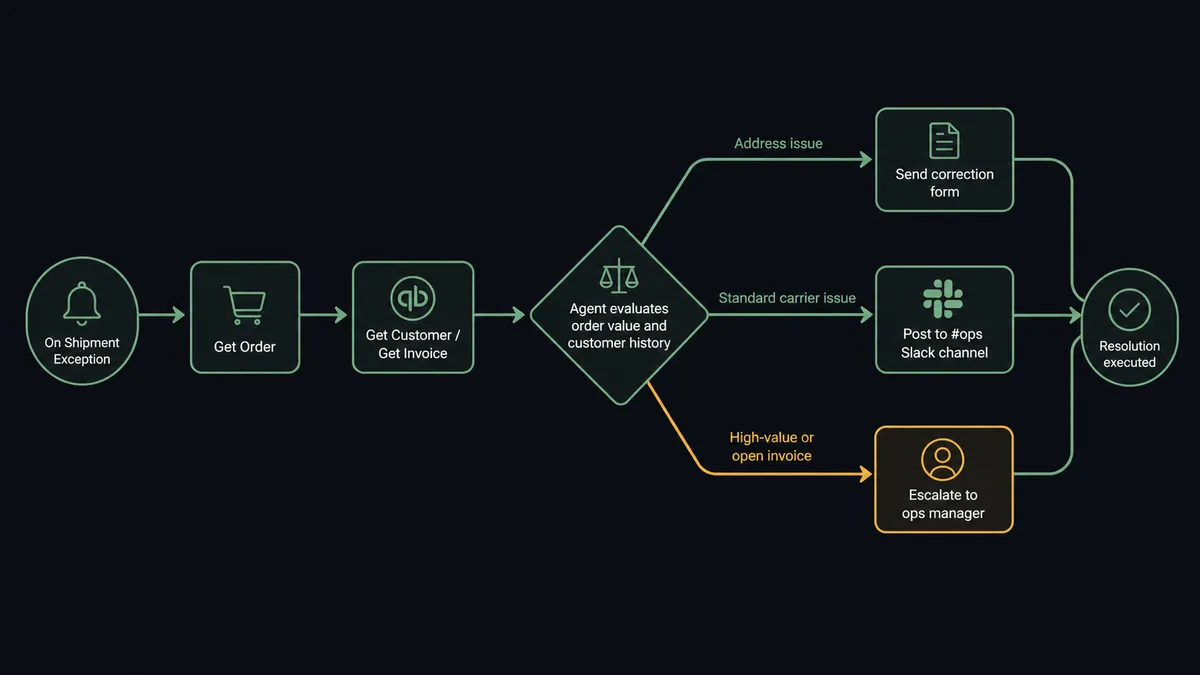
One FlowRunner workflow handles the entire process. It monitors ShipBob for shipment exceptions in real time. When one fires, the workflow retrieves the order details, checks the exception type, pulls the customer’s financial record from QuickBooks Online, evaluates the order value and customer history, and decides what to do. For routine address issues, it sends the customer a correction form. For carrier problems on standard orders, it routes a summary to the ops channel in Slack. For high-value orders or customers with open invoices, it escalates to the operations manager with context from both ShipBob and QuickBooks, packaged into a single Slack message with action buttons.
The workflow does not care that your fulfillment data lives in ShipBob, your financial records live in QuickBooks, and your team communicates in Slack. It treats them as one environment. It reads from one, cross-references against another, acts in a third, and escalates through a fourth channel when the situation calls for human judgment.
The result: exceptions that used to take long manual triage get handed off quickly. High-value cases reach your ops manager soon after the exception event, not hours or days later. And every decision, whether made by the workflow or a human, is captured for review.
Why This Requires Coordination, Not Point Automation
A simple automation can connect ShipBob to Slack. When an exception fires, send a notification. That is a trigger and an action. But it does not solve the problem. Every exception still lands on someone’s desk with no context, no prioritization, and no pre-research done.
The decision about how to handle a shipment exception depends on data from multiple systems simultaneously. A low-value order with an address issue is routine. A mid-value order from a customer who has a large unpaid invoice in QuickBooks is a completely different situation. The workflow needs to see both the fulfillment data and the financial data to make the right call. It needs to reason about the combination: this is not just a shipping problem, this is a revenue risk. The human-in-the-loop tool is available for any decision the workflow cannot make with confidence. And when the workflow escalates, it packages context from all three systems into one message so the ops manager can decide quickly.
The Complete Workflow
Here is the end-to-end process, running on FlowRunner across ShipBob, QuickBooks Online, and Slack.
-
On Shipment Exception fires in ShipBob. The workflow receives the shipment ID, exception type, and order reference.
-
The workflow calls Get Order in ShipBob to retrieve the full order details: items, quantities, shipping address, customer contact information, and order value.
-
The workflow evaluates the exception type. For address correction issues, it sends the customer an automated form to update their address and posts a brief note to the #fulfillment channel in Slack using Send Message to Channel. Execution continues to monitor for the address update.
-
For carrier-related exceptions, the workflow calls Get Customer in QuickBooks Online using the customer email from the ShipBob order. It retrieves the customer’s financial profile: account standing, payment history, and any open balances.
-
The workflow calls List Invoices in QuickBooks Online, filtered to the customer, to check for outstanding invoices tied to recent orders. It now holds data from both systems: the fulfillment exception details from ShipBob and the customer’s financial standing from QuickBooks.
-
The workflow cross-references the data. It evaluates: Is the order value above the high-value threshold? Does the customer have unpaid invoices? Is this a repeat exception for the same customer? The workflow reasons across all of this information to decide its next action.
-
For standard-value orders with clean financial history, the workflow posts a structured summary to the #fulfillment channel in Slack using Send Message to Channel. The message includes the exception type, order number, customer name, order value, and recommended resolution. The ops team reviews it during their normal flow.
-
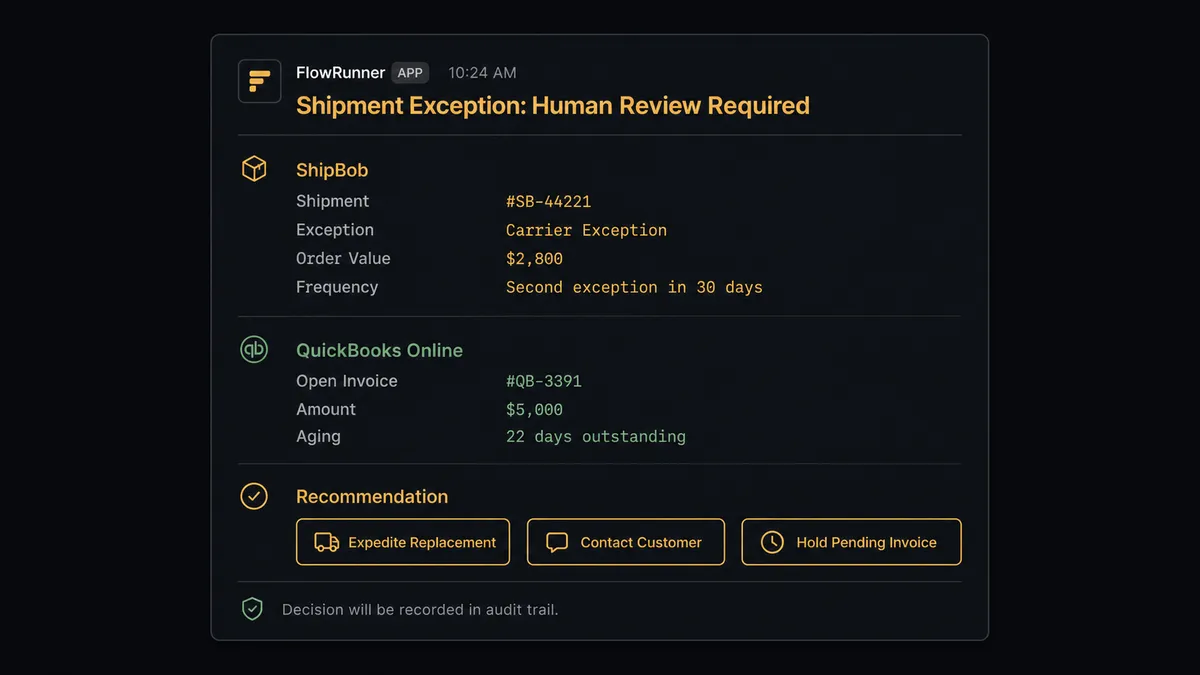
For high-value orders, customers with outstanding invoices, or repeat exceptions, the workflow invokes the human-in-the-loop tool. It sends a Send Direct Message to the operations manager with the picture: shipment ID, exception type, order value, open invoice amount and age from QuickBooks, and the customer’s recent exception history. The message includes three action buttons: Expedite replacement shipment, Contact customer directly, Hold pending invoice resolution.
-
On Block Action fires when the ops manager clicks a button. The workflow receives the decision and the manager’s identity.
-
The workflow executes the selected resolution. If the manager chose to expedite, the workflow initiates the replacement process. If the manager chose to hold, the workflow updates the order status and schedules a follow-up. The decision, the decider, and the timestamp are all recorded.
What the Workflow Sees vs. What Humans See
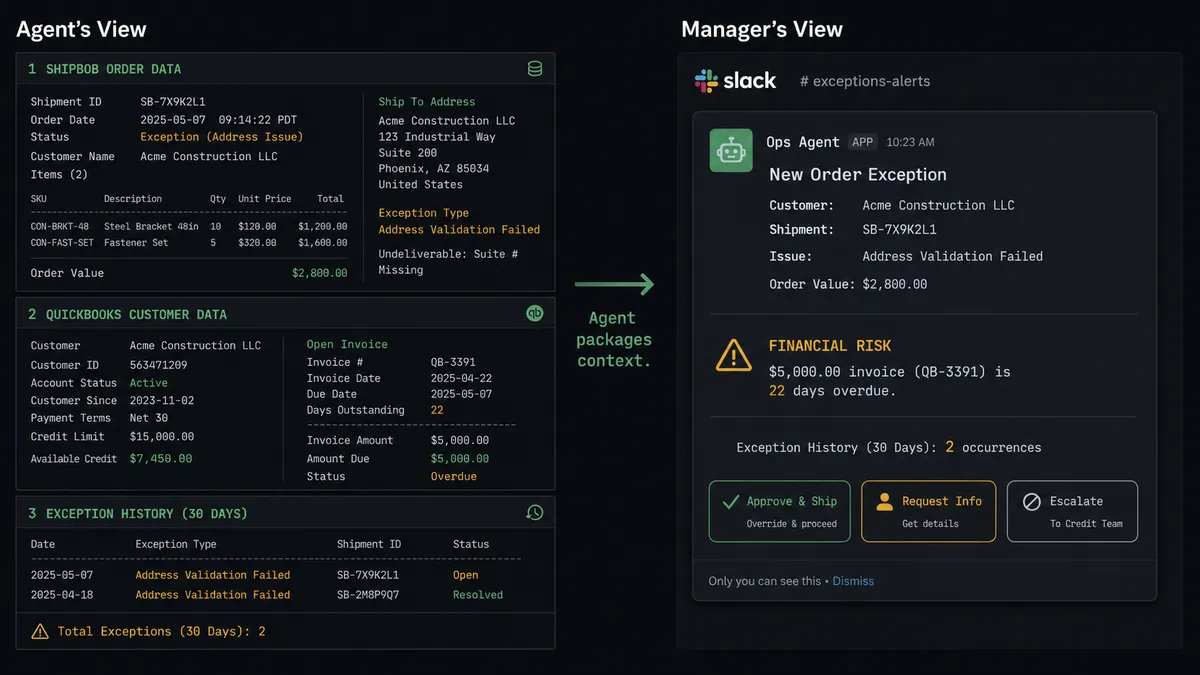
The workflow holds the full picture. It has the shipment exception data from ShipBob: exception type, shipment ID, carrier details, order contents, shipping address. It has the customer’s financial record from QuickBooks: account standing, open invoices, payment history. It has the exception history: how many times this customer has had issues recently. It evaluates all of this in seconds.
The operations manager sees none of that complexity. They see a clean Slack message with three sections: what happened (the exception), why it matters (the financial context), and what to do about it (the action buttons). The workflow did all the research the manager would have done manually. Opened ShipBob, checked the order. Opened QuickBooks, looked at the account. Checked the history. The manager just makes the final call.
This is the core of FlowRunner’s “Agents That Ask” model. The workflow handles the routine exceptions. When it encounters a situation where it should not decide alone, it does all the legwork, packages the context, and presents the decision to the right person in the right channel. The human spends seconds making a judgment call instead of minutes doing research.
Before and After
| Before | After | |
|---|---|---|
| Exception detection | Ops team monitors ShipBob dashboard throughout the day | Workflow detects exceptions as soon as the event fires |
| Triage per exception | Manual research across systems | Cross-system data retrieval handled by the workflow |
| High-value order handling | Same generic process as standard orders | Workflow identifies high-value cases and escalates with financial context |
| Financial cross-reference | Manual lookup in QuickBooks when someone remembers to check | Automatic customer and invoice lookup on every carrier exception |
| Manager decision time | Researching before deciding | Reviewing workflow-prepared context |
| Exceptions that fall through the cracks | Some go unnoticed for days | Every exception surfaces in real time |
| Decision history | Informal email threads and Slack messages | Each decision, decider identity, and timestamp recorded |
Getting Started
Every integration used in this workflow is available on all FlowRunner tiers, including Growth at $45 per month. ShipBob’s 5 triggers and 18 actions, QuickBooks Online’s 45 actions, and Slack’s 8 triggers and 16 actions are all included. Unlimited users and unlimited workflows on every tier.
Start on the free plan: 100 executions a month, every integration included, no credit card required, plus 14 days of Professional for new accounts.
Explore each integration:
Ready to stop chasing shipment exceptions manually? Start your free trial at flowrunner.ai or book an intro call to see the workflow in action.