Reconciling Payments Against Invoices Automatically Across Your Revenue Stack
How a single FlowRunner workflow reconciles every Stripe payment against QuickBooks invoices in real time, escalates mismatches through Slack, and keeps your books accurate without manual data entry.
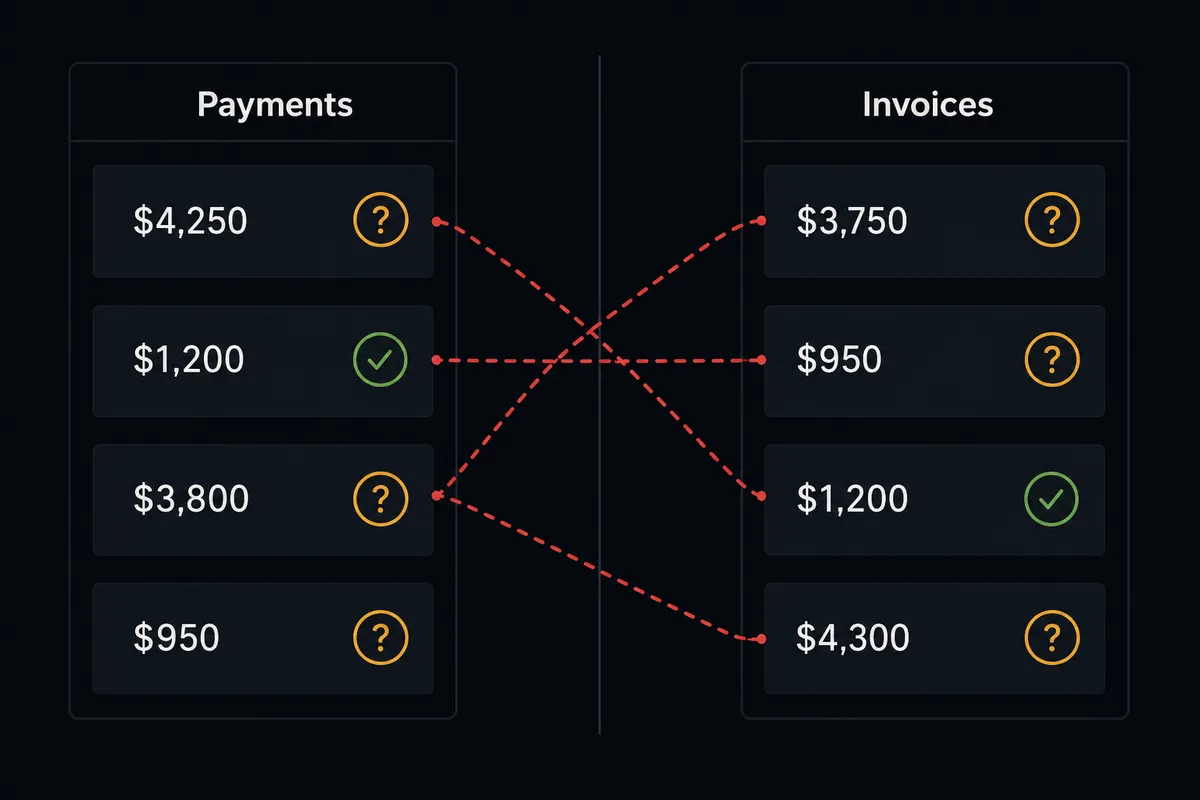
The Problem: Payments Land in One System, Invoices Live in Another
A Stripe payment succeeds. Someone on your team opens QuickBooks, finds the customer, locates the matching invoice, records the payment, and marks the invoice as paid. Then they post a note in Slack so the rest of the finance team knows it happened. Multiply this across a normal week of payment volume.
This is the daily reality for operations teams running Stripe for payments and QuickBooks Online for accounting. The data exists in both systems, but nobody has connected the dots automatically. So a bookkeeper becomes the bridge: copying payment amounts, matching invoice numbers, updating statuses by hand. When they fall behind, invoices stay marked as open even though the money is already in your account. AR reports become unreliable. The CFO asks questions nobody can answer quickly.
The cost is not just the bookkeeper’s time. It is the downstream confusion every time a payment goes unrecorded. It is the customer who gets a past-due reminder for an invoice they already paid. It is the controller who cannot trust the AR aging report because it is always slightly stale. And it is the automation exceptions that fall through the cracks entirely: a partial payment, an overpayment, a charge that does not match any open invoice. Those sit in limbo until someone notices.
The Solution: One Workflow, Three Systems, Zero Manual Reconciliation
In FlowRunner, a single workflow handles the payment-to-reconciliation process. It watches for Stripe payment events, matches them against QuickBooks invoices, records the payments, and notifies your team through Slack. The workflow has tools from all three systems in its toolbox and decides how to use them based on what it finds.
When a payment arrives that matches cleanly, the workflow records it in QuickBooks and posts a confirmation to your accounting channel. When something does not match, the workflow does not guess or skip. It evaluates the situation, packages the context from both Stripe and QuickBooks, and sends a structured decision request to the right person through Slack. The human decides. The workflow acts on the decision.
The result: your AR is always current, your team only touches the exceptions that genuinely need human judgment, and every payment, every match, and every decision is recorded for review.
Why This Requires Coordination, Not Point Automation
A simple automation can connect Stripe to QuickBooks. When a payment arrives, create a payment record. But that approach breaks the moment the data is not perfectly clean. What happens when the Stripe charge amount does not match any open invoice exactly? What happens when a customer has three open invoices and the payment could apply to any of them? What happens when the customer record in Stripe uses a different email than the one in QuickBooks?
These are not edge cases. They are the normal reality of payment reconciliation. The decisions require context from multiple systems simultaneously. The workflow needs to see the Stripe payment details, the customer’s QuickBooks history, the list of open invoices, and the amounts involved before it can determine the right action. When it cannot determine the right action with confidence, it needs to ask a human. And when it asks, it needs to provide the picture from all three systems so the human can make the decision quickly.
This is where FlowRunner’s coordinated workflow changes the equation. This is what we call Orchestration as a Service: a platform category that coordinates, governs, and supervises multi-agent environments while keeping humans in control of the decisions that require judgment. It holds context from Stripe, QuickBooks, and Slack at the same time. It reasons across all of them. And when it invokes the human-in-the-loop tool, it assembles a Slack message that contains everything the reviewer needs: the payment amount from Stripe, the open invoices from QuickBooks, the discrepancy it found, and the options available. The reviewer approves with one click. The workflow finishes the job.
The Complete Workflow
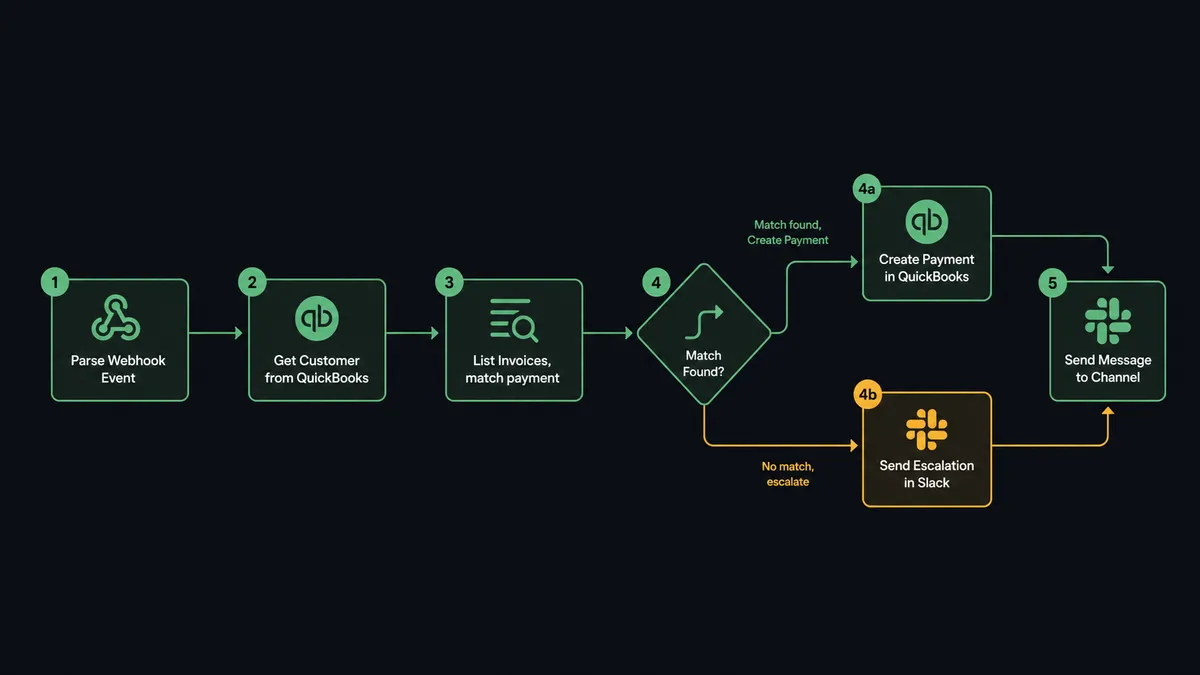
Here is how the reconciliation process runs, end to end, with no manual intervention on the happy path.
-
Stripe webhook fires. A payment succeeds in Stripe. The Parse Webhook Event trigger catches the event and wakes the workflow. It receives the payment amount, customer email, charge ID, and payment method details.
-
Workflow identifies the customer in QuickBooks. It uses Get Customer in QuickBooks Online, searching by the email address from the Stripe charge. If it finds a match, it proceeds. If no customer record exists, the workflow uses Create Customer in QuickBooks to provision one before continuing.
-
Workflow pulls open invoices. It calls List Invoices in QuickBooks Online, filtered to the matched customer, sorted by due date. It now has the picture: who paid, how much, and what they owe.
-
Workflow cross-references the payment against open invoices. It compares the Stripe charge amount against the open invoice amounts. It checks for an exact match first. If one invoice matches the payment exactly, the workflow proceeds to record the payment. If multiple invoices could match, or if the payment is a partial amount, the workflow evaluates the options.
-
Workflow records the payment in QuickBooks (happy path). When the match is clean, it calls Create Payment in QuickBooks Online, linking it to the correct invoice. The invoice status updates to paid automatically.
-
Workflow confirms in Slack. It uses Send Message to Channel in Slack, posting to #accounting with the payment amount, customer, invoice reference, and Stripe charge ID.
-
Workflow detects a mismatch (exception path). When the Stripe payment does not match any open invoice exactly, the workflow evaluates the gap. Imagine a charge that comes in slightly above the customer’s only open invoice. The workflow checks whether a partial payment makes sense by reviewing the customer’s payment history using List Payments in QuickBooks. It also calls Get Invoice to verify the invoice details and confirm no credits or adjustments are pending.
-
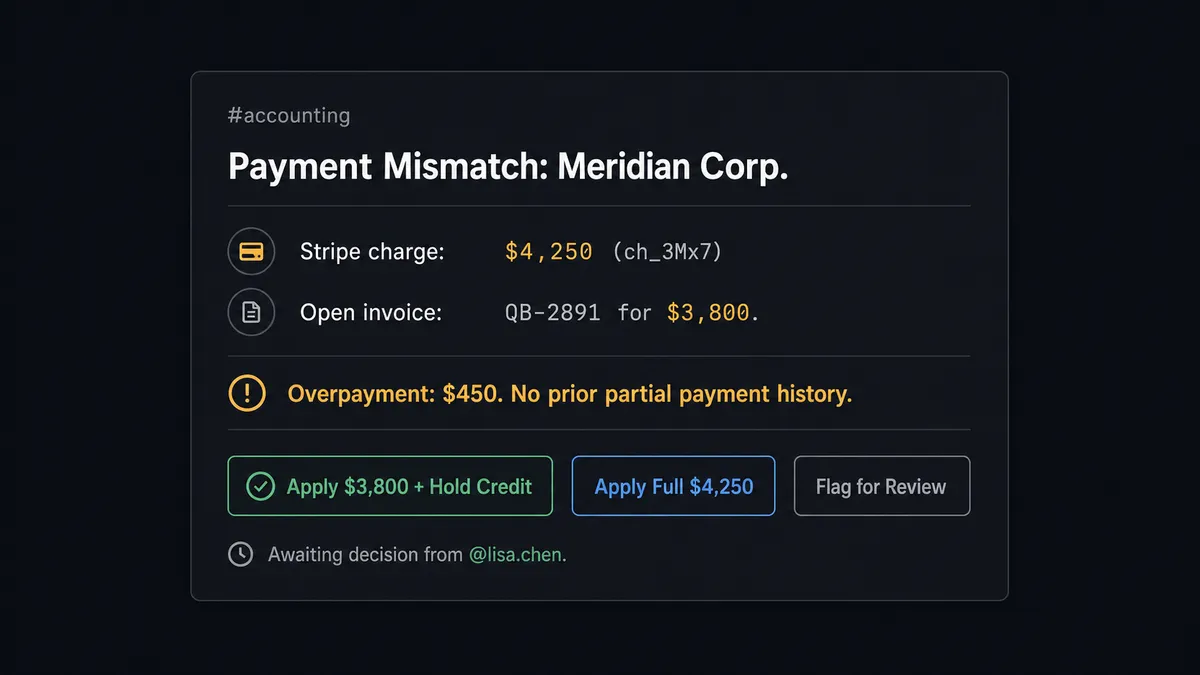
Workflow invokes human-in-the-loop. The workflow decides this needs human judgment. It assembles a Slack message using Send Message to Channel with interactive buttons, delivering it to the accounting manager. The message includes the Stripe charge amount, the customer, the only open invoice and its amount, the resulting gap, the customer’s overpayment history (in this case, none on record), and three options: apply the invoice amount and hold the difference as a credit, apply the full charge to the invoice, or flag for review.
-
Human decides. Workflow acts. The accounting manager taps “Apply invoice amount and hold credit” from their phone. The On Block Action trigger fires in Slack. The workflow records a payment for the invoice amount using Create Payment, then logs the remainder as a credit. It updates the Slack message to show “Resolved” and posts a confirmation to #accounting.
What the Workflow Sees vs. What Humans See
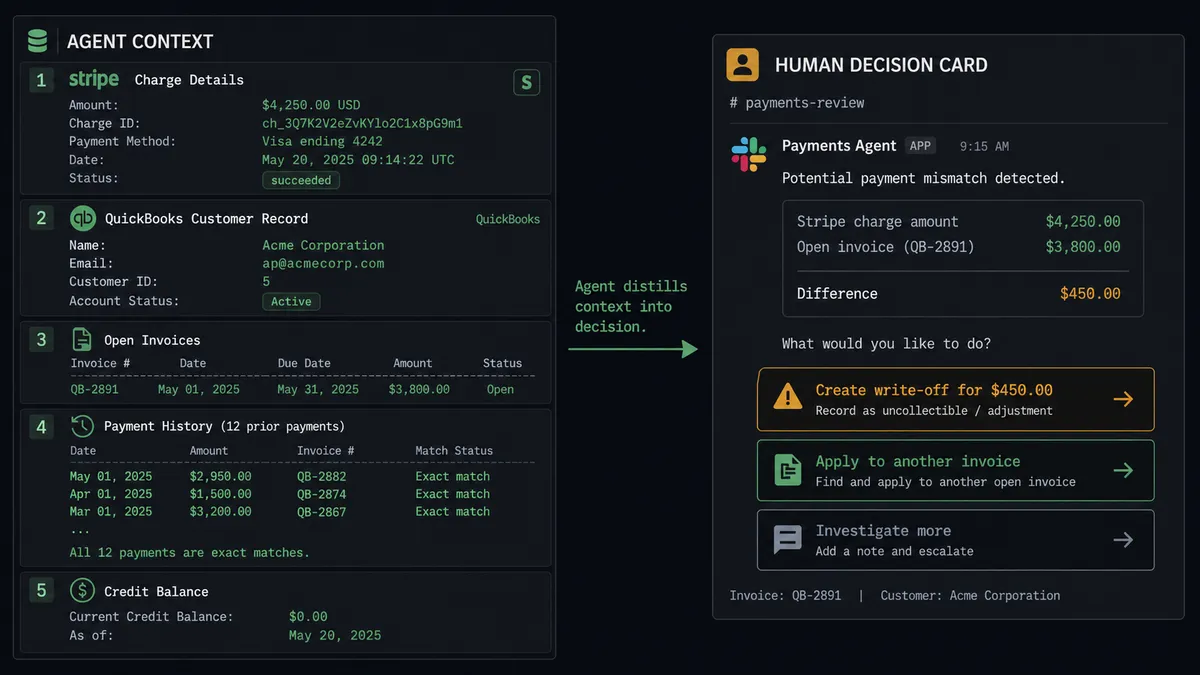
The workflow processes far more data than any human would review for a single payment. For each Stripe event, it evaluates the charge details, the customer match confidence, the number and amounts of open invoices, the customer’s payment history, and whether credits or adjustments exist. It holds all of this context simultaneously and reasons through the match logic.
The human sees none of that raw processing. When the workflow escalates, the Slack message contains only what the reviewer needs to make the decision: the payment amount, the invoice it could apply to, the gap between them, relevant customer history, and the available options as clickable buttons. The workflow did all the research. The human makes the call.
This is the core of FlowRunner’s “Agents That Ask” approach. The workflow does not dump a spreadsheet into Slack and ask someone to figure it out. It processes the data, identifies the exception, evaluates the options, and presents a structured decision request. Your team handles judgment calls. The workflow handles everything else.
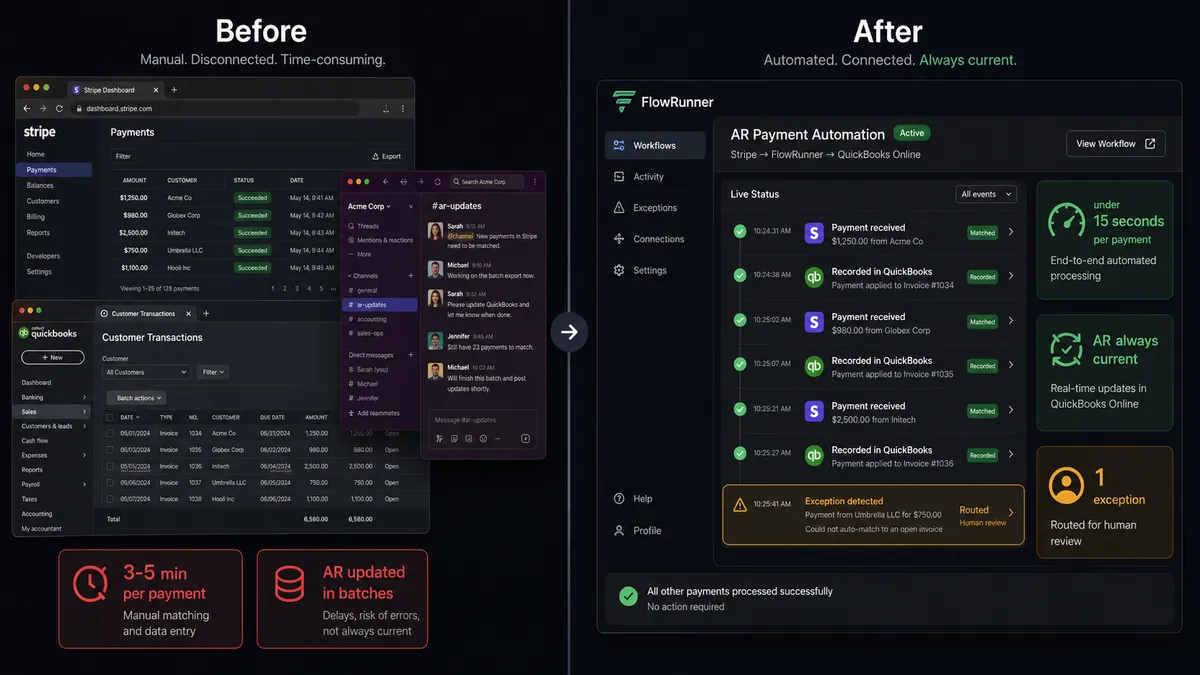
Before and After
| Before | After | |
|---|---|---|
| Payment recording | Bookkeeper logs each Stripe payment in QuickBooks by hand | Stripe payments record against QuickBooks invoices automatically |
| AR accuracy | Invoice status stays open until someone runs the reconciliation process | Invoice marked paid in real time; AR reports current |
| Exception handling | Mismatches sit in a spreadsheet until the weekly review | Mismatches surface to Slack with context and decision buttons |
| Per-payment effort | Manual matching and data entry | Hands-off on the happy path |
| Decision history | No structured record across systems | Each payment match, each exception, and each human decision recorded with identity and timestamp |
| Weekly financial visibility | Leadership waits for the CFO to prepare a P&L report | Monday P&L digest posted to #finance-weekly via Get Profit and Loss |
Getting Started
All three integrations used in this workflow are available on every FlowRunner tier, including the $45/month Growth plan. The Stripe Parse Webhook Event trigger, QuickBooks Online’s full invoice and payment action set, and Slack’s interactive messaging with On Block Action are all included.
Start on the free plan: 100 executions a month, every integration included, no credit card required, plus 14 days of Professional for new accounts.
Connect your Stripe, QuickBooks Online, and Slack accounts. Build the reconciliation workflow with its tools. Run it on a handful of test payments. Watch it match, record, and escalate. Then let it run on production.
Explore each integration:
- Stripe integration (1 trigger, 63 actions)
- QuickBooks Online integration (45 actions)
- Slack integration (8 triggers, 16 actions)
Ready to see it live? Start your free trial at flowrunner.ai or book an intro call to walk through this workflow with the team.