How to Automate Invoice Processing from Email to Payment
One FlowRunner workflow monitors your AP inbox, extracts invoice data, validates vendors and amounts in QuickBooks, creates bills, and routes exceptions to your team in Slack.
The Problem
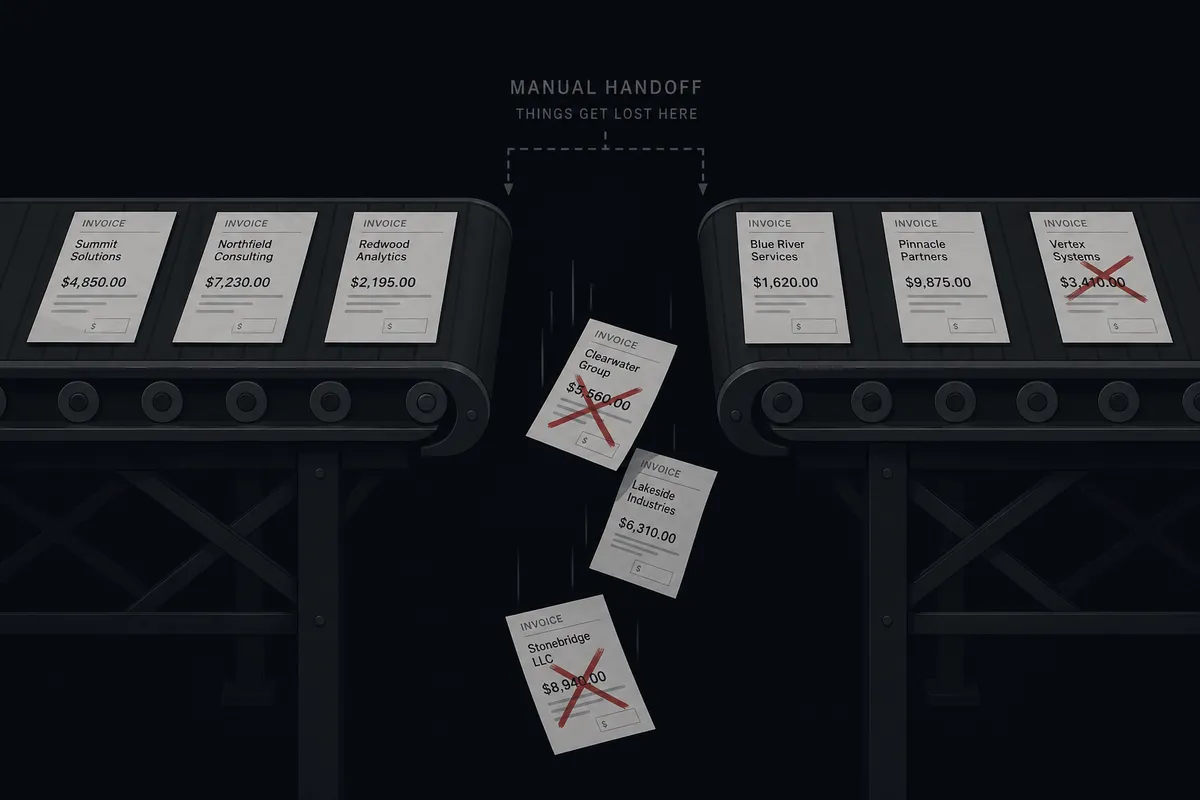
Invoice processing is the process everyone knows is broken and nobody has time to fix. An AP clerk opens the invoices@company.com inbox. They download each PDF. They open QuickBooks to look up the vendor. They check the invoice number to make sure it has not already been entered. They type the line items into a new bill. Then they send a Slack message to the controller asking for approval on anything above a certain threshold. Multiply that across a normal week of vendor activity.
Each invoice takes several minutes of attention. That does not include the time spent switching between email, QuickBooks, and Slack. It does not include the time lost when an invoice from an unfamiliar vendor sits in the inbox for days because nobody was sure what to do with it. And it does not include the duplicates that slip through when someone enters the same invoice twice because the reference number was formatted differently between the PDF and the email subject line.
The real cost is not the labor. It is the automation exceptions that fall through the cracks. A vendor sends an invoice well above their usual amount. An invoice arrives from a company nobody recognizes. A duplicate gets entered and paid before anyone catches it. These are the problems that show up during reconciliation, not when they can still be prevented.
The Solution
In FlowRunner, one workflow handles this process end to end. It monitors the AP inbox through the Mailbox integration. When an invoice arrives, the workflow sends it to Parseur for data extraction. It takes the structured output and cross-references it against QuickBooks: checking the vendor record, looking for duplicate bills, comparing the amount to the vendor’s history. If everything checks out, it creates the bill in QuickBooks. If something looks off, it packages the context and sends it to the right person in Slack with interactive buttons for a decision.
The workflow does not care that your data lives in four different systems. It treats them as one environment. It reads from the inbox, extracts with Parseur, validates and writes in QuickBooks, and communicates through Slack. Your AP team opens Slack in the morning to find a summary of everything the workflow processed overnight and a short list of exceptions that need their judgment.
This is not a set of four separate automations stitched together. It is one workflow with tools from every system in its toolbox, deciding what to do at each step based on the data in front of it.
Why This Requires Coordination, Not Point Automation
A traditional automation can connect email to a document parser. It can connect a document parser to QuickBooks. But it cannot look at an invoice from an unfamiliar vendor, pull that vendor’s history from QuickBooks, notice the amount is well above the vendor’s average, check whether a corresponding purchase order exists, and then decide to ask a human before proceeding. That decision depends on data from multiple systems evaluated together.
This is where FlowRunner’s coordinated workflow matters. This is what we call Orchestration as a Service: a platform category that coordinates, governs, and supervises multi-agent environments while keeping humans in control of the decisions that require judgment. It holds context from the inbox, from Parseur’s extraction, and from QuickBooks simultaneously. It reasons across all of it. When it invokes the human-in-the-loop tool, it does not just send a number. It packages the extracted invoice data, the vendor’s payment history from QuickBooks, the duplicate check results, and its own assessment of why this invoice looks unusual. The human gets a complete picture. They make one decision. The workflow handles the rest.
The Complete Workflow
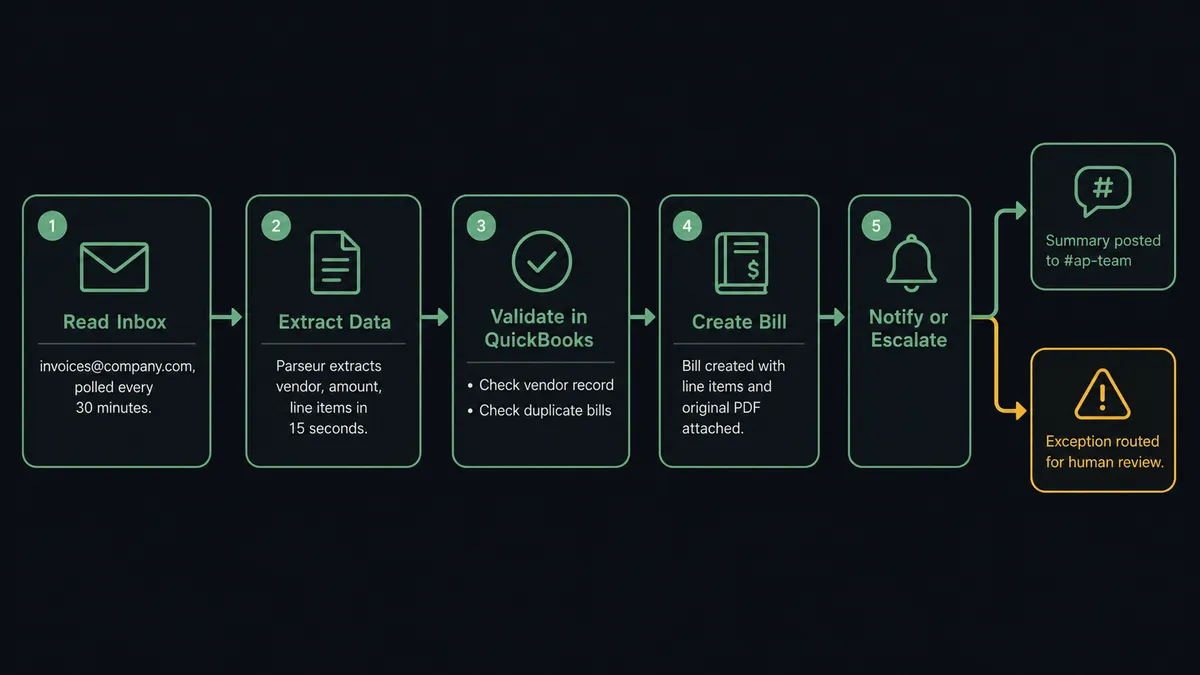
Here is how the workflow processes an invoice from the moment it arrives in the inbox to the moment the bill is recorded in QuickBooks.
-
The workflow polls Read Inbox on the dedicated invoices@company.com mailbox on a recurring schedule. It checks for new messages with PDF attachments. Messages without attachments receive an automated reply via Send Email requesting the invoice document.
-
For each new invoice email, the workflow extracts the PDF attachment and sends it to Parseur via Upload Document. Parseur processes the document and returns structured data: vendor name, invoice number, amount, due date, and line items.
-
The workflow calls Get Vendor in QuickBooks to look up the vendor. If the vendor exists, it retrieves the record and payment history. If no matching vendor is found, the workflow flags this as a new vendor exception.
-
The workflow checks for duplicate bills in QuickBooks using List Bills, filtering by the vendor and the extracted invoice number. If a matching bill already exists, the workflow skips creation and logs the duplicate to Slack.
-
The workflow compares the invoice amount against the vendor’s historical average in QuickBooks. It pulls recent bills for this vendor using List Bills, calculates the average, and evaluates whether the new amount falls within a reasonable range.
-
If the amount is within range, the vendor exists, and no duplicate is found, the workflow calls Create Bill in QuickBooks. It maps the extracted line items, attaches the original PDF, and sets the due date from the parsed data.
-
The workflow posts a summary to the #ap-team Slack channel via Send Message to Channel. The summary includes the vendor name, invoice number, amount, and a confirmation that the bill was created.
-
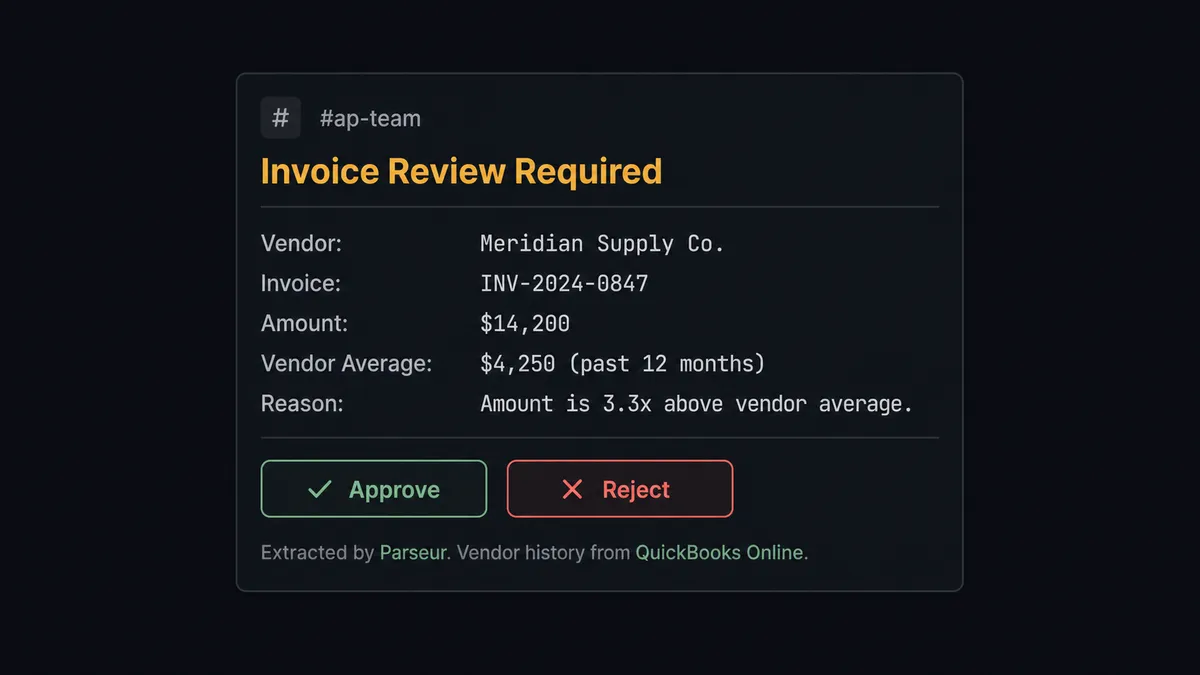
If the invoice amount is well above the vendor’s average, the workflow invokes human review. It sends a Slack message to the AP manager with the context: the extracted data from Parseur, the vendor’s average bill amount from QuickBooks, the line items, and the original PDF. The message includes Approve and Reject buttons.
-
When the AP manager clicks a button, the On Block Action trigger fires. If approved, the workflow proceeds to Create Bill in QuickBooks with the verified data. If rejected, the workflow marks the email as unread via Mark Email As Unread so it returns to the inbox for manual handling.
What the Workflow Sees vs. What Humans See
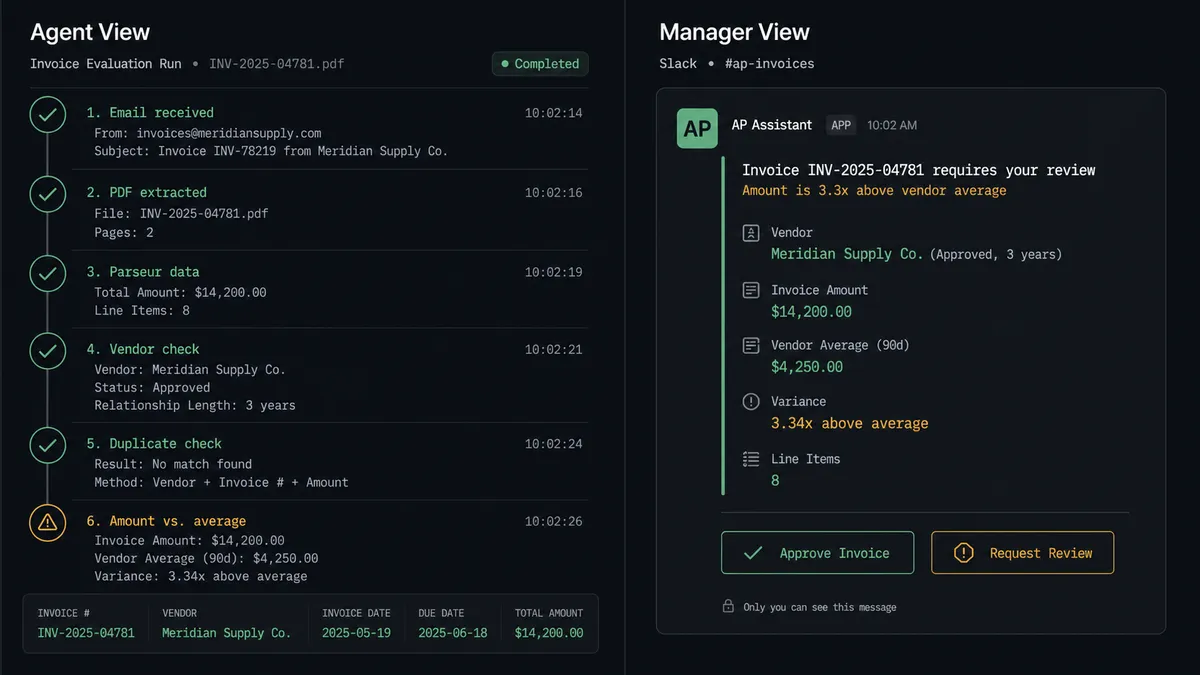
The workflow evaluates every invoice across multiple dimensions before the AP team ever hears about it. Consider a five-figure invoice from a regional supplier. The workflow reads the email, extracts the PDF, receives parsed line items, pulls the vendor record from QuickBooks confirming the supplier is approved and has multi-year history, queries recent bills to compute a 12-month average, runs the duplicate check, and concludes that the current amount is several times the vendor’s historical average.
The workflow did what your AP clerk would have done manually. It checked the vendor. It checked for duplicates. It compared the amount. But instead of taking ten minutes across three systems, it ran in seconds. And it made every check, every time. No invoice skipped because someone was busy.
What the AP manager sees in Slack is a clean summary: the vendor name, invoice number, amount, the vendor’s average, and the specific reason the workflow escalated. Two buttons: Approve or Reject. The manager does not need to open QuickBooks. They do not need to find the email. They do not need to look up the vendor’s history. The workflow already did that work and presented the decision with context attached.
When the manager taps Approve, the workflow creates the bill in QuickBooks, attaches the PDF, and records the approval with the manager’s identity and timestamp. The exception was resolved in one Slack interaction.
Before and After
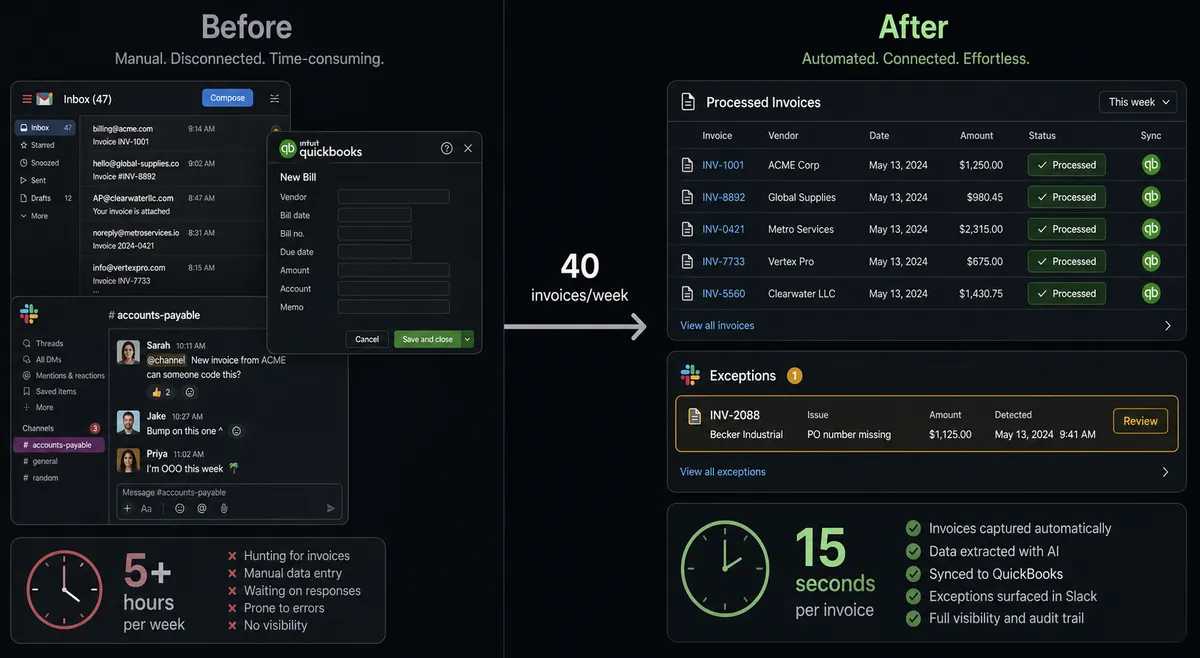
| Before | After | |
|---|---|---|
| Invoice processing | Manual data entry per invoice | Automated processing with structured extraction |
| Inbox monitoring | AP team checks inbox throughout the day | Workflow polls on a recurring schedule and processes new invoices before staff arrive |
| Vendor validation | Manual lookup in QuickBooks for every invoice | Workflow checks vendor record, history, and duplicate bills automatically |
| Exception handling | Unusual invoices sit in inbox for days until someone investigates | Workflow escalates to Slack with context from all systems |
| Duplicate prevention | Duplicates caught during monthly reconciliation, sometimes after payment | Workflow checks invoice number against existing bills before creation |
| Decision history | No structured record of approvals | Each approval recorded with approver identity, timestamp, and decision context |
| AP workload | Hours per week of manual data entry | Team handles only exceptions; routine invoices process without intervention |
Getting Started
Every integration used in this workflow is available on all FlowRunner tiers, including Growth at $45/month. The Mailbox, Parseur, QuickBooks Online, and Slack integrations are all included with unlimited users and unlimited workflows.
Start on the free plan: 100 executions a month, every integration included, no credit card required, plus 14 days of Professional for new accounts.
Set up your integrations:
- Mailbox (SMTP/IMAP) for inbox monitoring
- Parseur for document extraction
- QuickBooks Online for vendor validation, duplicate checking, and bill creation
- Slack for team notifications and human-in-the-loop decisions
Build the workflow, connect your AP inbox, and run it alongside your existing process for a week. Watch what it catches that your team misses.
Start your free trial at flowrunner.ai or book an intro call to see this workflow running on live data.