Eliminating Manual Data Entry from Documents to ERP
How one FlowRunner workflow extracts invoice data from documents, validates vendors and catches duplicates in your ERP, and routes exceptions to humans in Slack for resolution.
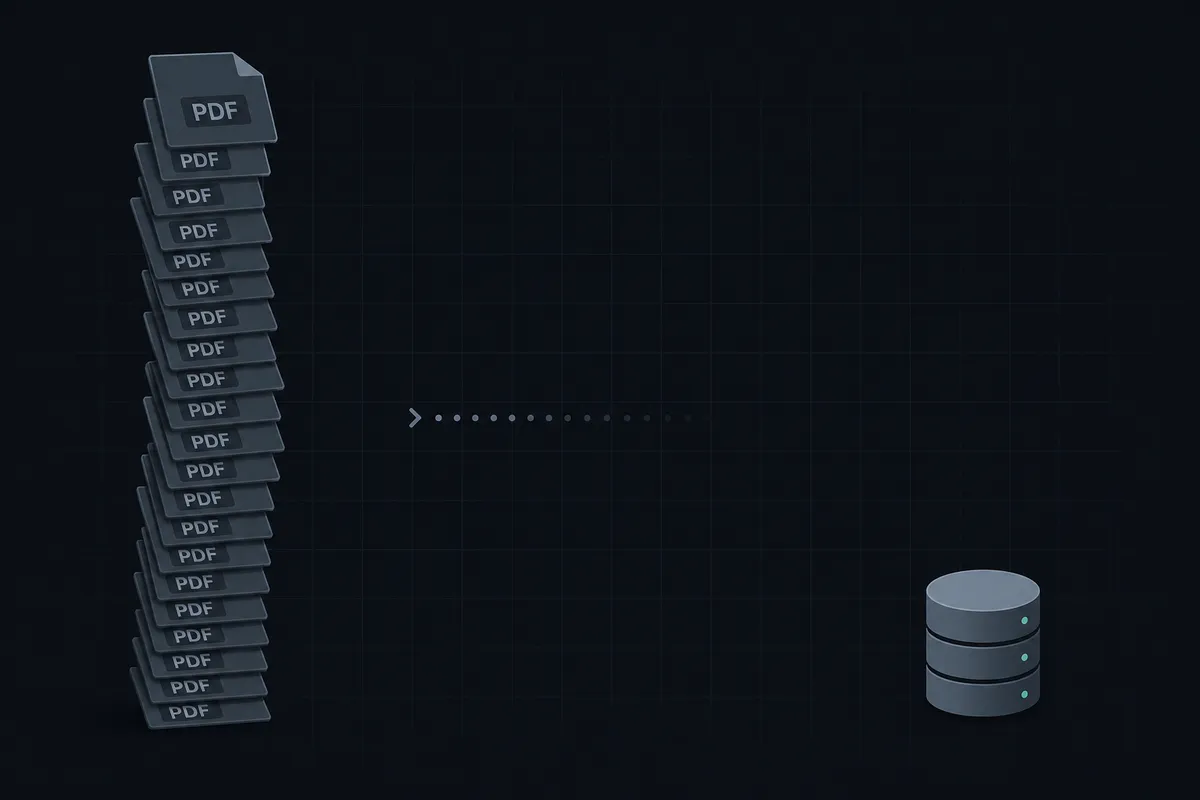
The Problem
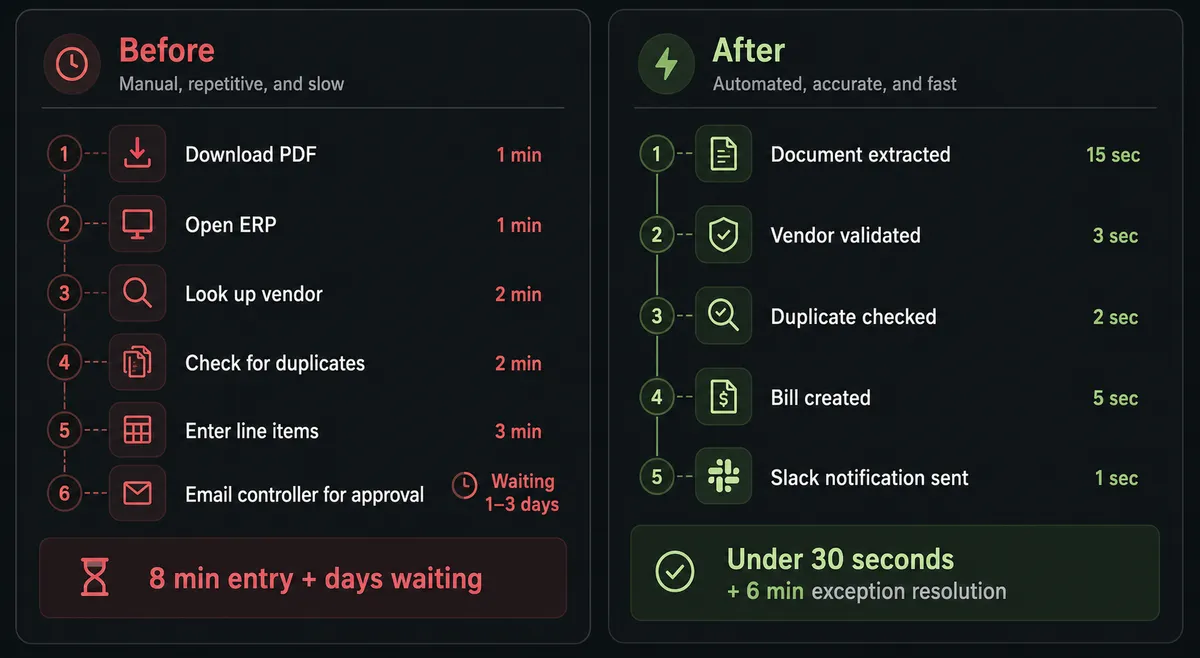
Every AP team knows the routine. A vendor invoice arrives by email. Someone downloads the PDF, opens it, and starts typing: vendor name, invoice number, line items, amounts, due date. Then they switch to the ERP to check if that vendor is approved. Then they search for duplicate entries. Then they tab over to Slack or email to ask the controller whether this amount looks right. Several minutes per invoice on a good day. Multiply that across a normal week, and you have a role that consists largely of copying data between systems.
The real cost is not just the time. It is the errors that accumulate silently. A transposed digit in an invoice amount. A duplicate bill that slips through because the reference number was entered differently. A vendor invoice that sits in someone’s inbox because they were out sick and nobody picked it up. These are the things that fall through the cracks, and they show up as duplicate payments, late fees, and reconciliation surprises.
The process spans three systems minimum: a document source (email, shared drive, vendor portal), an ERP where the financial records live, and a communication channel where humans make decisions about exceptions. Today, your AP clerk is the glue holding those systems together. That is not scalable, and it is not where you want your team spending their time.
The Solution
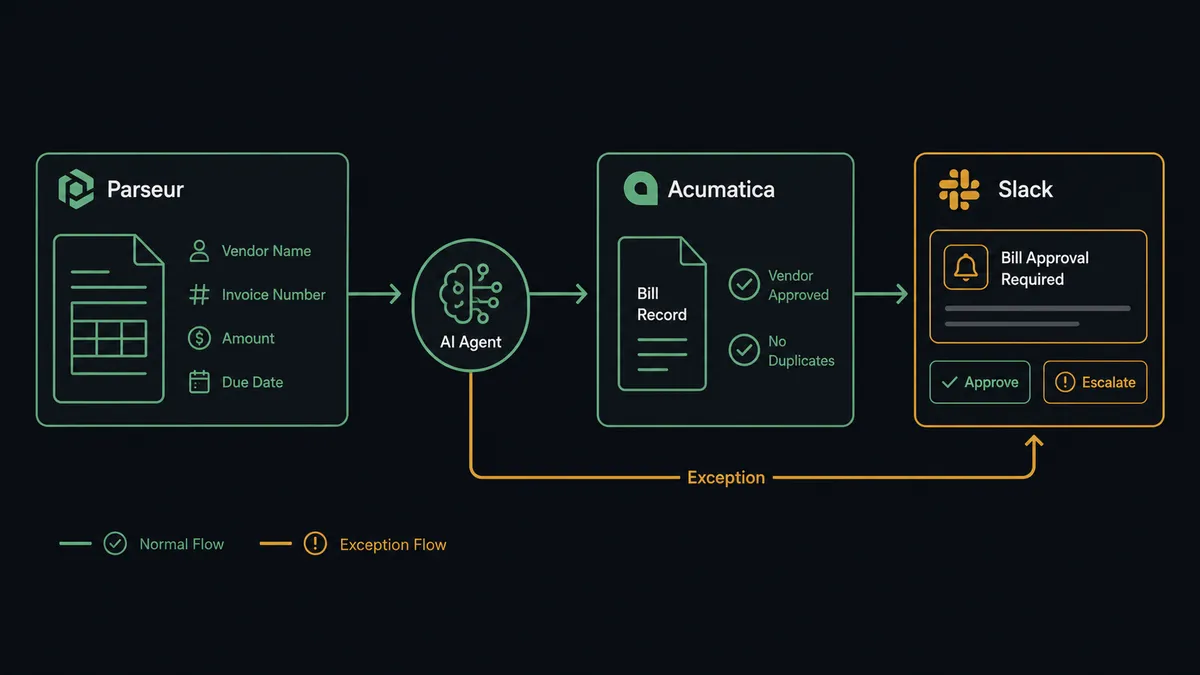
In FlowRunner, a single workflow handles the invoice lifecycle across all three systems. Documents arrive in Parseur, where they are extracted into structured data. The workflow receives that data and reaches into Acumatica to validate the vendor, check for duplicates, create the bill, and attach the original document. When the workflow encounters something it cannot resolve with confidence, it reaches into Slack to surface the exception with context and collect a human decision.
The workflow does not care that your data lives in three different systems. It treats them as one environment. Parseur is the document reader. Acumatica is where it acts on financial data. Slack is how it talks to your team. The workflow has tools from every system in its toolbox and decides which to use based on what the data tells it.
The end state: your AP team stops doing data entry. They review exceptions, make judgment calls on ambiguous invoices, and approve batches. The routine work runs without them.
Why This Requires Coordination, Not Point Automation
Simple automation can connect two systems with a trigger and an action. “When a document is processed, create a bill.” But that is a script, not a decision-maker. It cannot cross-reference the extracted vendor name against your approved vendor list in Acumatica before creating the bill. It cannot check whether a bill with the same reference number already exists. It cannot notice that this invoice amount is well above what this vendor usually bills and decide that a human should verify it before the bill hits your books.
These decisions depend on data from multiple systems simultaneously. Imagine a five-figure invoice from a vendor with ten years of clean history and a matching purchase order, then the same amount from a vendor onboarded last month with no matching PO. The first is routine. The second is not. The difference is only visible when the workflow holds context from the document parser, the ERP vendor history, and the bill records at the same time. FlowRunner’s coordinated workflow does exactly that. It reads from Parseur, cross-references in Acumatica, reasons about what it finds, and routes to Slack when it hits something that needs human judgment. The human-in-the-loop tool is available for any decision the workflow cannot make with confidence, and when it escalates, it packages context from all three systems into the message.
The Complete Workflow
Here is how the end-to-end process runs, from the moment an invoice arrives to the moment it is posted in your ERP.
-
Document arrives in Parseur. A vendor emails a PDF invoice to the AP mailbox. Parseur’s On Document Processed (Realtime) trigger fires the moment extraction completes. The structured data payload arrives: vendor name, invoice number, amount, line items, due date.
-
Workflow checks extraction quality. It evaluates whether the extraction succeeded. If Parseur flagged the document as a failed extraction (non-standard format, poor scan quality), the workflow routes it immediately to the ops team via Slack using Send Message to Channel: “Document extraction failed for [filename]. View the document and reprocess, or enter manually?”
-
Workflow validates the vendor in Acumatica. It calls Validate Vendor with the extracted vendor name. It confirms the vendor is approved and active in Acumatica. If the vendor does not exist or is inactive, the workflow pauses and notifies the AP team via Slack with the extracted vendor details and a prompt to create or reactivate the vendor record.
-
Workflow checks for duplicate bills. It calls Check Duplicate Bill with the vendor ID and the extracted reference number. If a bill with the same reference number already exists, the workflow does not silently skip or create a duplicate. It evaluates the match.
-
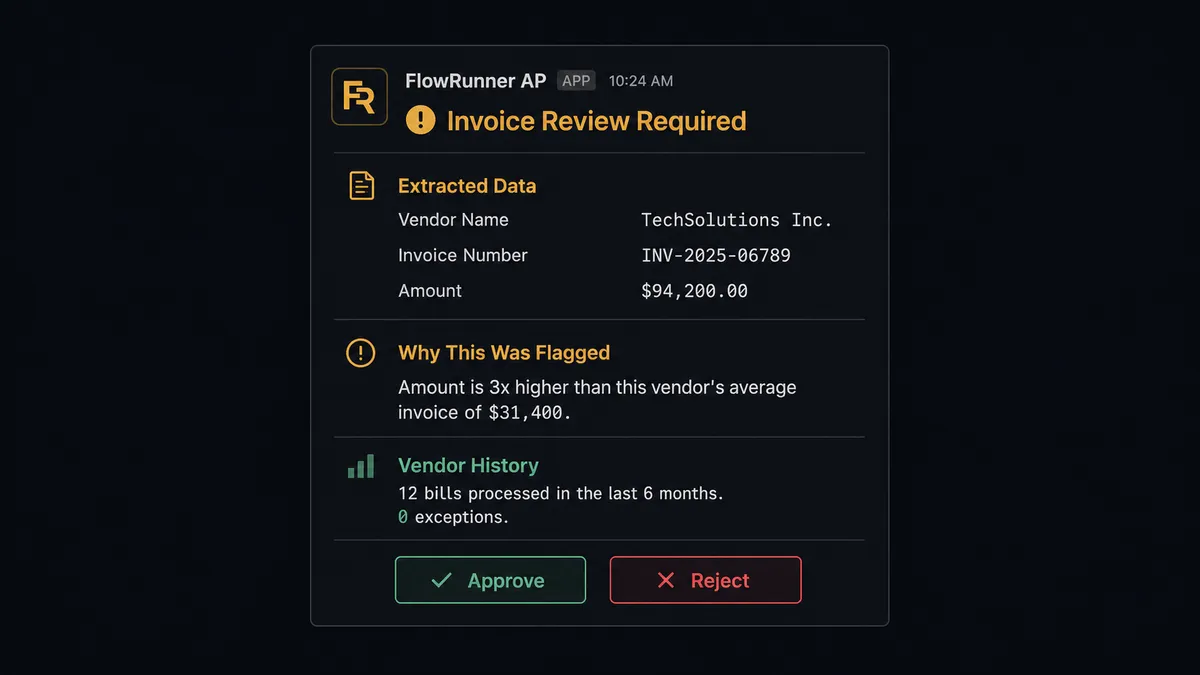
Workflow cross-references amount against vendor history. It pulls the vendor’s bill history using List Bills filtered by vendor. It calculates the vendor’s average invoice amount. If the current invoice is well above the vendor’s typical range, the workflow flags it for review. It also checks whether the amount aligns with any recent purchase orders or outstanding commitments.
-
Workflow creates the bill in Acumatica. If all checks pass, it calls Create Bill with the extracted data: vendor, reference number, amount, line items, due date, and GL account mapping. The bill is created in Hold status.
-
Workflow attaches the original document. It calls Attach File to Bill, linking the original PDF invoice to the Acumatica bill record. The source document is always available for review.
-
Workflow notifies the AP team via Slack. It posts to #accounts-payable using Send Message to Channel: a structured summary of the bill just created, including vendor name, amount, reference number, and a link to the Acumatica record.
-
Workflow invokes human review when needed. When the workflow finds a near-duplicate (same vendor, similar amount, different reference number) or an amount well above the vendor’s average, it invokes the human-in-the-loop tool. The AP manager receives a Slack message with context from all three systems: the extracted data from Parseur, the vendor history and existing bills from Acumatica, and the specific reason for escalation. Interactive buttons (Approve, Reject, Review in Acumatica) let the manager resolve the exception directly from Slack. The On Block Action trigger captures the decision.
-
Workflow releases approved bills. Once the AP manager approves bills (individually or in batch), the workflow calls Release Bill from Hold to move them into the payment pipeline.
What the Workflow Sees vs. What Humans See
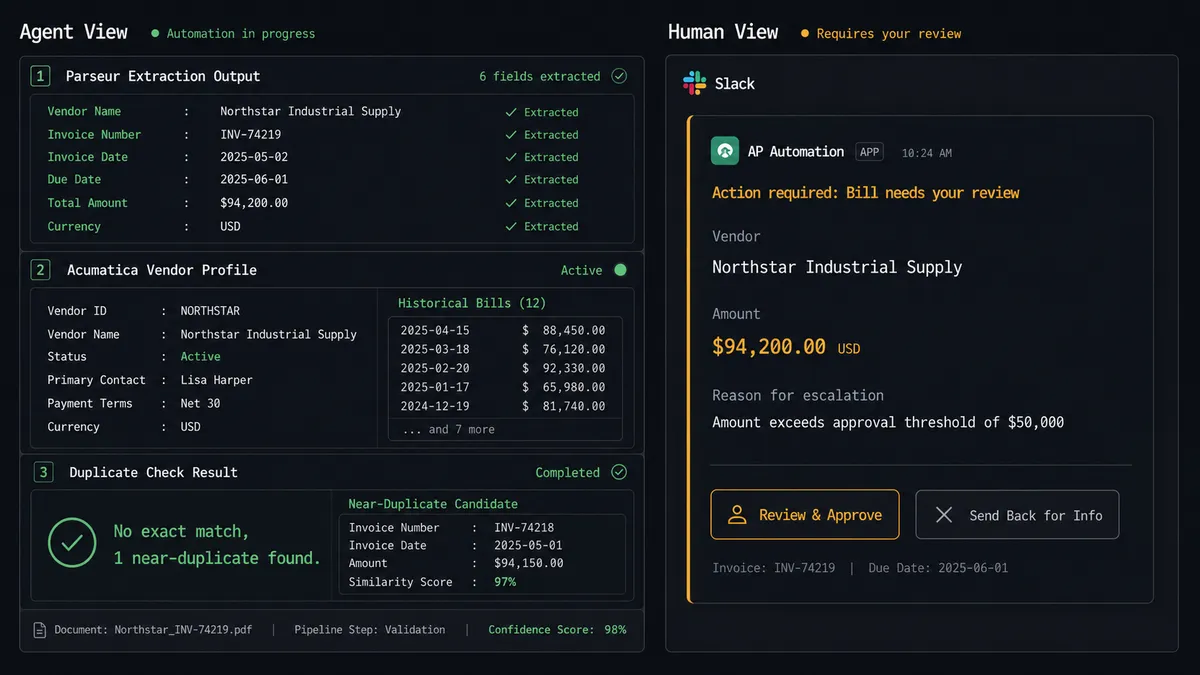
The workflow’s view spans all three systems at once. It holds the extracted invoice data from Parseur (vendor, amount, line items, due date), the vendor’s complete profile from Acumatica (approval status, bill history, average invoice amount, outstanding balances), and the duplicate check results. It cross-references all of this before making a decision.
When the workflow escalates, the human does not see any of that complexity. They see a clean Slack message: the vendor name, the invoice amount, the specific reason the workflow flagged it, and the relevant comparison data: this amount is well above the vendor’s typical range, no matching purchase order was found, and the vendor’s recent history is summarized for context. Approve or reject?
The workflow did all the research the AP manager would have done manually. It checked the vendor, pulled the history, looked for duplicates, compared the amount against the average, and searched for a matching PO. The manager just makes the final call.
Before and After
| Before | After | |
|---|---|---|
| Invoice processing | Manual data entry per invoice | Automated processing with structured extraction |
| Batch processing | Long manual passes per batch | Hands-off processing for batches of any size |
| Duplicate detection | No systematic checks; duplicates caught reactively | Every bill checked automatically before creation |
| Exception resolution | Email chains and meetings; days to resolve | Real-time exception handoff via Slack with context attached |
| Vendor validation | Manual lookup in ERP before every entry | Automatic validation on every invoice |
| Document format handling | Different entry approaches per vendor format | Format-agnostic extraction into consistent data |
| Decision history | Scattered across email threads and memory | Each decision recorded with identity and timestamp |
| Extraction failures | Sit unnoticed until someone checks the queue | Routed to ops team in Slack the moment they occur |
Getting Started
All three integrations used in this workflow (Parseur, Acumatica, and Slack) are available on every FlowRunner tier, starting at Growth ($45/mo). Every tier includes unlimited users and unlimited workflows.
Start on the free plan: 100 executions a month, every integration included, no credit card required, plus 14 days of Professional for new accounts. Any real email address works; disposable domains are not accepted.
Here is how to begin:
-
Connect your integrations. Set up your Parseur mailbox, connect your Acumatica instance, and authorize Slack for your workspace.
-
Build the human-in-the-loop subflow. Create a flow that sends a structured Slack message with Approve/Reject buttons and waits for the On Block Action trigger. This becomes a tool the workflow can invoke.
-
Configure the workflow. Give it access to all three integrations plus the human-in-the-loop subflow. Set its instructions: validate vendors, check duplicates, flag amounts well above the vendor’s average, and escalate anything ambiguous.
-
Run a pilot batch. Forward a small set of vendor invoices to your Parseur mailbox and watch the workflow process them. Review the exceptions it surfaces. Adjust its instructions based on what you see.
Most teams have a working AP workflow within a day. The workflow handles the volume. Your team handles the judgment calls.
Start your free trial at flowrunner.ai or book a walkthrough with the FlowRunner team.