PDF Data Extraction to Excel: A Workflow Pattern Finance Can Actually Trust
A field-level extraction pattern that lands recurring PDFs as Excel-ready rows, with a reviewer in the loop for low-confidence fields and format drift.
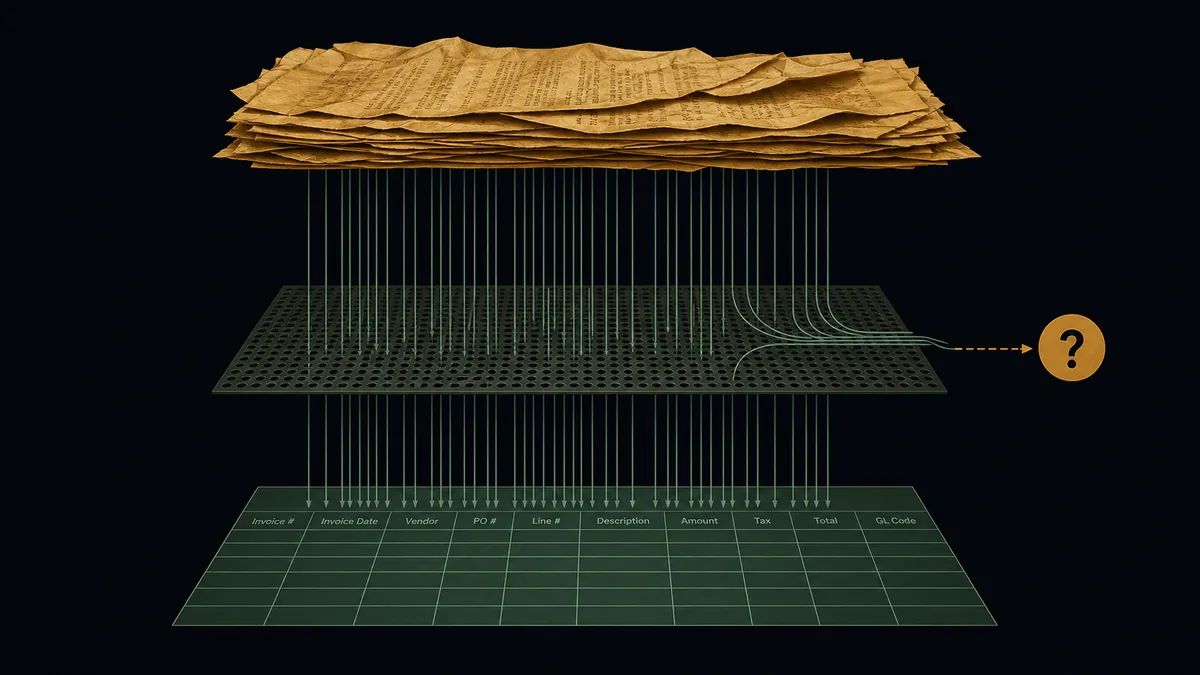
PDF-to-Excel extraction does not break at parsing. It breaks at the exceptions, the low-confidence fields, and the vendor format changes that quietly corrupt the spreadsheet finance opens at month-end. The honest read, which most extraction guides will not say, is that the conversion step is the easy part; the engineering work is everything that decides whether a row gets appended, kicked out for review, or silently overwrites something it should not.
This article documents the pattern we run inside FlowRunner when a recurring PDF needs to land as Excel-ready rows with a reviewer in the loop. It is opinionated. The opinion is that the spreadsheet at the bottom of the workflow is only useful if you trust every row in it.
Why generic PDF-to-Excel keeps failing finance teams
In conversations we have had with fractional CFOs and operating CFOs, the baseline is consistent. Someone opens each recurring PDF (vendor invoice, distributor billback statement, brokerage report), types or copy-pastes the fields into a tracking workbook, and a senior reviewer spot-checks before the file is uploaded into anything else. Excel sits at the bottom of the pipeline as a staging layer before the ERP, the cash forecast, or the audit binder.
That baseline is not chaos. It is a working manual process that catches a lot of errors. The reason finance leaders are looking for automation is not that the manual process is broken. It is that it does not scale, and the aggregate burden of twenty small documents a month is the same as one large one.
Where it actually falls apart:
- Vendor format changes. The PDF that has been stable for nine months ships with a new layout. The previous extraction template silently produces partial rows.
- Missing or ambiguous line items. A statement has a header total that does not match the sum of its line items. The extraction returns a row anyway. The mismatch surfaces at month-end reconciliation when it is expensive to fix.
- Distributor billbacks. Multiple invoices in one PDF. The first one extracts fine. The rest get treated as continuation of the first.
- Confidence is reported at the document level, not the field level. The extractor says “95% confident” overall. The total amount is the field that is wrong.
CFOs we have talked with describe this in the same words across calls: things fall through the cracks. Duplicate payments are a real risk when both parties make a payment against the same invoice. Catching the mismatch before payment, not after, is the primary use case finance leaders treat as non-negotiable.
That is the failure mode the pattern below is built against.
What structured extraction into Excel actually requires
A few things have to be true before extracted PDF data is safe to land in an Excel workbook that finance will rely on. None of these are FlowRunner-specific. They describe what the workflow has to do; FlowRunner is one place to do it.
- A canonical row schema decided up front. Vendor, invoice number, date, line items, totals, tax, source reference. Field types are committed. Optional fields are explicitly marked optional. The schema is the contract between the extractor and the workbook.
- Field-level confidence, not whole-document confidence. The extractor returns a score per extracted field. Total amount at 0.62 confidence routes the document to review even if vendor name is at 0.98.
- A reshape step between raw extraction and the workbook. Raw extracted fields rarely match the row schema shape. Names need normalization, dates need format coercion, line items need flattening or aggregation. This is its own block in the workflow, not a side effect.
- An exception path that does not corrupt the workbook. Low-confidence rows, format drift, and duplicate references do not append. They pause for a reviewer.
- An audit trail tying each row back to the source PDF page. When a controller spot-checks a row in October that was appended in March, the link to the source has to still be there.
If any of these is missing, the spreadsheet is fragile. The pattern below puts them in place.
The FlowRunner pattern, end to end
Here is how the workflow runs. Each step maps to a block in the FlowRunner editor; the integration shapes are real, but the specific field names depend on which extractor and which Excel destination you choose.
1. Trigger: a new PDF arrives. Mailbox, Google Drive folder, S3 drop, or a Parseur inbox. Any of these can be the trigger. For recurring vendor PDFs that arrive by email, the Mailbox trigger filtered by sender and subject is the common shape.
2. Extract: structured fields pulled with confidence scores. The extraction step returns an object: each extracted field carries a value and a confidence score. The model you pick (Parseur, an LLM-backed extraction prompt, a vendor-specific template) controls the shape, but the workflow expects field-level scores. If the extractor only returns a single document-level score, the workflow treats every field as that score, which collapses the value of the pattern. Pick an extractor that reports per field.
3. Transform: reshape raw fields into the target row schema. This is the Transform Data block. It does the work between “extractor output” and “Excel row.” Normalize the vendor name against your vendor list. Coerce the date format. Flatten line items into a single string or aggregate them to a total. Compute the row signature that will be used for duplicate detection. The output of this block is one object that matches your row schema exactly.
A short version of what that block’s mapping looks like in the FlowRunner workflow JSON:
{
  "type": "transform_data",
  "name": "Shape Excel Row",
  "input": "{{extract.output}}",
  "mapping": {
    "vendor": "normalize(input.vendor_name)",
    "invoice_number": "input.invoice_no",
    "invoice_date": "format_date(input.invoice_date, 'YYYY-MM-DD')",
    "total": "to_number(input.total_amount)",
    "tax": "to_number(input.tax_amount)",
    "source_pdf_url": "{{trigger.attachment_url}}",
    "row_signature": "hash(input.vendor_name, input.invoice_no)"
  }
}
That is a sketch of the mapping, not the full workflow JSON. The Transform Data block reference covers the full shape and the expression library.
4. Branch on per-field confidence and on duplicates. A conditional block evaluates two questions. First: is every required field’s confidence above the threshold? (We set 0.85 as a starting default; the right number is workflow-specific and is the first thing you tune in week two.) Second: does this row signature already exist in the workbook? Both checks have to pass to take the auto-append path.
5. The high-confidence path: append to Excel. If both checks pass, the workflow calls the Excel integration to append the row to the target sheet. The row carries the source PDF URL in a column dedicated to that link. Every appended row is one click from its source.
6. The exception path: pause for a reviewer. If any field is low-confidence, or if a duplicate signature is detected, the workflow does not write to the workbook. It packages the extracted fields, the confidence scores, a link to the source PDF, and the specific reason for the pause, then sends the package to a reviewer through Slack, WhatsApp, or email depending on how the human-in-the-loop step is configured. The reviewer corrects the fields, confirms or rejects, and the workflow resumes. On confirmation, the corrected row appends to the workbook. On rejection, the document is logged and dropped.
7. Notify: ping the team when something needs eyes. A Slack message to a finance channel when an exception is waiting, or a batch-complete summary when an overnight run finished. The notification is the surface; the workflow is the substance.
The result, when this runs cleanly, is that 80-90% of recurring documents append without intervention, and the rows that do appear in Excel have a known provenance and a confidence floor. The other 10-20% surface as exceptions in the channel where the reviewer already works, with everything they need to make the call attached.
Handling the messy cases finance actually sees
The cases below are where this pattern earns its keep, because they are the cases generic PDF-to-Excel converters cannot handle by design.
Distributor billbacks where line totals do not match the header total. The Transform Data block computes the sum of line item amounts and compares it to the extracted header total. If they do not match within a tolerance, the row is flagged before append. The reviewer sees both numbers, the line-item detail, and the source PDF page. They decide whether to correct the line items, correct the total, or kick the document back to the vendor.
Multi-page statements where one PDF contains several invoices. The extractor returns an array, not a single object. The workflow iterates the array; each element runs through the same transform-and-branch logic. If the extractor flattens multi-invoice PDFs into a single document, the pattern still works but the duplicate detection becomes critical, because two PDFs with overlapping invoices will produce repeated signatures.
Vendor format changes that break a previously stable template. This shows up as confidence collapse on previously high-confidence fields. The reviewer sees the format drift in the message context and either updates the extraction template (Parseur) or escalates to whoever owns the parsing layer. The workbook is not touched until the template is fixed.
Duplicate detection before the row is appended. The row_signature column on the workbook is the duplicate guard. Before appending, the workflow lists existing rows and checks for signature collisions. A collision pauses for review with both rows attached.
Format-drift detection without an obvious confidence drop. Sometimes the extractor returns a high-confidence value that is wrong (a wrong field mapped to the right slot because the layout shifted). This is the hardest case; the pattern does not catch it automatically. The only defense is sampling: route every Nth document through a reviewer even when all confidence scores pass. We tune this rate down as a template stabilizes.
When Excel is the right destination and when to graduate
Excel is the right destination when the dataset is being analyzed, reviewed, or staged before something else happens to it. Distributor billbacks that need a controller’s eyes before being chased. Brokerage statements that get reconciled against an internal ledger once a month. Recurring reports that feed an FP&A model. In all of these, the spreadsheet is the working surface where humans look at the data, and writing into Excel is the right shape.
Excel is the wrong destination when the data has to post somewhere live. AP entry that needs approval routing. Cash forecasting that updates daily. Inventory adjustments that flow into a WMS. If the spreadsheet is being uploaded into an accounting system every month, the workflow should be writing to that system directly. The signals that it is time to graduate:
- The spreadsheet is being re-imported into the same system every month
- Multiple people edit the spreadsheet between extraction and upload
- The dataset is part of a closing process with an audit requirement
- Two teams disagree about which copy of the spreadsheet is current
When any of those is true, the destination should change. The extraction pattern stays the same. The reshape step now targets the ERP’s bill or journal entry shape instead of an Excel row, and the workflow writes to the ERP through its API. The cross-link below to ERP-backed AP patterns covers what that looks like in practice.
This is also where the broader category positioning becomes the point. PDF extraction is one seam in a larger orchestration problem: documents arrive in one system, get reshaped against rules that live in a second system, land in a third, and require human judgment from the team that sits between all of them. That orchestration layer (a system above the systems of record that listens for what they emit, gathers context the rule did not have, and pulls a human in at the moments that need judgment) is the category. FlowRunner is built for that layer. The Excel destination is the entry point. The graduation path is what makes the pattern durable.
What to build first
The temptation with a pattern like this is to try to handle every document type at once. Resist it. The week-one build is one recurring PDF type with high volume and a stable schema. Pick the document that costs your team the most hours and has the cleanest structure.
A reasonable build order:
- Define the Excel row schema before touching extraction. Decide which fields are required, which are optional, and which carry the audit-trail reference. Write the column headers in the workbook first.
- Configure the extractor on a sample of 20-50 documents until field-level confidence is consistent. Do not start with the workflow; start with the extractor output.
- Set the confidence threshold deliberately. Start strict (0.90+) and loosen as you build trust in the extraction. A high threshold sends more documents to review at first; that is how you find the edge cases.
- Add the audit-trail column from day one. Retrofitting a source-PDF link three months in is harder than building it in at the start.
- Run the workflow alongside the current manual process for two to four weeks. Compare the appended rows against the manually-entered ones. Tune the threshold and the transform mappings based on what you see.
- Expand to the next document type only after the first one has been running clean for a month.
Where this pattern fits in the broader stack
The pattern above is the staging-layer version of document extraction. Two adjacent patterns share most of the same shape but land the data somewhere else:
- Route failed extractions to a human reviewer when the destination is exception routing, not Excel.
- When extracted data should land in an accounting system instead of Excel, the same field-level confidence and human-in-the-loop pattern targets QuickBooks bill creation.
- Graduate from spreadsheets to ERP-backed AP covers the Acumatica equivalent, where the row is replaced with a bill record.
- Structured extraction into NetSuite is the NetSuite version of the same pattern.
- What AP automation looks like beyond extraction walks through the full AP lifecycle after extraction is solved.
Each of these is the same extraction-and-reshape spine with a different destination. Picking the right destination is the most important architectural decision; the extraction pattern itself is largely the same regardless.
A note on what this pattern is designed to do, not measured to do
Everything above describes a design pattern. The choices (field-level confidence, transform-then-branch, audit-trail column, reviewer in the loop on threshold breach) are intentional architecture, not measured outcomes. We have not published a benchmark of “X% of documents auto-append” because the answer depends on the document type, the extractor quality, and the threshold you choose. What the pattern is designed to do is make the failure modes visible, surface low-confidence fields to a human before they land in the workbook, and tie every appended row back to the document it came from. The compounding effect (one type of document running clean, then two, then five) is what produces the time-back numbers finance leaders care about. The pattern is the substrate. The numbers come later, when it is running on your documents.
The Midnight Flow practice describes the same architectural pattern across multiple fractional-CFO engagements: extracted PDF data routed to a staging layer with a reviewer in the loop before it gets escalated to a system of record. The Midnight Flow case study on scaling a fractional CFO practice covers the broader shape. (Midnight Flow is FlowRunner’s partner consultancy, founded by the same team.)
For the platform-side details of the blocks referenced above, see the FlowRunner documentation.
Frequently asked questions
Can FlowRunner extract data from PDFs straight into Excel?
Yes. The pattern is field-level extraction with confidence scoring, a Transform Data step that reshapes the extracted fields into a predefined Excel row schema, and an Excel write step that appends the row. Low-confidence fields and format drift pause for a human reviewer before the workbook is touched.
Why not just use a generic PDF-to-Excel converter?
Converters produce a grid that matches the visual layout of the PDF. Finance needs rows that match a defined schema (vendor, invoice number, date, line items, totals, tax) and pivot cleanly. A grid is not a schema. The workflow pattern decides up front what the row looks like and reshapes raw fields into it.
When should I keep extraction in Excel versus moving it to an ERP?
Excel is the right destination when the dataset is being analyzed, reviewed, or staged for upload. It is the wrong destination when the data needs to post to AP, hit approval routing, or feed live cash forecasting. If the spreadsheet is being uploaded into an accounting system every month, the workflow should write to that system directly.